Every client you work on in Tax Optimiser is an organisation in your firm’s list. There are four ways to add one: search Companies House, type a name, connect QuickBooks or Xero, or fill in the full details form. This article walks through each, and what to finish off afterwards.
Where to start
Click Organisations in the left-hand menu to see your client list, then Create at the top right.
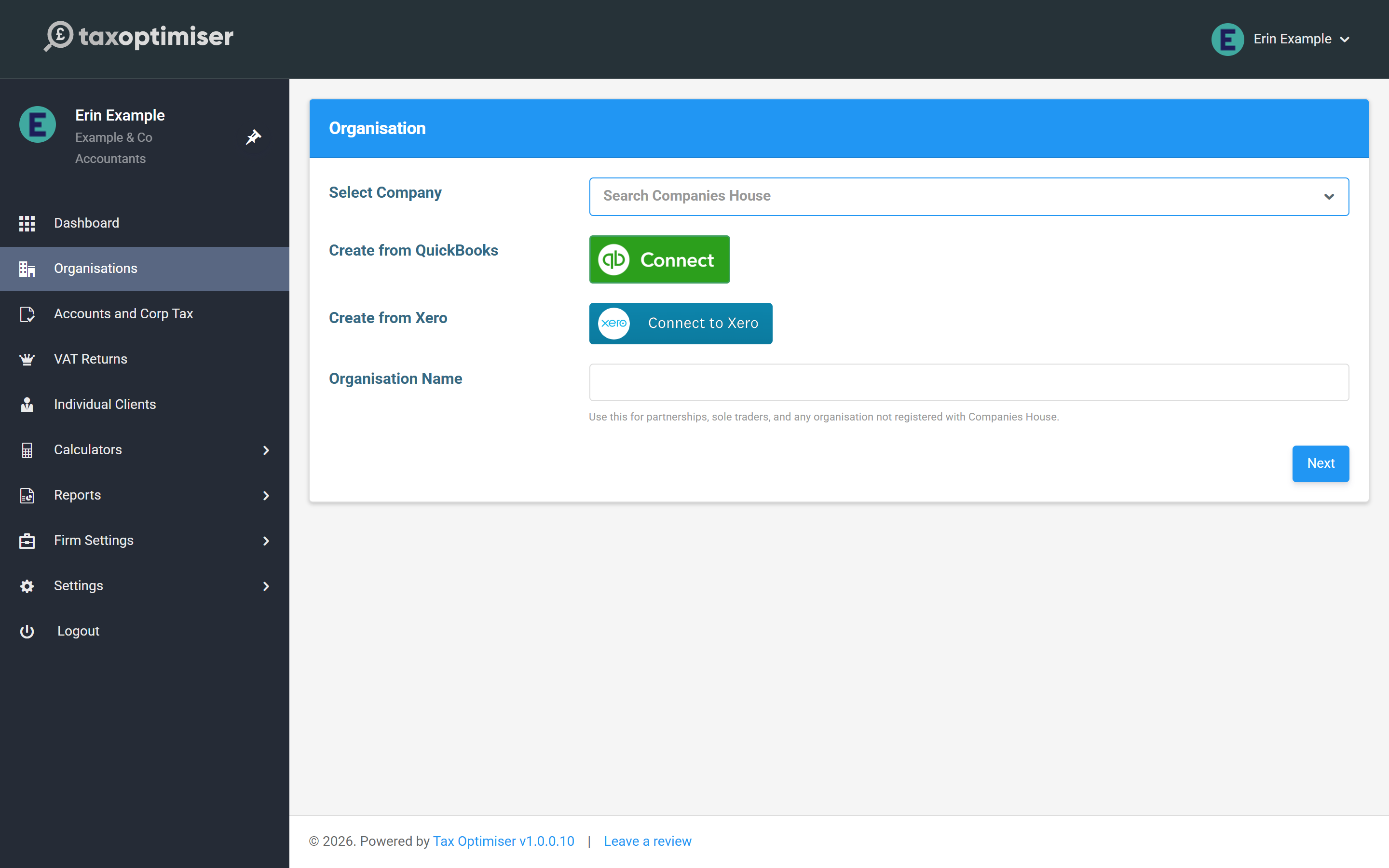
Create opens one page with the three quick ways of adding a client. Use one of them, then press Next.
The quick way: the Companies House lookup
Use this for any company on the Companies House register.
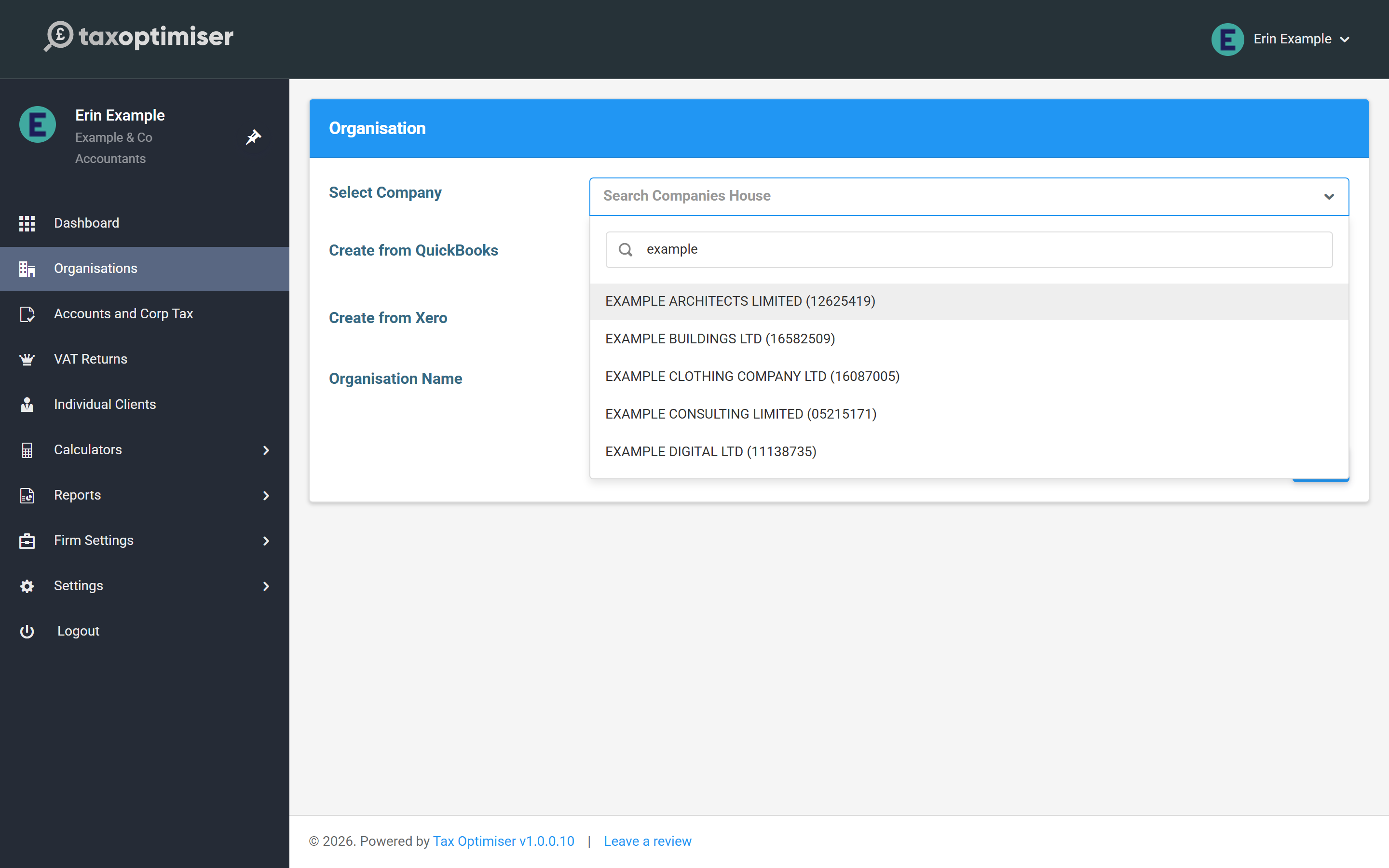
- Click Select Company and type three or more characters of the company’s name. The live register is searched as you type, and each result shows the registered name and company number.
- Pick the company. Check the number, because many companies have similar names.
- Press Next.
Tax Optimiser then does the setup for you. It creates a limited company with the registered name, company number, registered office address and incorporation date from the register, and builds the first accounting period from the company’s filing dates. What it can’t fetch is the authentication code, the six-character code Companies House posts to the registered office. Add that to the client’s record before you file.
The manual way: by name
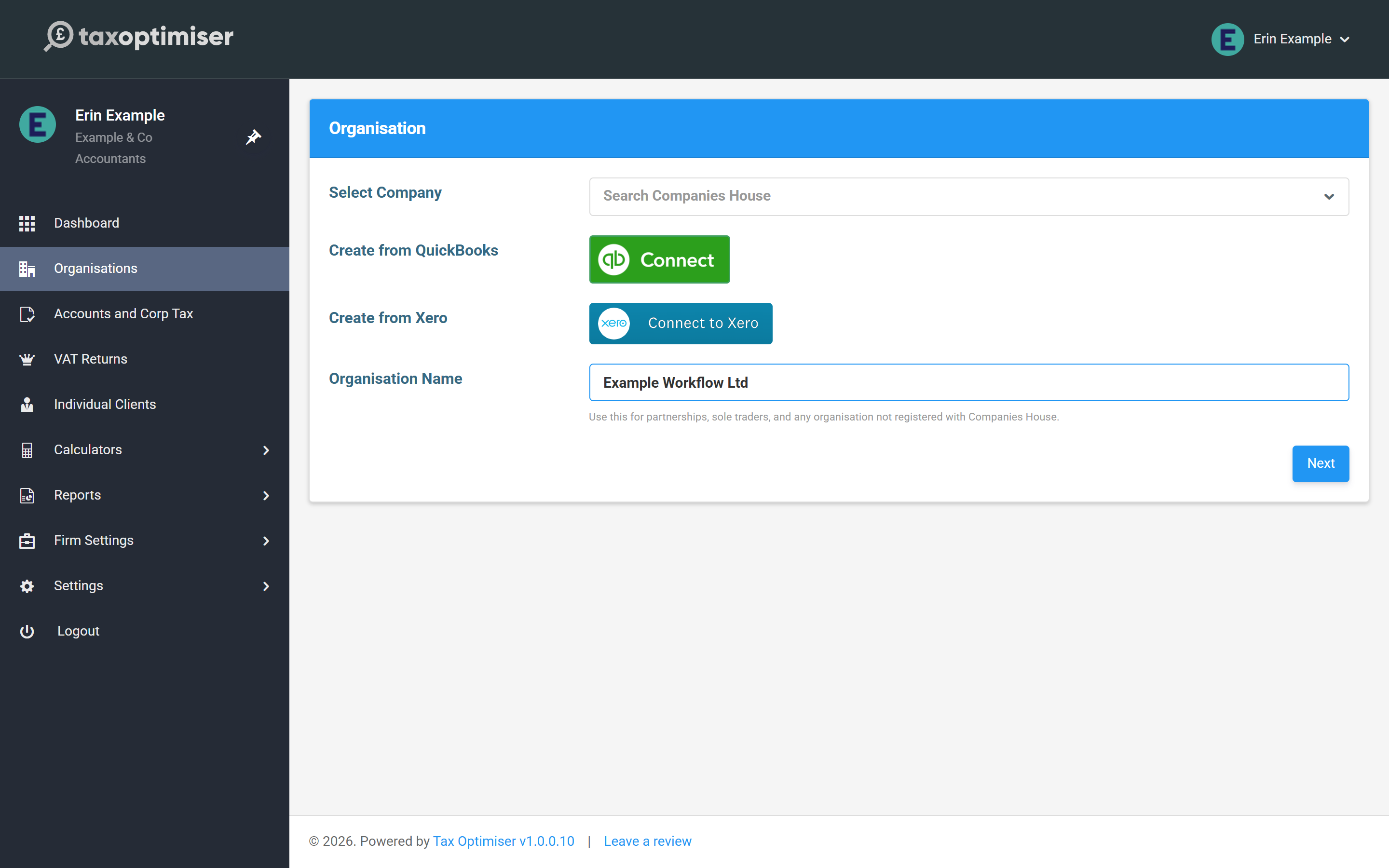
Type a name into Organisation Name instead and press Next. This creates an empty organisation with that name. It is the right path for partnerships, sole traders and anything else not on the Companies House register, and it works for a limited company you would rather set up by hand.
Nothing is fetched for you on this path, so the new organisation opens with only its name filled in.
From QuickBooks or Xero
The Create from QuickBooks and Create from Xero buttons create the organisation by signing in to the client’s accounting software. The company details come from that connection, and so does the trial balance later. The Companies House number and authentication code still need entering by hand, the same as the by-name path.
After you press Next: finish the details
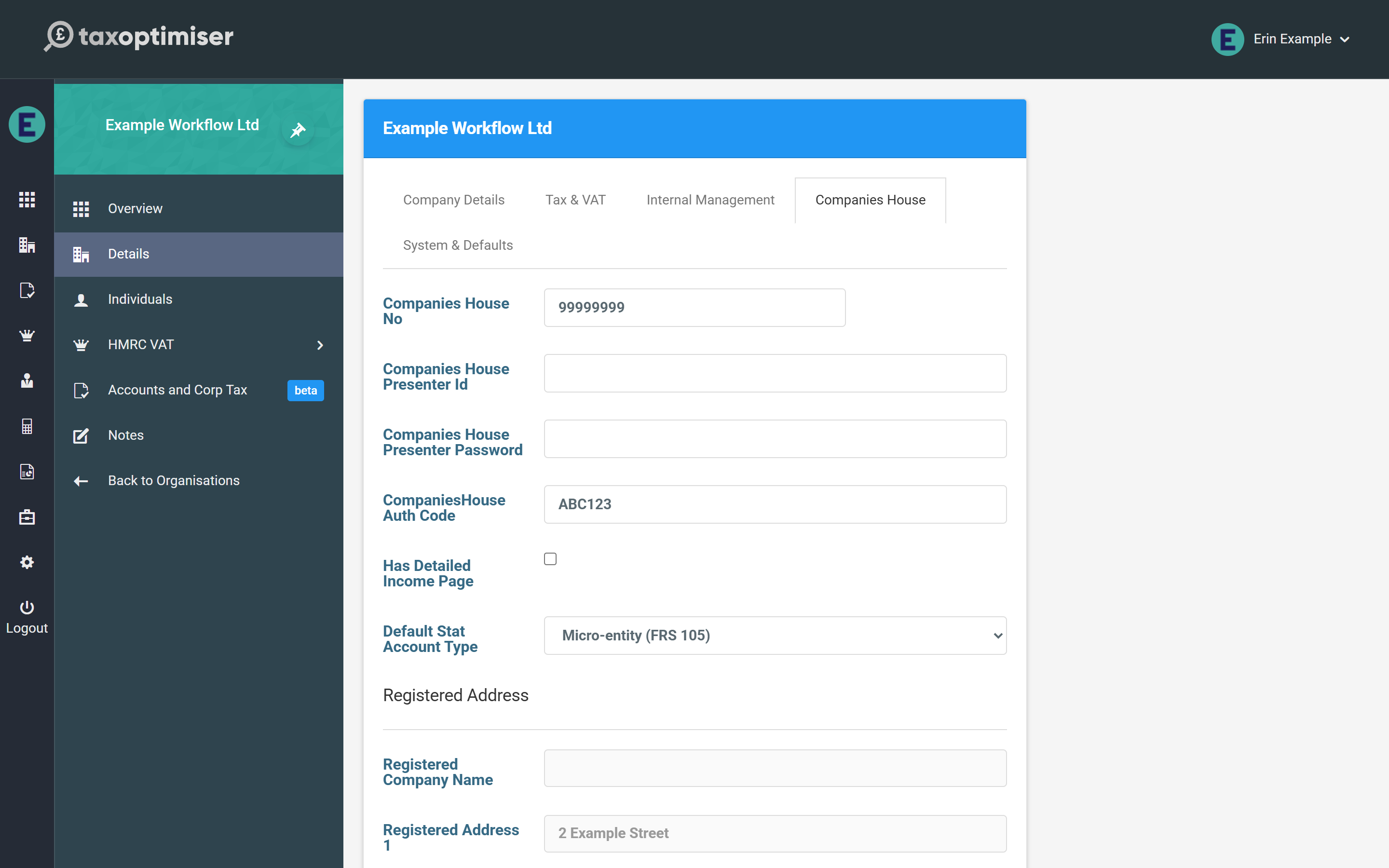
Whichever way you create it, you land on the new client’s Details page. The client’s own menu (Overview, Details, Individuals and so on) replaces the firm menu, and Back to Organisations returns you to your client list.
For a client created by name:
- On Company Details, choose the Organisation Structure (Limited Company, Partnership, Sole Trader and so on) and add the address. Click Save.
- For a limited company, a Companies House tab now appears. Enter the Companies House No there. It is 6 to 8 characters, and you include the leading letters for registrations outside England and Wales. The Companies House Authentication Code goes on the same tab.
- On Tax & VAT, enter the Corporation Tax UTR and any VAT registration number.
You cannot file accounts for a limited company until its company number is saved. Once the number is saved and the registered name has synced from the register, the number locks and a Sync button appears beside it. Use that whenever you want to refresh the registered details from Companies House.
The presenter fields on this tab can stay empty. Your firm’s presenter ID is used unless you enter one here: see Whose credentials file what: firm vs organisation.
The full details form
A firm with no clients yet sees Add your first client on its dashboard. The Add a client button there, and the Create your first client organisation step in the setup checklist, open a longer form instead of the quick page.
The form takes everything in one go: Organisation Name, Company Industry, Organisation Type, Limited By, the Community Interest Company (CIC) tick box, your own Organisation Reference, the Companies House, VAT, Corporation Tax and PAYE references, the staff responsible (Accountant, Manager, Partner), the incorporation date and both addresses. Only the name is required. Click Save and you land on the same Details page.
If you type a Companies House number here, check it carefully. This form does not search the register, so nothing confirms the number belongs to the company you meant.
If you see “Possible duplicate”
Before a client is created, Tax Optimiser checks your firm’s clients for the same organisation name or the same Companies House number. If it finds one, the page comes back with a warning instead of creating the client:
- If the client is already in your list, leave the page and open it from Organisations. Nothing has been created.
- If you do want a second one, for example two clients that trade under the same name, click Create anyway.
The check runs on the Companies House lookup, the by-name box and the full details form. Names are compared ignoring capitals, but must otherwise match exactly. Clients created from QuickBooks or Xero are not checked.
Giving the client a login
A client organisation has no client users until you add one. Open the client, click Individuals in its menu, then Add New, and enter the person’s name and email address. If that email address already has a Tax Optimiser account, you are offered Send invitation instead, and the person accepts it after logging in.
Does it cost anything to add a client?
No. Adding a client organisation is free. Filing for a client uses your firm’s credits, which you buy once and spend across all your clients under Firm Settings.
Can I add a client that is not a limited company?
Yes. Create it by name, then set the Organisation Structure to Partnership, Sole Trader, Limited Liability Partnership, Unincorporated Association or Charitable Incorporated Organisation on the Details page.
Why is there no Companies House tab on my new client?
The tab only appears for limited companies. Set Organisation Structure to Limited Company on Company Details and save, and the tab appears.
Will Tax Optimiser stop me adding the same client twice?
It warns you. If your firm already has a client with the same name or Companies House number, you see a Possible duplicate warning and nothing is created unless you click Create anyway.
I added a client by mistake. How do I remove it?
On the Organisations list, open the menu in the client’s Action column. Archive hides the client and takes it out of your billing from that day; Delete removes it.