
Once your trial balance is uploaded, every line in it has to be matched to a common account before the figures can be used. This article covers that step in detail: finding the Imported Data tab, mapping rows by hand, using AI to suggest mappings (and why you must check them), and confirming the result. If you haven't uploaded a file yet, start with Import a trial balance from a spreadsheet.
What mapping is
Your bookkeeping system names its accounts however it likes — Staff Christmas party, Subs & memberships, Loan – J Smith. Tax Optimiser builds statutory accounts and the Corporation Tax computation from a standard chart of accounts, so each of your accounts (shown as the Organisation Nominal Account Name) is linked to one common account from that chart.
The common account you pick does two jobs at once:
- It decides where the figure appears in your accounts — which line of the profit and loss account or balance sheet, and which note.
- It decides how the tax computation treats it — for example, client entertaining and charitable donations have their own common accounts so they can be added back to taxable profit automatically.
A line that isn't mapped is left out of the report entirely, so the trial balance, accounts and tax computation will all be incomplete until every line has a common account.
Most lines map themselves
When you upload, the import matches each account name for you, first against the way your organisation mapped that account before, then against a shared library built from thousands of earlier imports. Everyday names such as Sales, Rent, Bank and Trade debtors are usually matched without you doing anything.
Mappings are remembered against your organisation's accounts. Once you have mapped Staff Christmas party, next year's import will map it the same way, so the job gets smaller every year.
Open the Imported Data tab
Open your accounting period and choose Trial Balance from the left menu. The screen has two tabs:
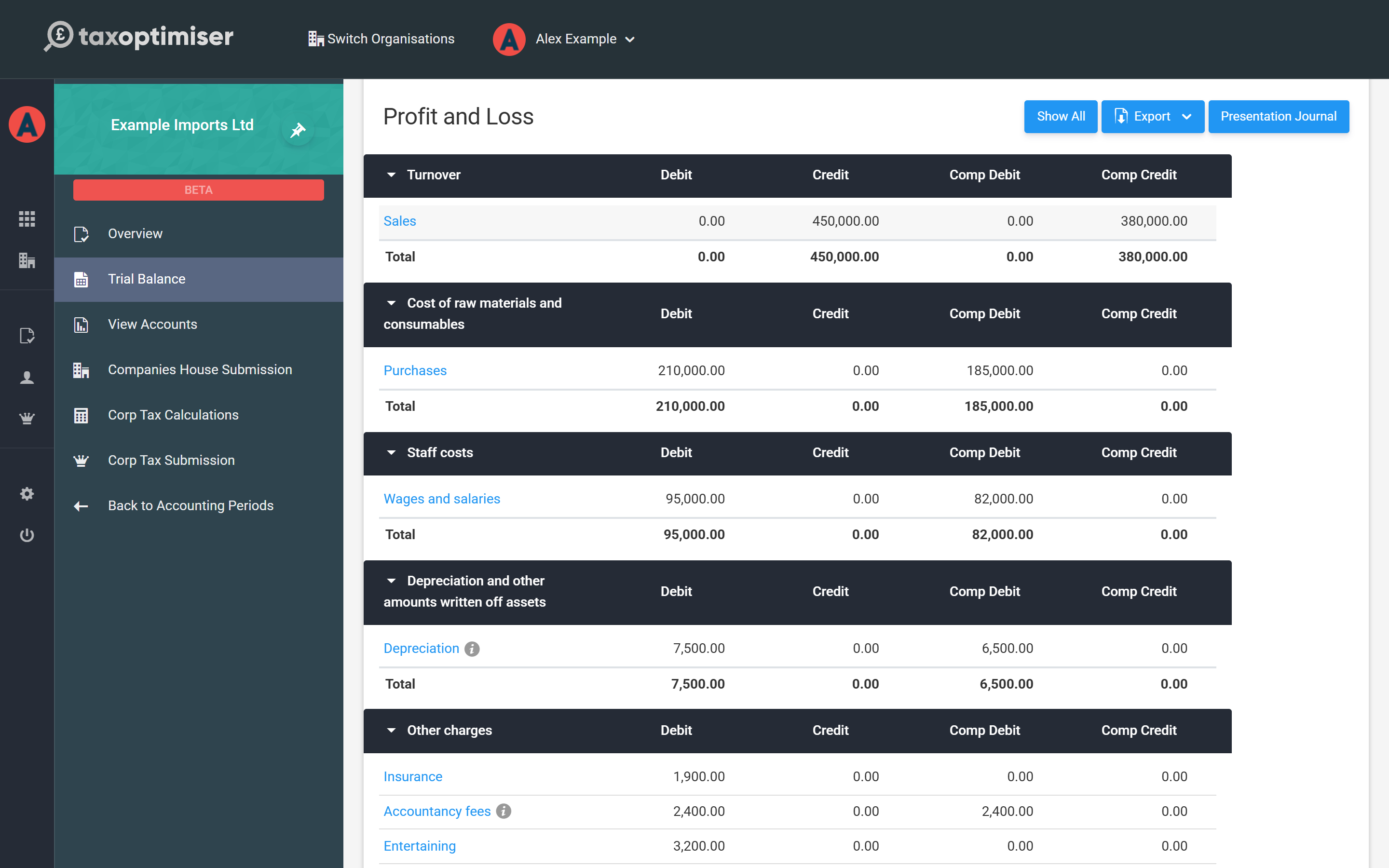
- Trial Balance — the result: your figures grouped under the common account headings, plus any journals.
- Imported Data — your file exactly as uploaded, one row per account, with the common account it is mapped to. This is where you do the mapping.
Click Imported Data to select it. When anything is unmapped the tab shows a red count, and straight after an upload the screen opens on this tab for you. If you're on the Trial Balance tab, the amber warning there has a Match button (for example Match 2 accounts) that takes you to it.

A warning at the top says how many accounts need matching. Once the last one is done it turns green — All accounts are matched — with a View trial balance button.
Needs mapping and All accounts
While anything is unmapped, the tab starts on Needs mapping, which lists only the rows you still have to deal with, highlighted in amber. Rows don't disappear the moment you map them — they stay on the list until you switch view, so you can correct a pick straight away.
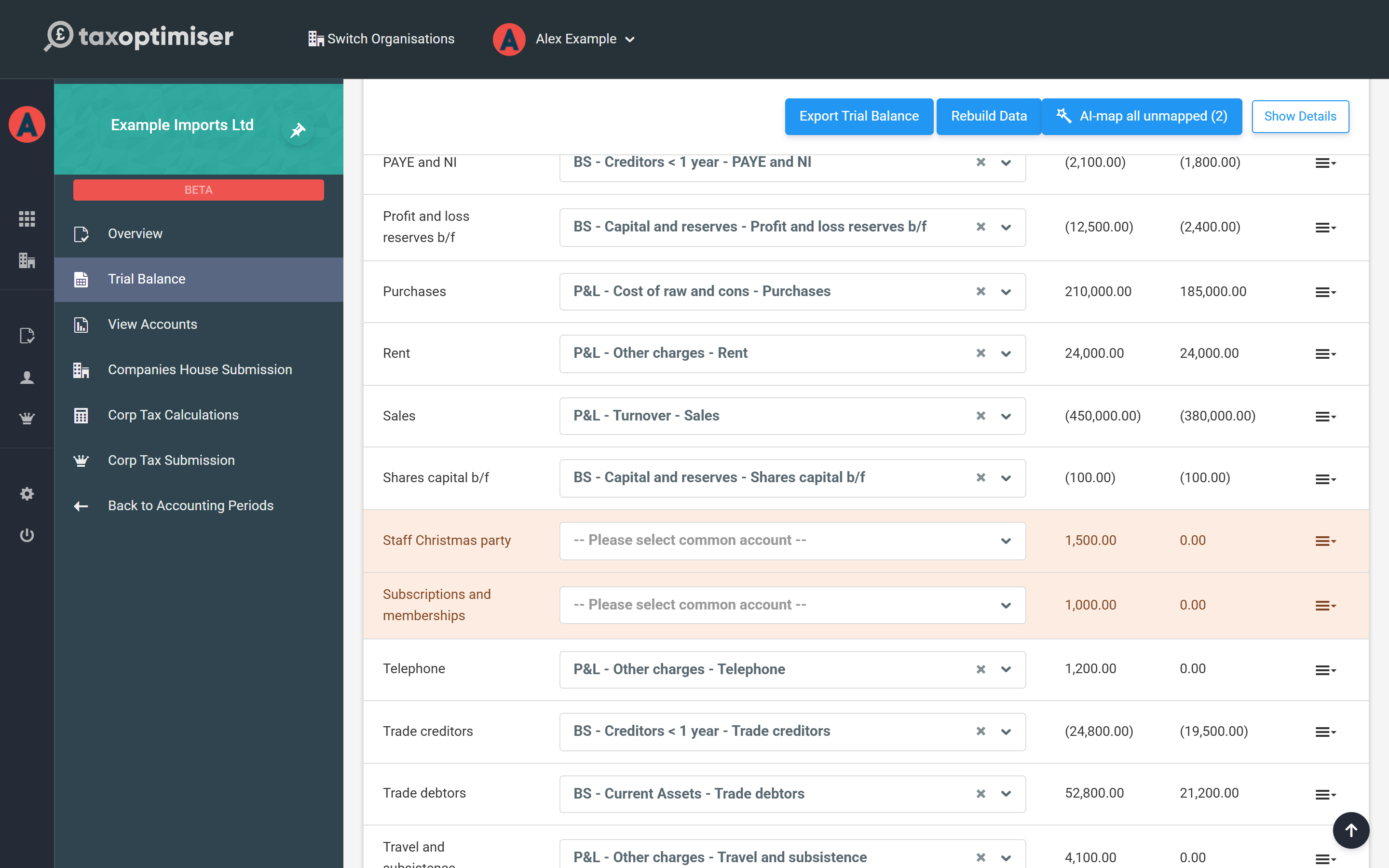
Click All accounts to see every imported line again. The Totals row only appears in this view, because totals of a filtered list would be misleading. Show Details adds the debit and credit columns behind each balance, for both years — useful when you need to see which side an account sits on.

Map a row yourself
Each row has a Common Account dropdown. Click it and start typing to search — for example, type entertain to see the entertaining accounts — then pick one. The choice is saved straight away and the Trial Balance tab is rebuilt behind the scenes.

Some guidance on choosing:
- Choose the most specific account that fits. Staff entertaining rather than General expenses; Charitable donations rather than Sundry expenses. The specific accounts are what let the tax computation and the notes pick the figure up correctly.
- Get the side right. A balance sheet account (an asset, liability or reserve) must go to a balance sheet common account, and an income or expense account to a profit and loss one. Mixing the two is the most common reason a trial balance stops balancing.
- Watch out for directors. Loans to or from directors, directors' salaries and dividends all have their own common accounts, and they feed disclosures and tax (such as the CT600A loans to participators supplement).
- Not sure? Ask. If you can't tell where something belongs, check with an accountant rather than picking the nearest-sounding account.
To change a mapping later, simply pick a different account in the dropdown. The new choice replaces the old one for this period and is remembered for future imports; it doesn't rewrite earlier periods. If the two tabs ever look out of step, Rebuild Data re-totals the Trial Balance tab from the imported lines and their mappings.
Let AI suggest a mapping
For names the automatic matching couldn't place, AI can suggest a common account. There are two ways to ask:
- Suggest with AI — open the row's actions menu (the ☰ icon at the end of the row) and choose it. This is only offered on rows that aren't mapped yet.
- AI-map all unmapped — the button above the table, showing how many rows it will try. It asks for every unmapped row in one go.

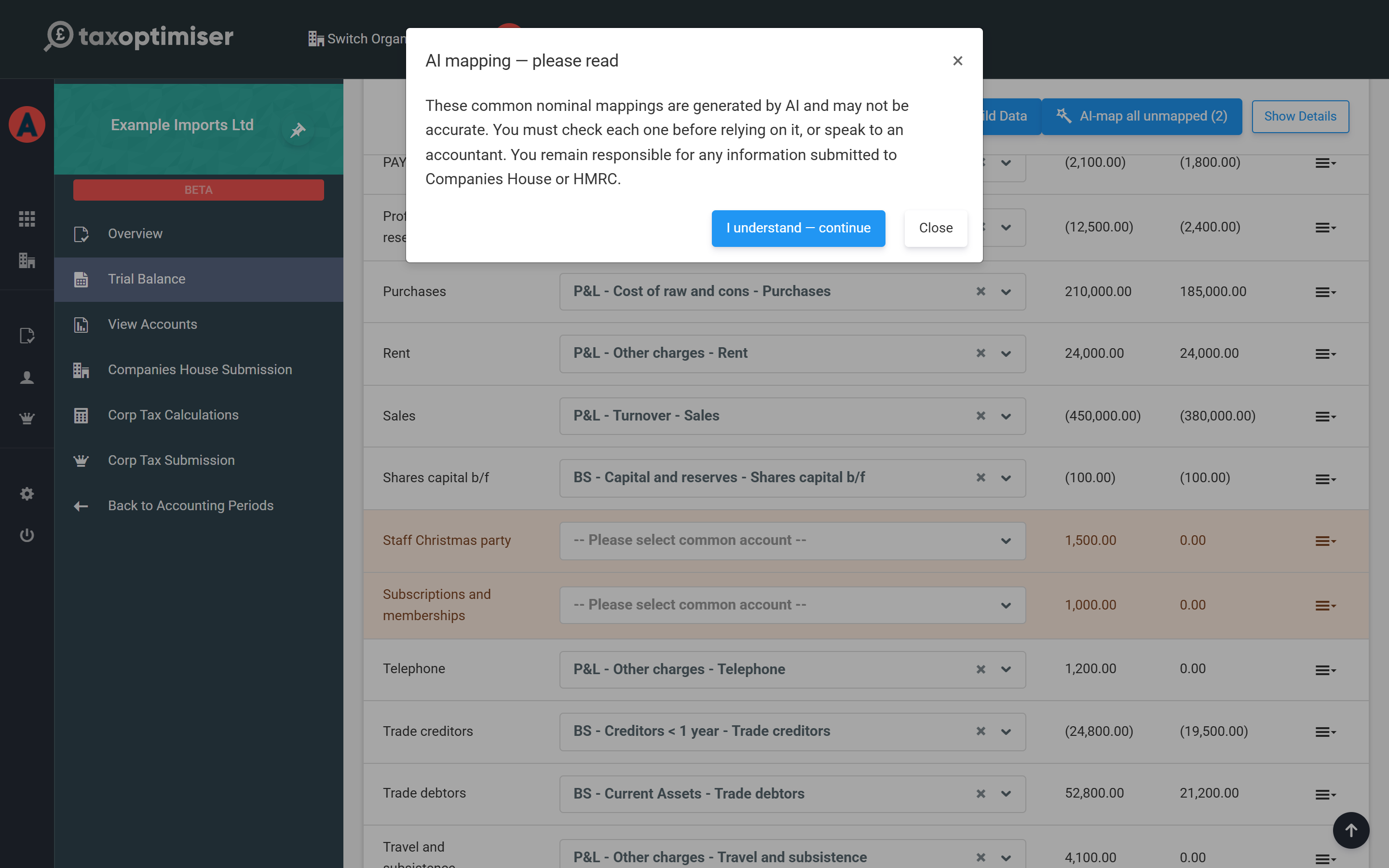
The first time you use AI mapping a notice explains that the mappings may not be accurate and that you must check them. Click I understand — continue; your browser remembers this, so you won't see it every time.
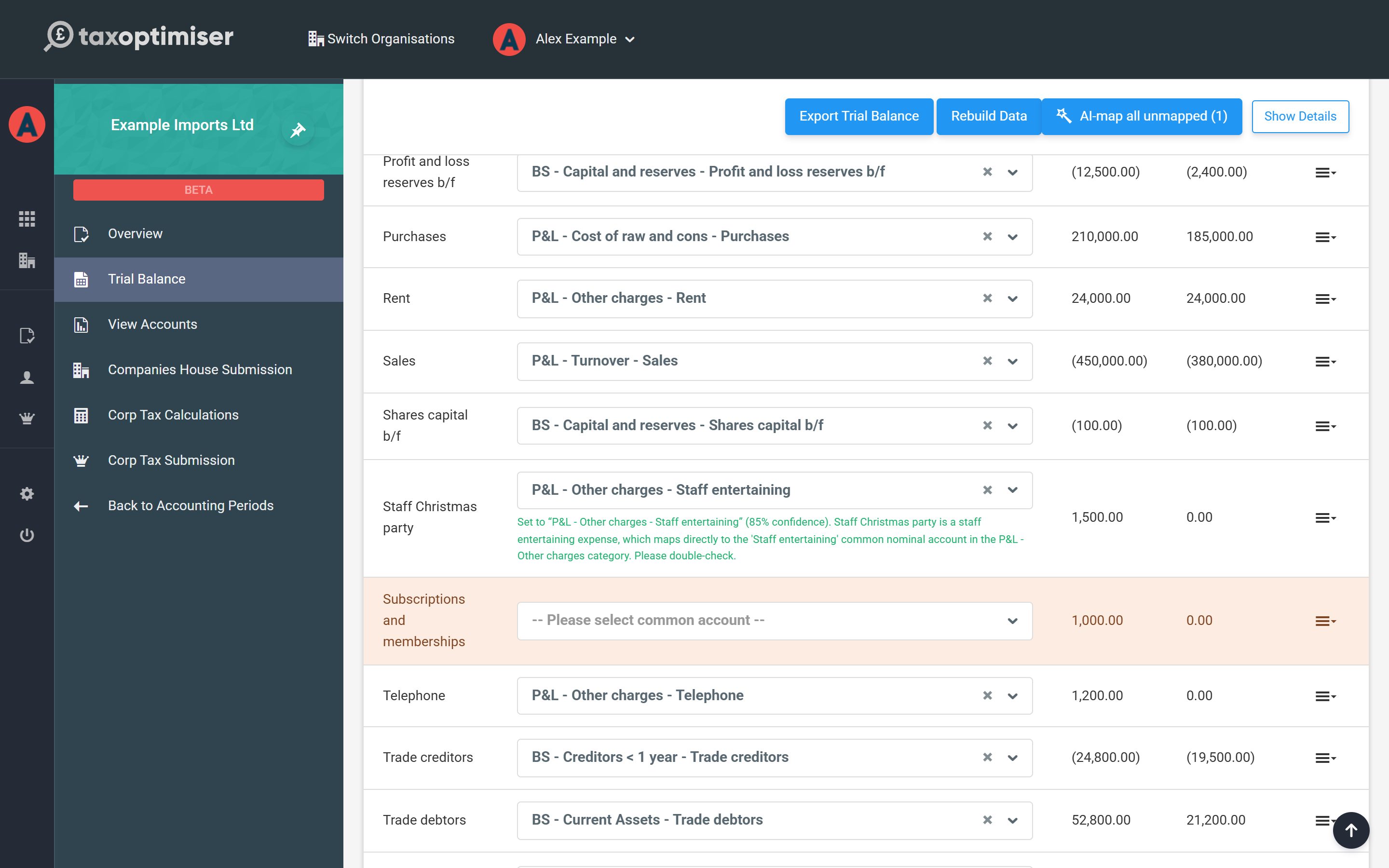
Each suggestion is applied to the row, with a line underneath showing the account chosen, the AI's confidence as a percentage and a short reason — so you can judge whether it makes sense.
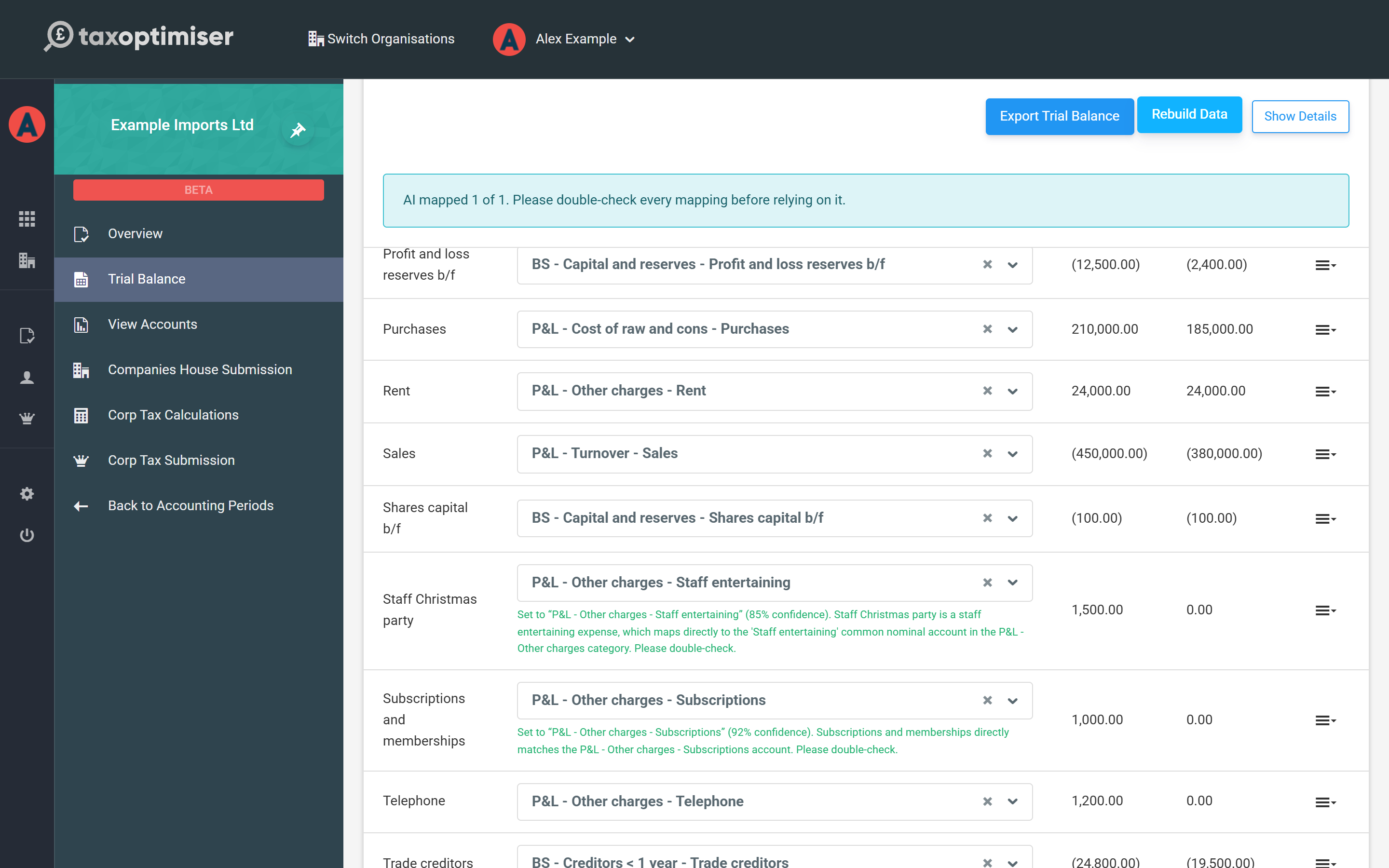
After AI-map all unmapped, a banner reports how many rows were mapped (for example AI mapped 2 of 2). Any row the AI couldn't decide on is left unmapped and still amber, with its reason underneath, for you to map by hand.
AI mappings can be wrong — check every one.
- The AI only sees the account's name and whether it is a profit and loss or balance sheet line. It doesn't see your transactions, invoices or how the account is really used, so an ambiguous name (Sundries, Suspense, J Smith) can easily be misread.
- A high confidence figure is the AI's own estimate, not a guarantee. A suggestion at 90% can still be wrong.
- It can choose an account that is too general, or one on the wrong side of the balance sheet, which affects both your accounts and your tax.
- Suggestions are a starting point, not advice. You remain responsible for everything filed with HMRC and Companies House — if you're unsure where an account belongs, ask an accountant.
Check the result
When every row is mapped, switch to All accounts and look at the Totals row: it should read 0.00 for both the current and prior year. If it doesn't, a red ? appears next to the totals explaining the usual causes — often an account mapped to the wrong side (balance sheet versus profit and loss).
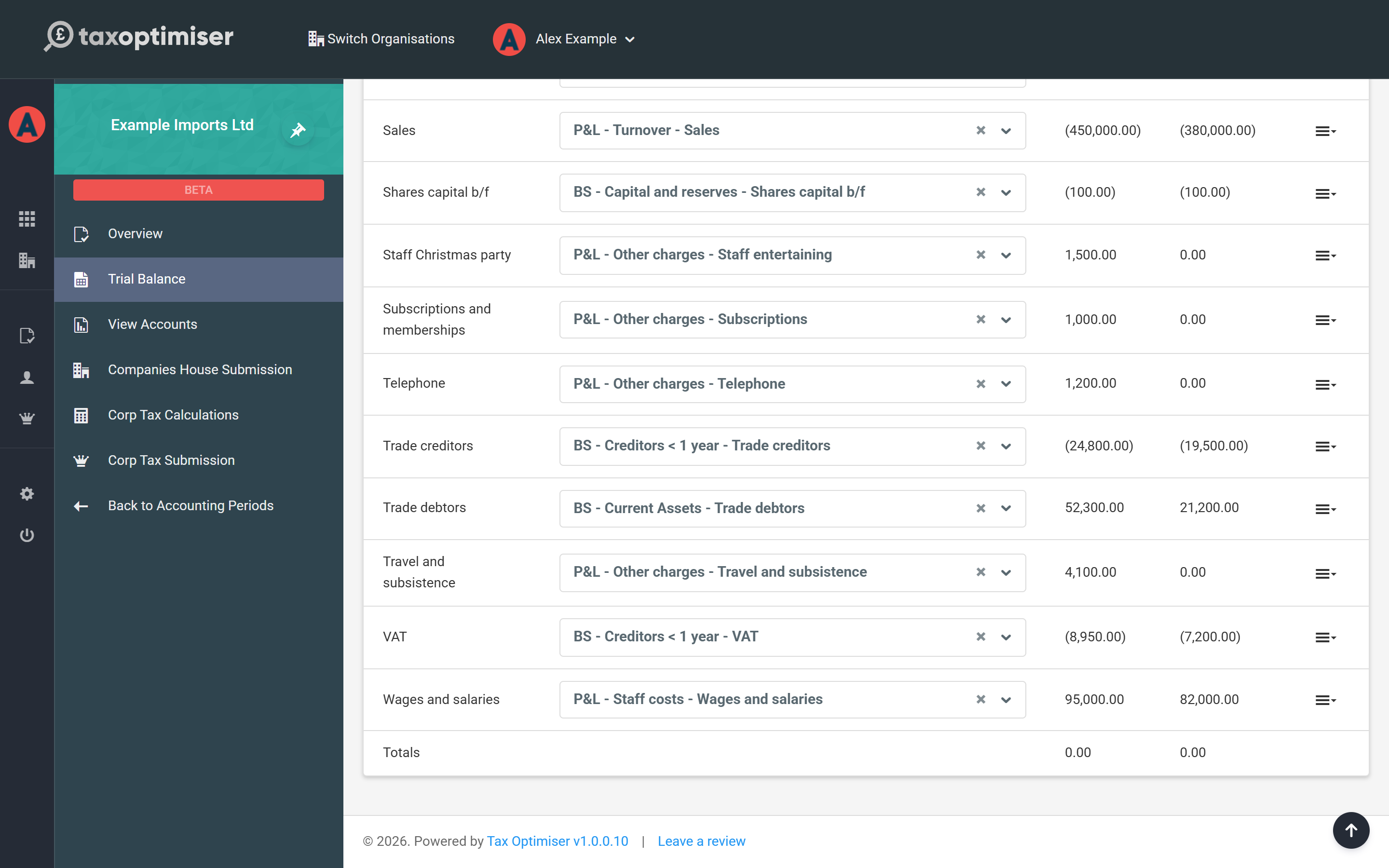
Then click the Trial Balance tab and read down the headings. Each figure should sit where you'd expect it in a set of accounts — turnover under Turnover, wages under Staff costs, and so on. Anything in a surprising place is worth a second look on the Imported Data tab, especially rows the AI mapped.
For help with a trial balance that won't balance — the detailed breakdown, Ask AI and rounding journals — see Import a trial balance from a spreadsheet.
Choosing the right sheet, and Import with AI
Two choices on the upload screen affect what reaches the Imported Data tab in the first place:
- Sheet Name — if your Excel workbook has more than one sheet (tab), enter the name of the sheet that holds the trial balance, exactly as it appears on the tab at the bottom of Excel. The known templates pick their sheet up automatically.
- Import with AI (any layout) — if your system's export doesn't match any template, choose this and AI will work out which columns hold the account names and balances. Before you can upload you must tick I understand — send my spreadsheet to AI and I'll check the result, because your file is sent to a third-party AI provider.

The same caution applies here: AI can read a spreadsheet wrongly. It may pick the wrong column, skip a row or misread a total as an account. If the imported debits and credits don't agree you'll see a warning straight after the upload — the clearest sign something was misread — but a balanced result can still be wrong. Compare the Imported Data tab line by line with your own trial balance before you start mapping.
In short
- Open Trial Balance and select the Imported Data tab.
- Work through Needs mapping, choosing the most specific common account for each amber row.
- Use Suggest with AI or AI-map all unmapped for the hard ones — then check every suggestion.
- Switch to All accounts and confirm the totals are 0.00 for both years.
- Review the Trial Balance tab to make sure each figure lands where you expect.
