
If your bookkeeping lives in Xero, Sage, QuickFile or any other system — or in a spreadsheet an accountant prepared — you can bring a whole year's trial balance into Tax Optimiser in one upload. The import is mapped onto a standard chart of accounts that HMRC and Companies House understand, so the same figures then drive both your statutory accounts and your Corporation Tax computation. This article walks the import end to end: choosing a template, mapping the accounts (with AI help), making it balance, and what happens to the numbers afterwards.
Choose your import template
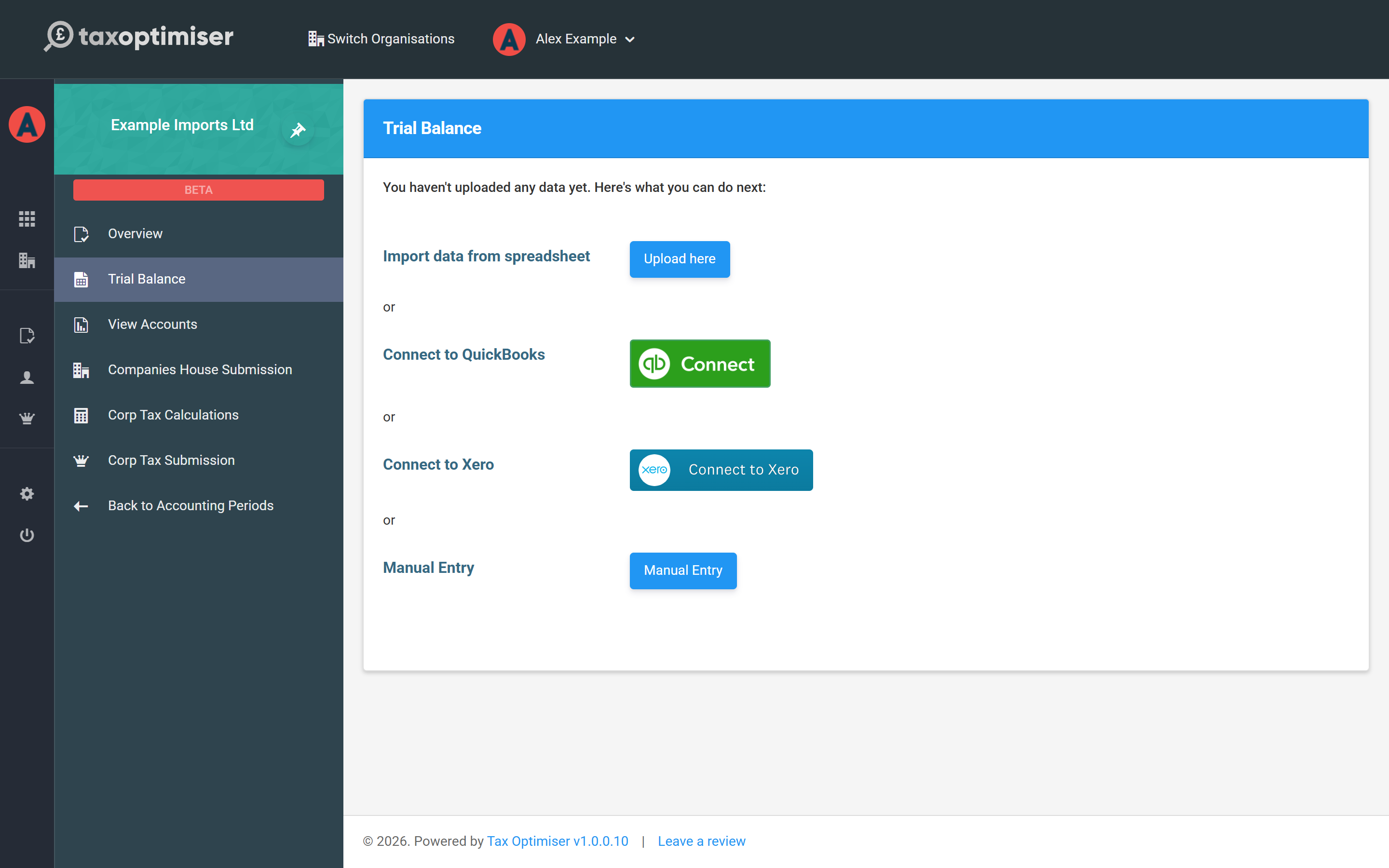
Open your accounting period and choose Trial Balance from the left menu. On a period with no data yet you'll be offered the ways to bring figures in — choose Import data from spreadsheet and click Upload here.
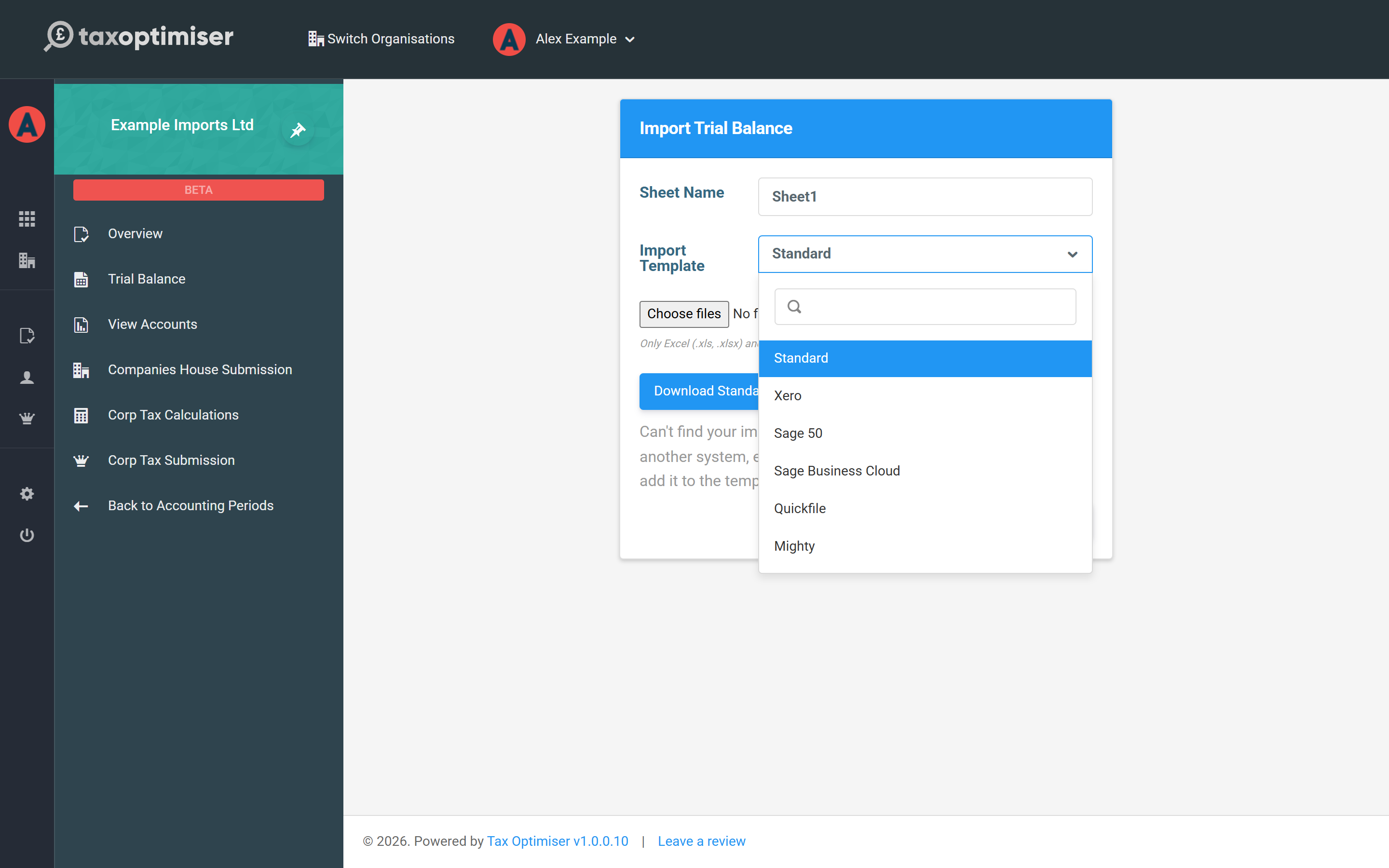
On the import screen, pick the Import Template that matches where your file came from. Export the trial balance report from your bookkeeping system as Excel or CSV and upload it as-is — each template knows the shape of its system's export:
- Standard — our own simple layout (see below). Use this when your system isn't listed, or you keep your trial balance in a spreadsheet.
- Xero — the Trial Balance report exported from Xero, including its comparative-year column.
- Sage 50 — the Period Trial Balance export.
- Sage Business Cloud, Quickfile and Mighty — those systems' trial balance exports.
The Sheet Name only matters for Excel workbooks with several sheets — for the known templates it's picked up automatically (for example Xero's sheet is Trial Balance and Sage 50's is Period Trial Balance). Files can be .xlsx, .xls or .csv. If you use a system that isn't in the list, email an example export to support@taxoptimiser.co.uk and we'll add it as a template.
Our standard template
The Download Standard Template button on the import screen gives you the Standard layout: a header row, then one row per account with five columns — Account Name, Debit, Credit, Comparitive Debit and Comparitive Credit.
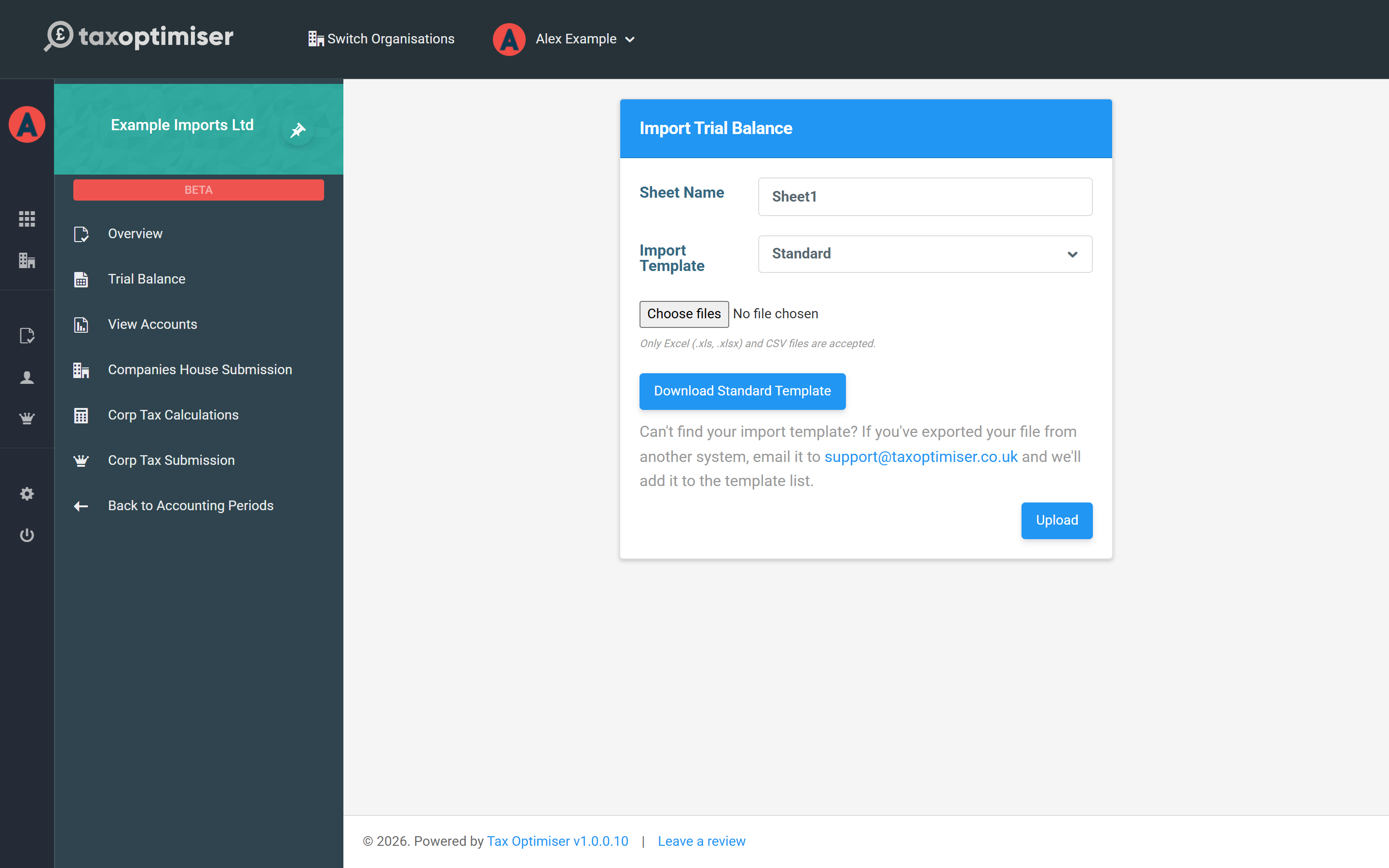
Enter each balance as a positive amount in either the debit or the credit column — the column it sits in tells us which side it belongs to. The two comparative columns are the previous year's figures, which fill the prior-year column of your accounts; leave them empty if it's your first year (or pull them from last year's period later with Include Prior Year Comparatives).
Map each account to a common account
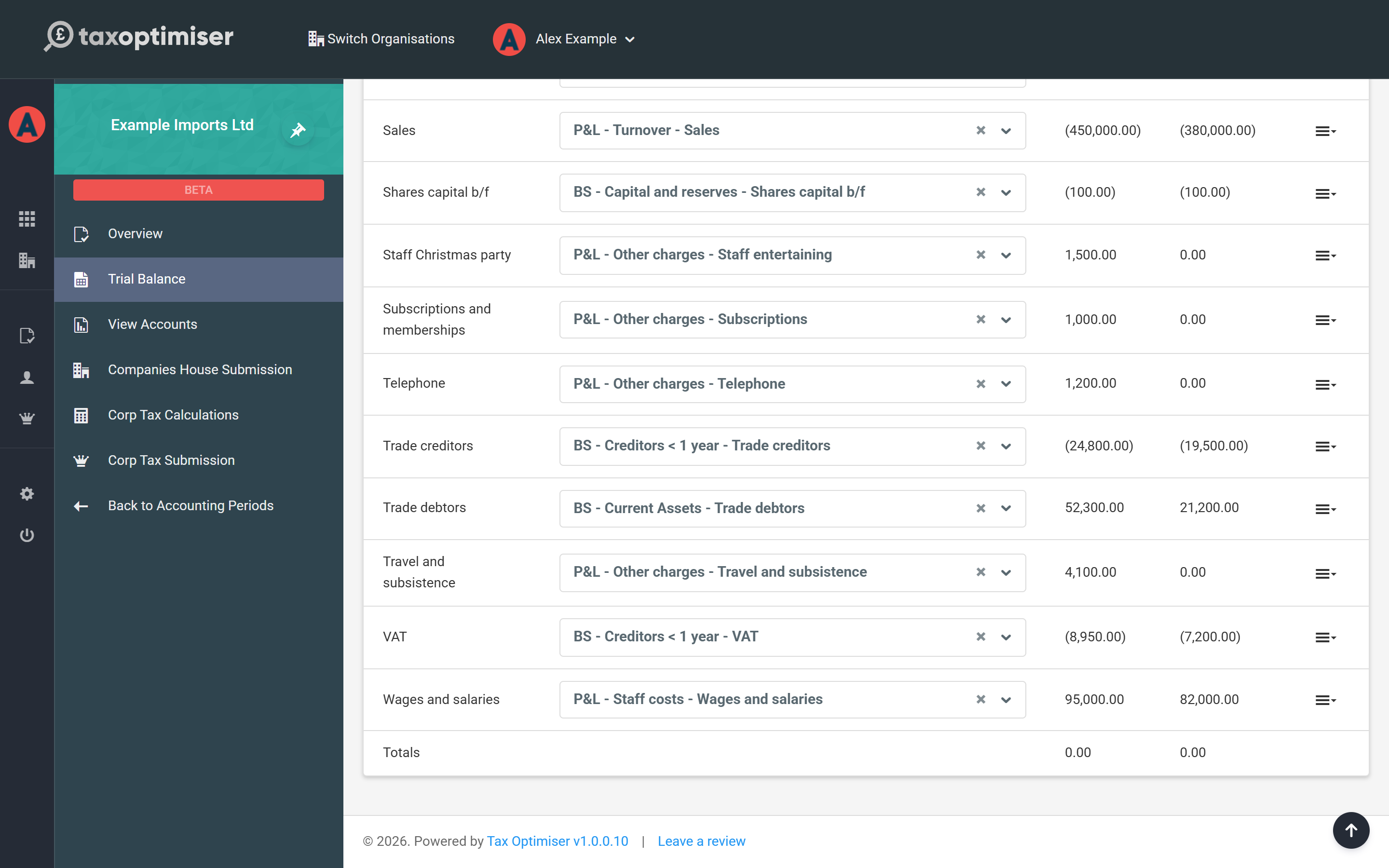
Your bookkeeping system can call an account anything it likes — so after the upload, each imported line is matched to a common account: the standard chart of accounts that HMRC and Companies House filings are built from. The import does as much of this for you as it can, matching account names against the way your organisation mapped them before and against a shared library built from thousands of earlier imports. Most everyday names — Sales, Rent, Trade debtors — map themselves.
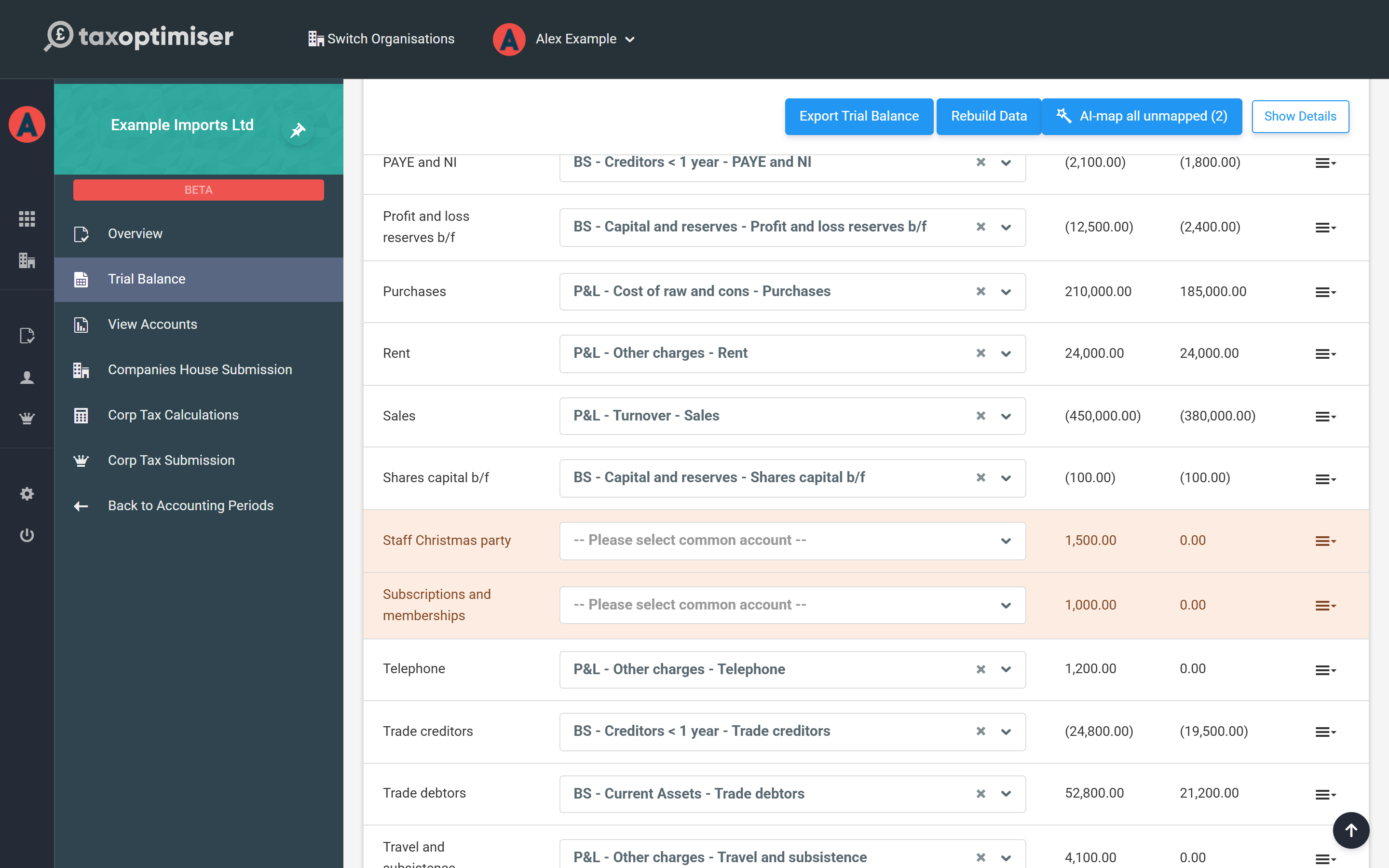
Anything that couldn't be matched is highlighted on the Imported Data tab, and a warning shows until everything is mapped — unmapped lines are left out of the report, so the figures will look wrong until you finish the job.
Pick the missing common accounts with the dropdown on each highlighted row. Choose the most specific account that fits: the account you pick decides both where the figure lands in the statutory accounts and how the tax computation treats it. For example, client entertaining and charitable donations have their own common accounts so the Corporation Tax side can pick them up and adjust the taxable profit later.
Let AI suggest the tricky ones
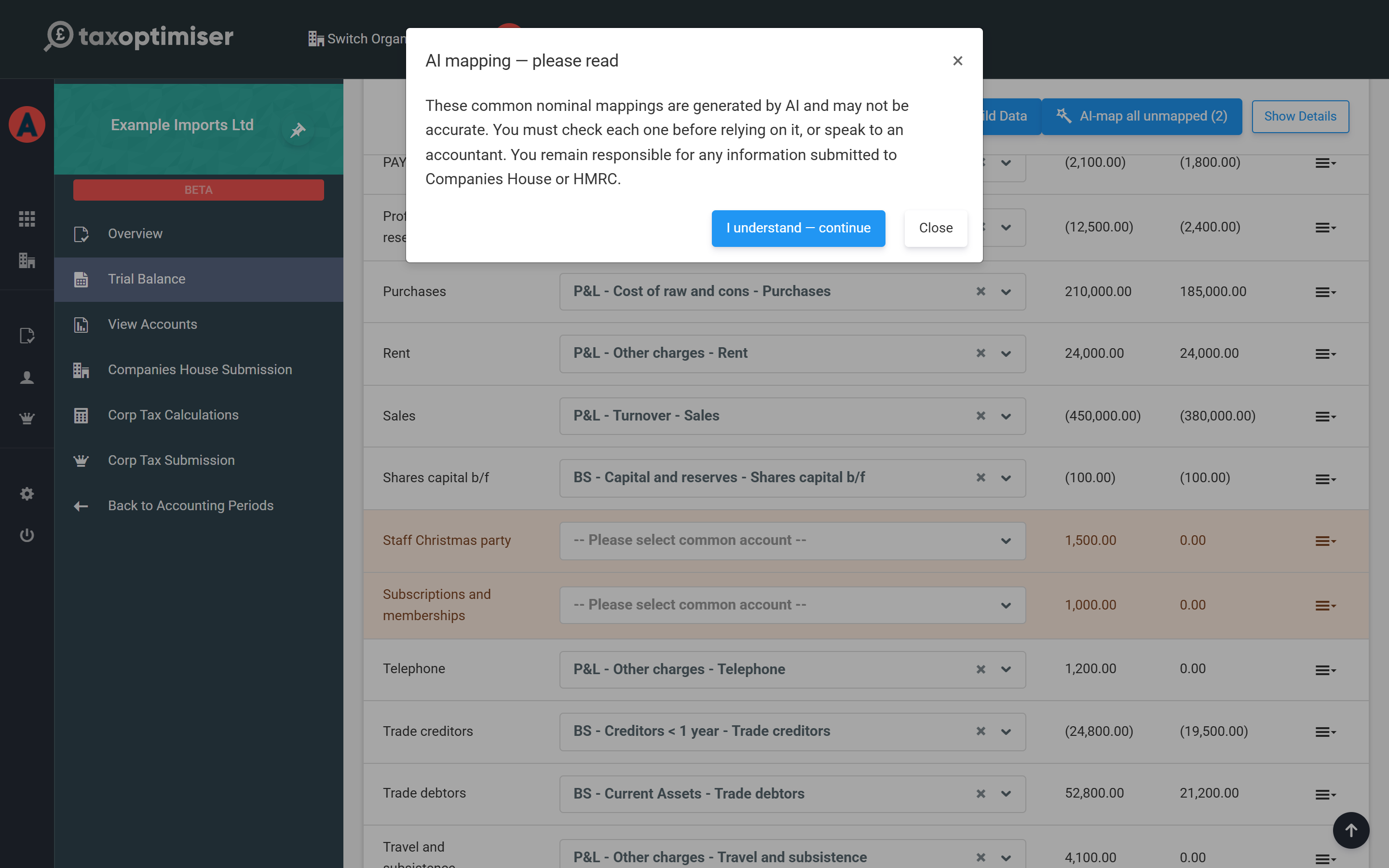
For names the matching couldn't place — Staff Christmas party, say — you can ask AI to suggest a mapping. Use Suggest with AI on a single row (under its actions menu), or AI-map all unmapped to do every remaining row in one go.
Each suggestion is applied to the row along with the AI's confidence and a one-line reason, so you can see why it chose that account.
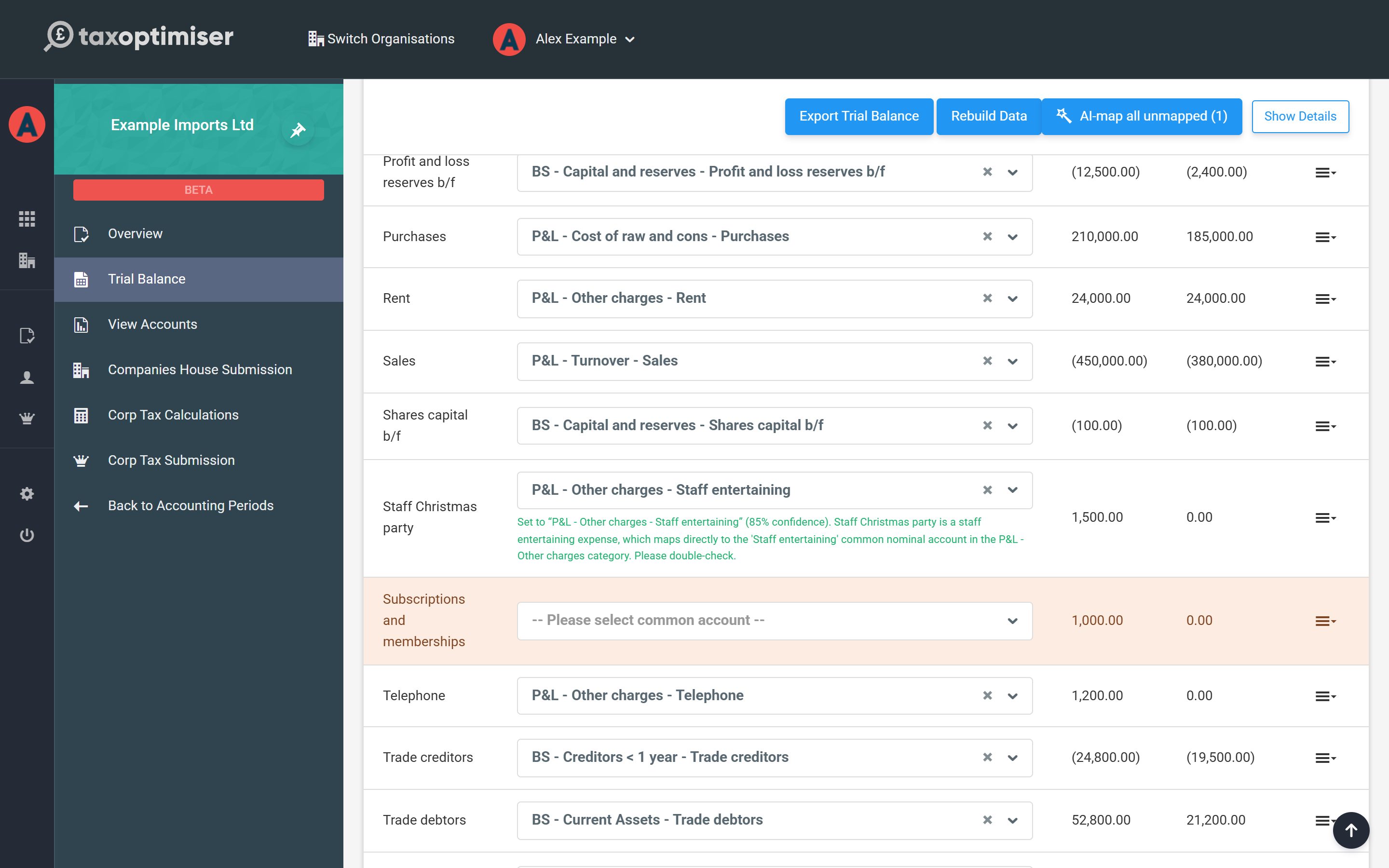
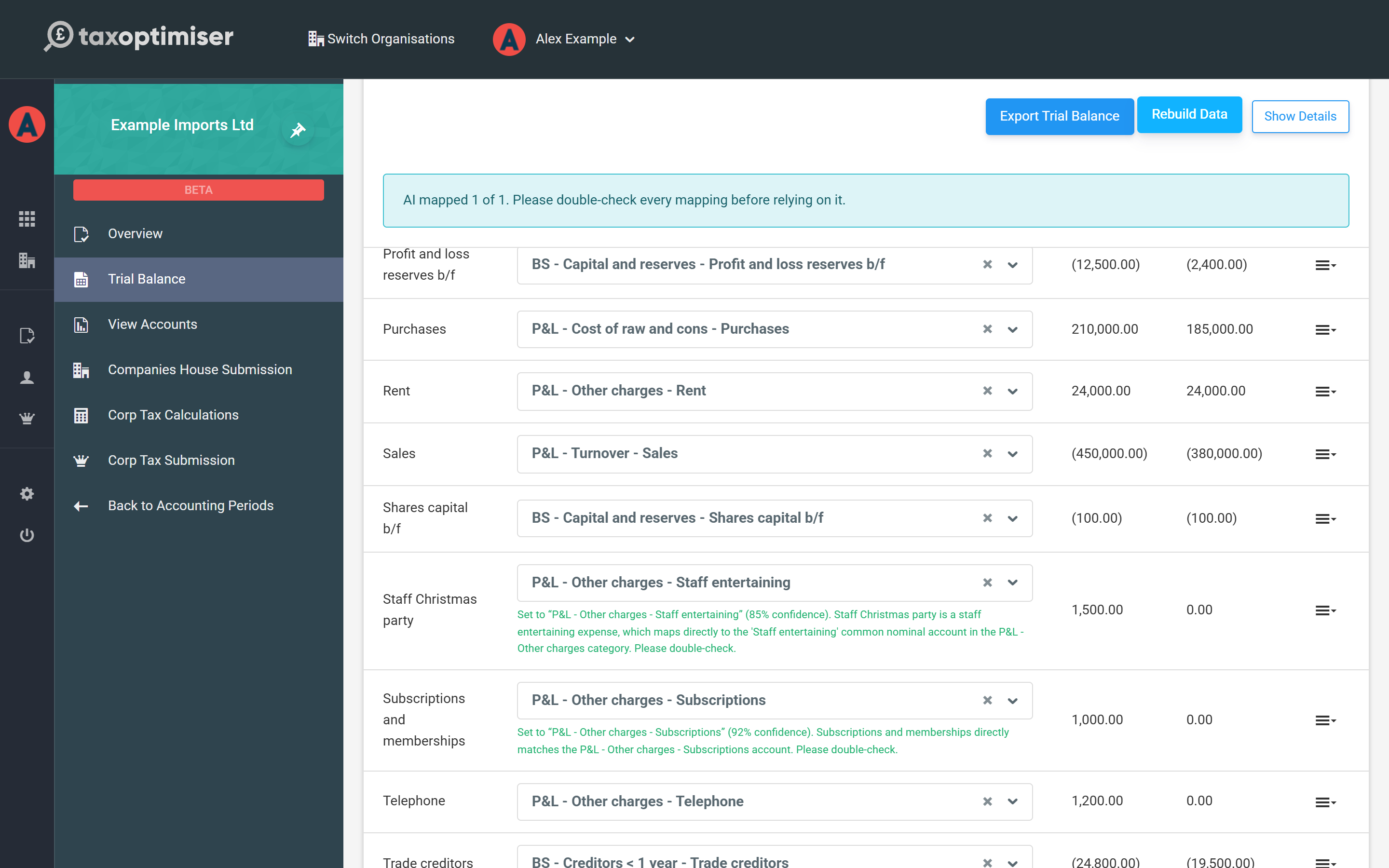
Please check every AI mapping before relying on it. The suggestions are usually sensible, but they are suggestions, not advice — you remain responsible for what is filed with HMRC and Companies House. If you're not sure where something belongs, ask an accountant.
Make sure it balances
A trial balance must balance: total debits equal total credits, for the current year and the comparative year. The Totals row at the bottom of the Imported Data tab should read 0.00 for both — if it doesn't, a red ? appears next to the totals explaining the usual causes:
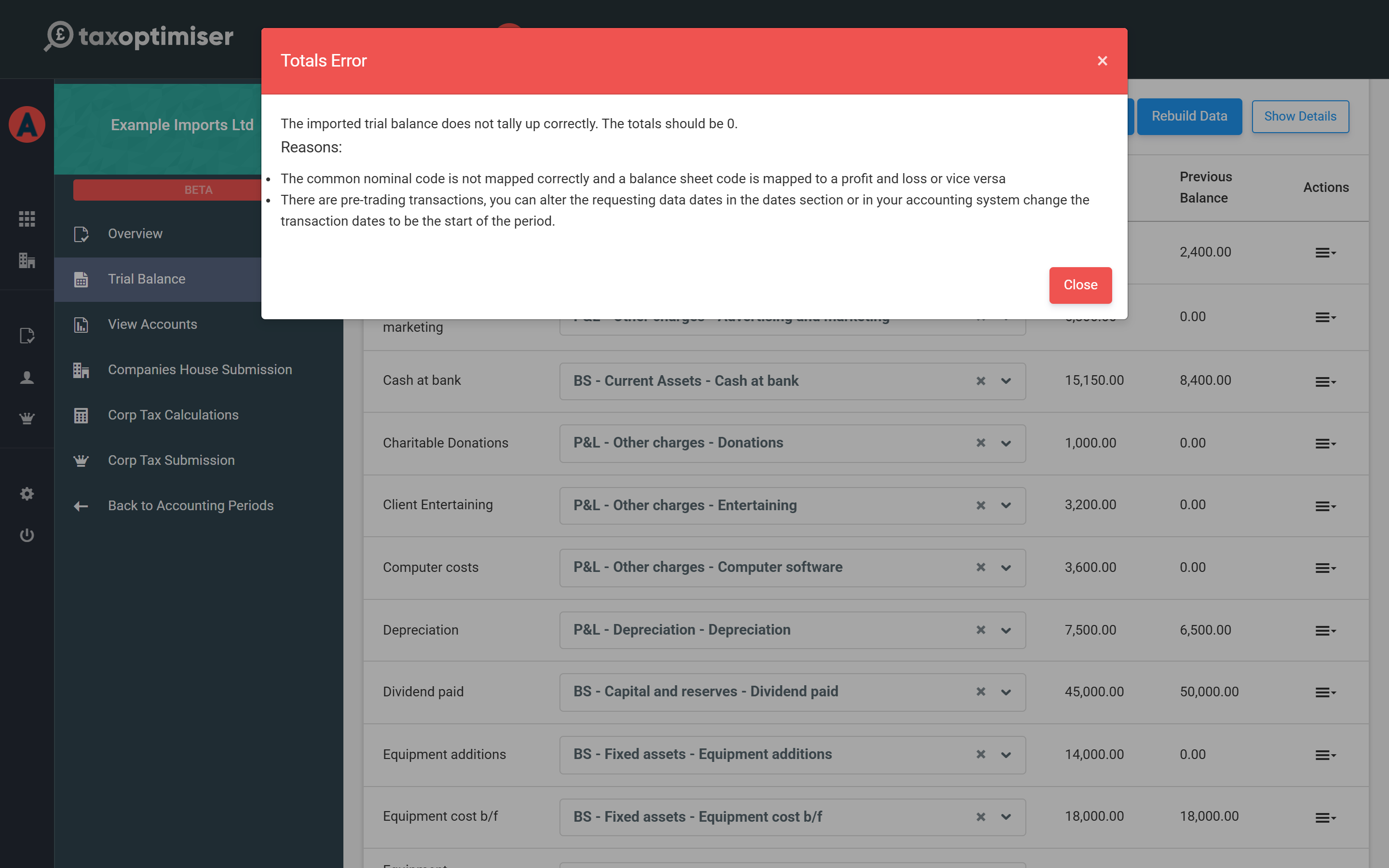
- A mis-mapped account — a balance sheet account mapped to a profit-and-loss common account, or vice versa.
- Pre-trading transactions — entries dated before the period start; either adjust the dates or correct the transactions in your bookkeeping system and re-export.
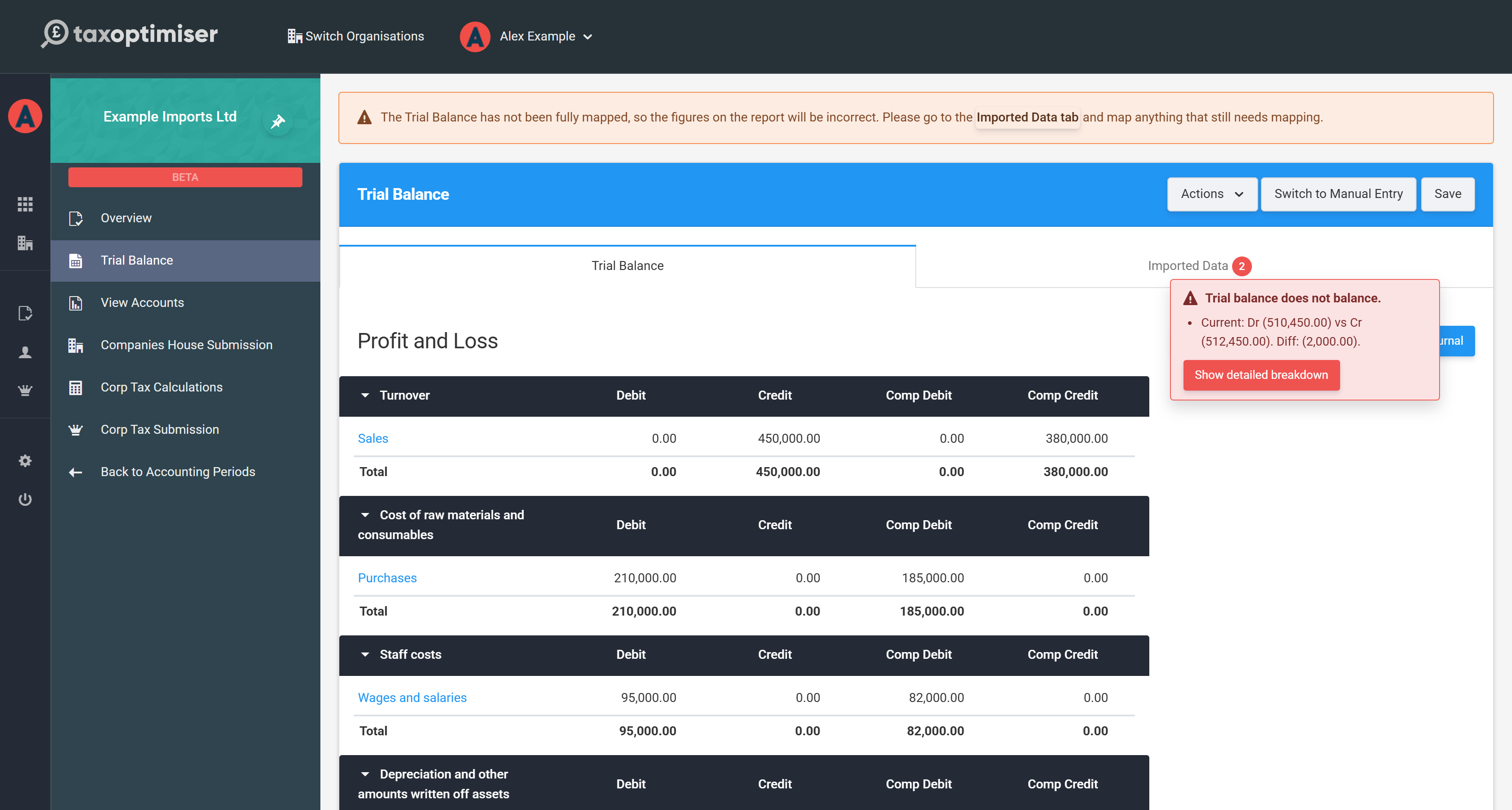
While the trial balance doesn't balance, the Trial Balance tab also shows an alert with the exact difference. Click Show detailed breakdown to compare the two sides — what your assets and liabilities say the company is worth against what the profit and reserves say it is.
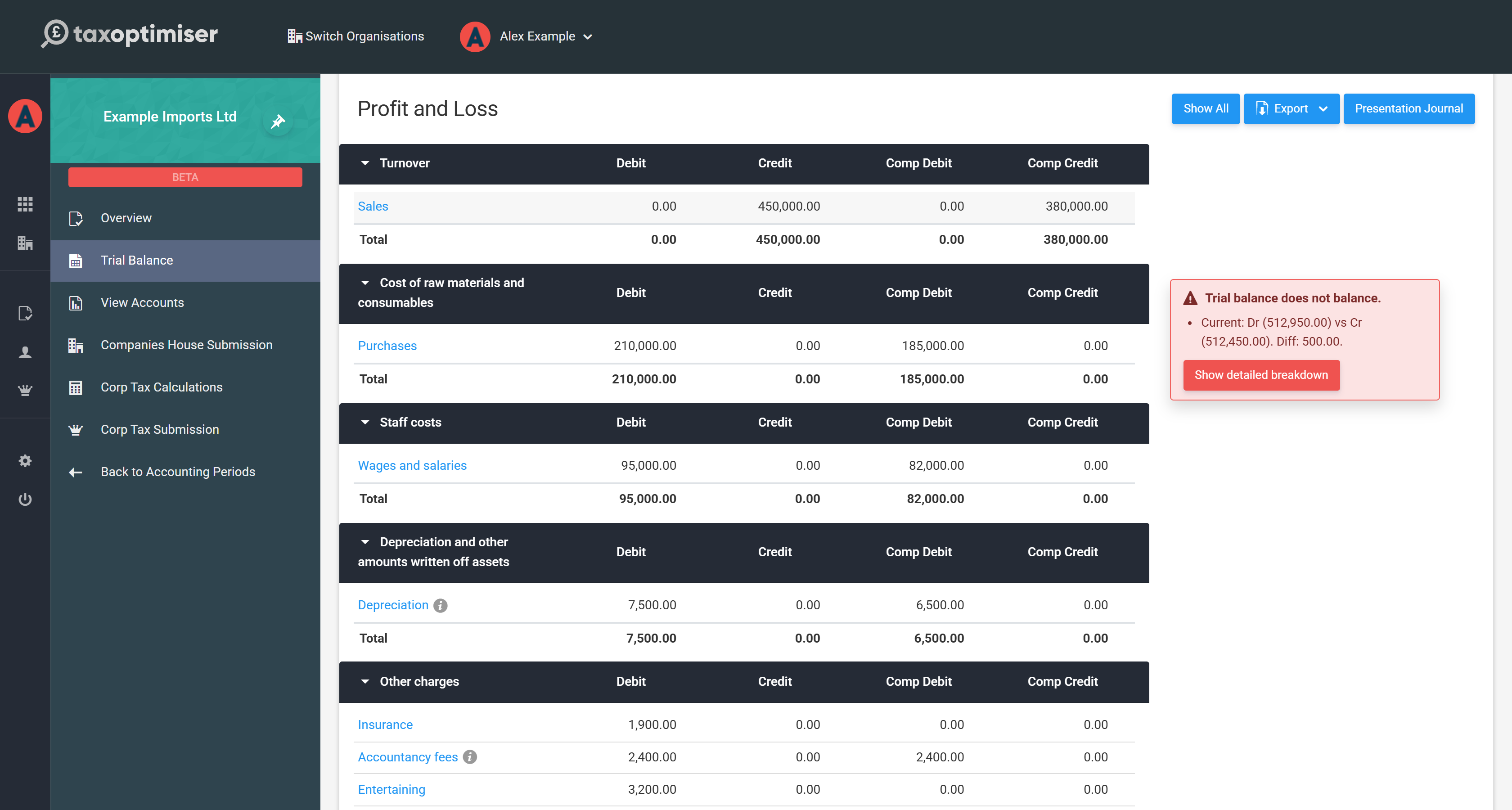
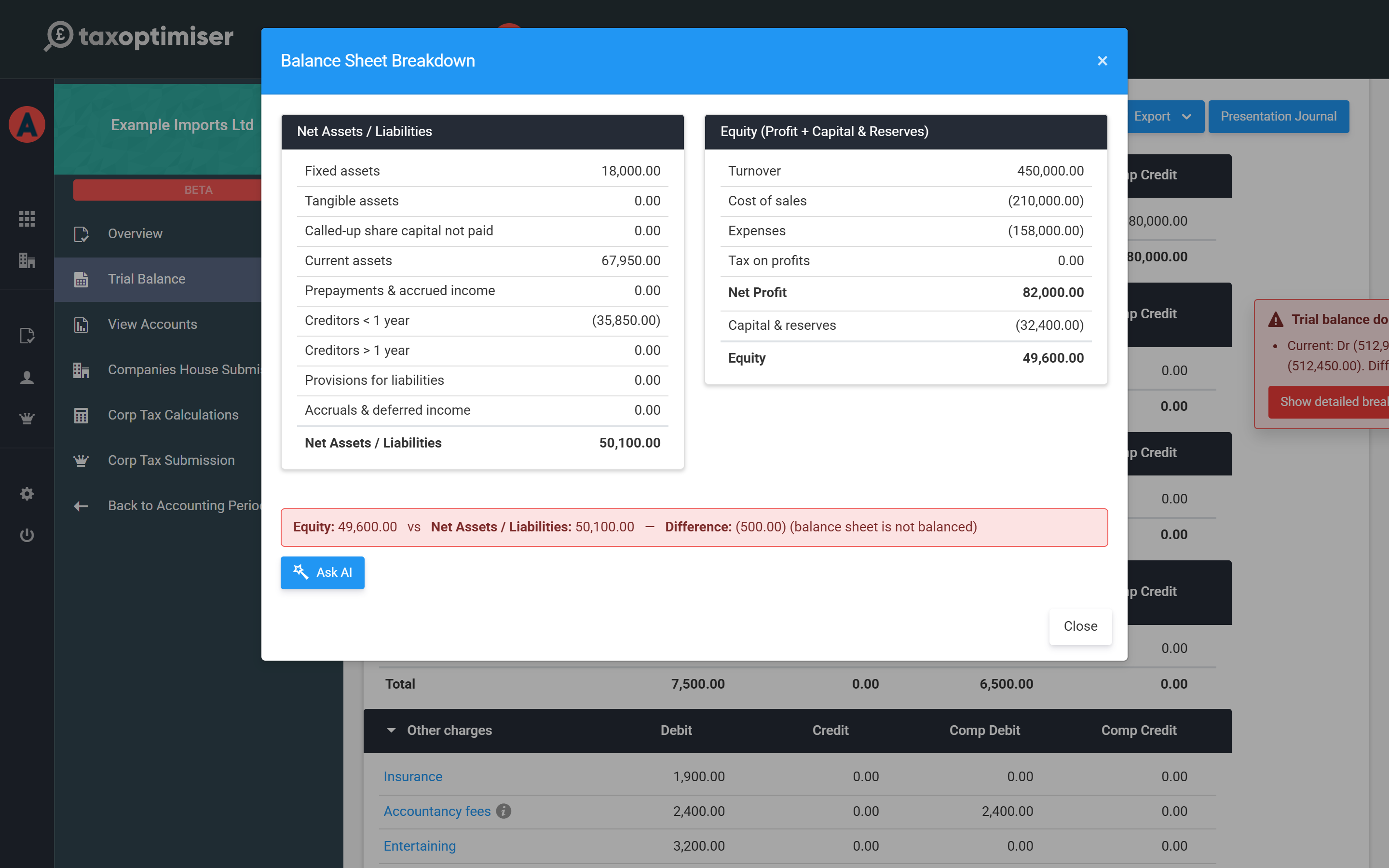
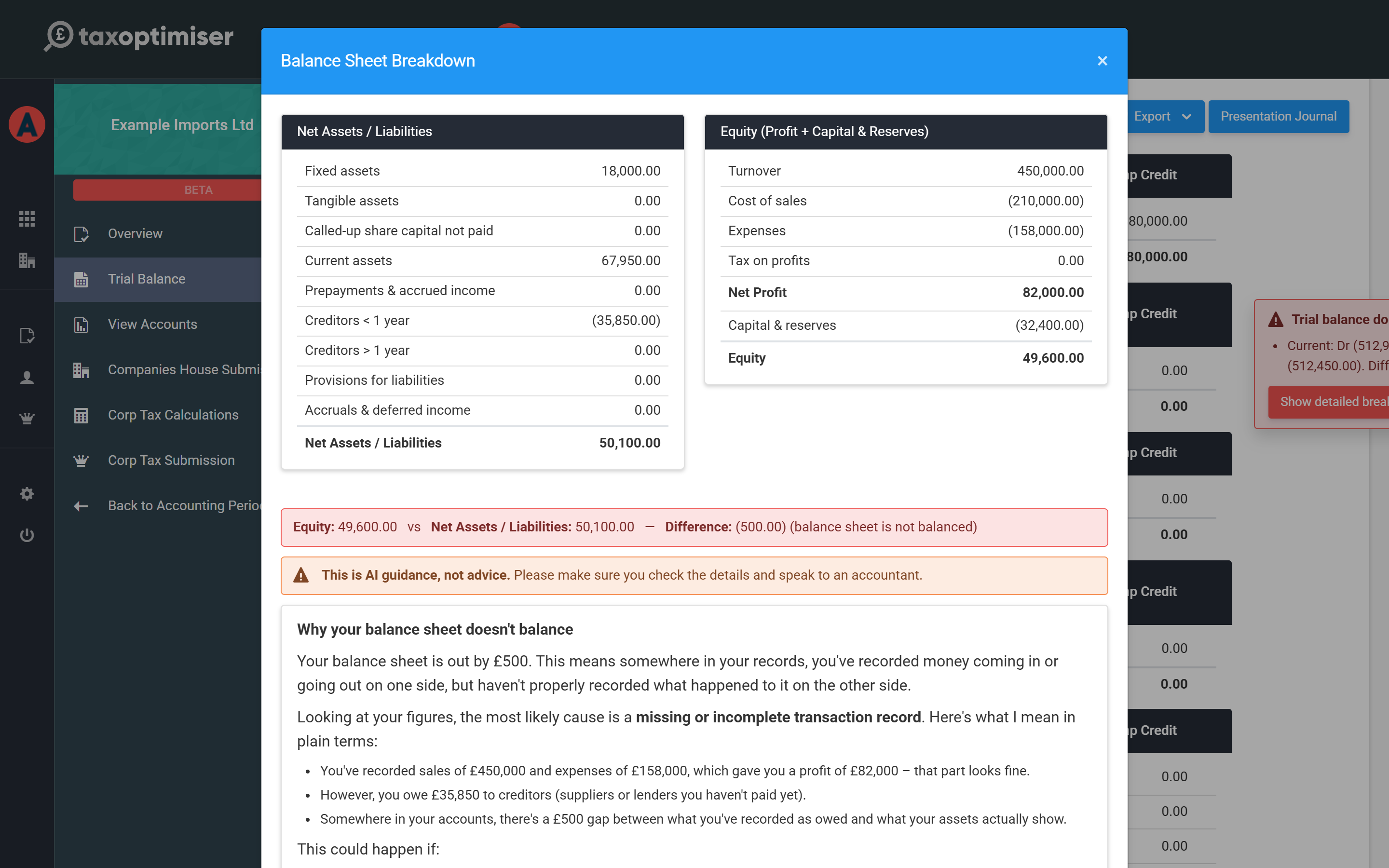
If the difference is exactly 1p it's almost always rounding, and the breakdown offers to post a one-click rounding journal. For anything bigger you can click Ask AI, and it will look at your actual figures and explain in plain terms where the gap most likely is — narrowing your search rather than giving you a number to copy. The same rule applies as with mapping: it's AI guidance, not advice, so check the details and speak to an accountant if you're unsure.
Presentation journals (rounding and disclosure)
Sometimes the final accounts need a small nudge the bookkeeping doesn't have — a penny of rounding, or moving a balance between disclosure lines. That's what a presentation journal is for: open the Trial Balance tab and click Presentation Journal.
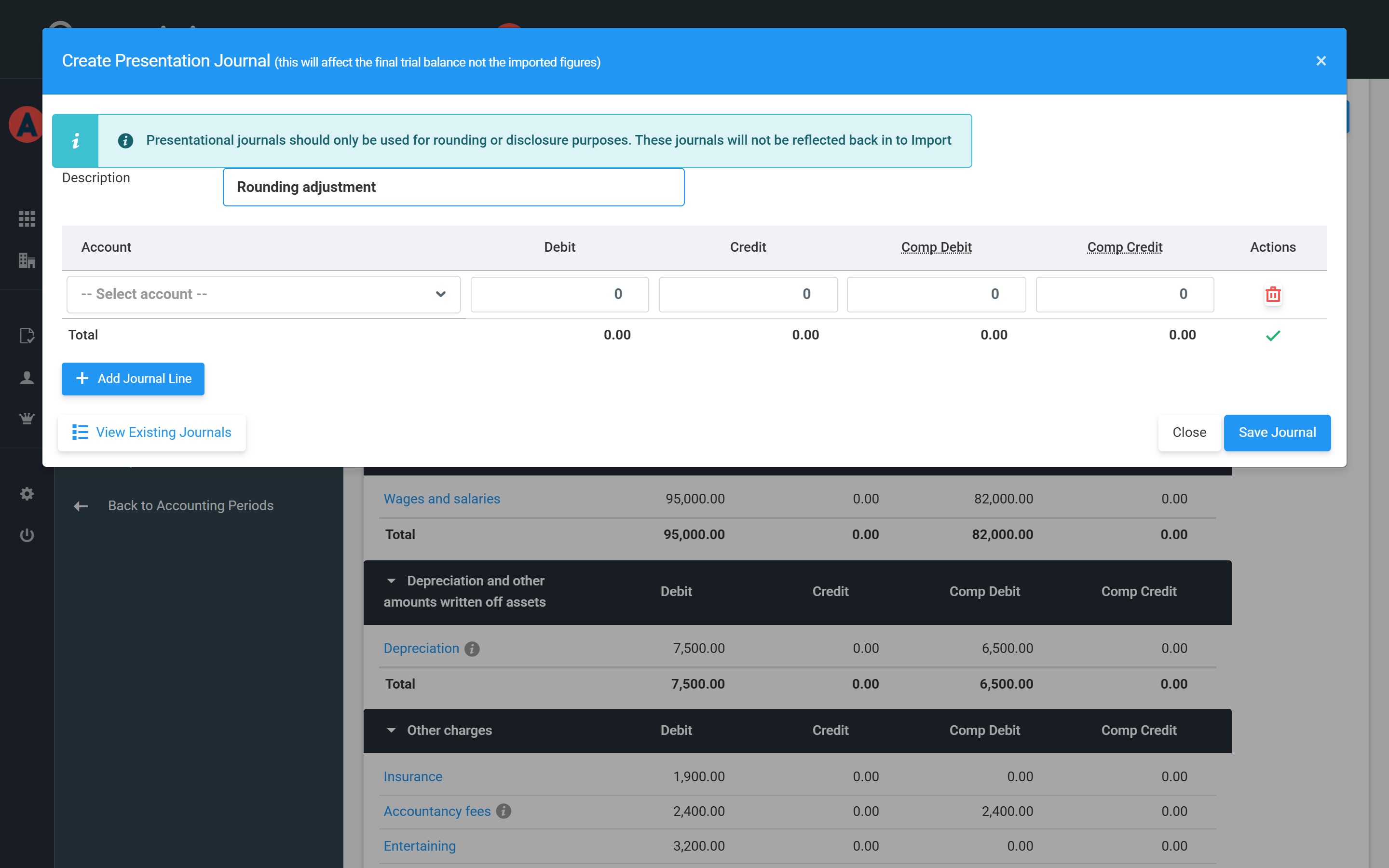
Three things to know about them:
- They adjust the final trial balance — the Imported Data tab keeps showing exactly what your file said.
- They are never written back to your bookkeeping system — use them for rounding and disclosure only, not to fix bookkeeping errors (fix those at source and re-import).
- Like any journal, debits should equal credits — the dialog warns you before it lets you save one that doesn't balance.
From import to your final trial balance
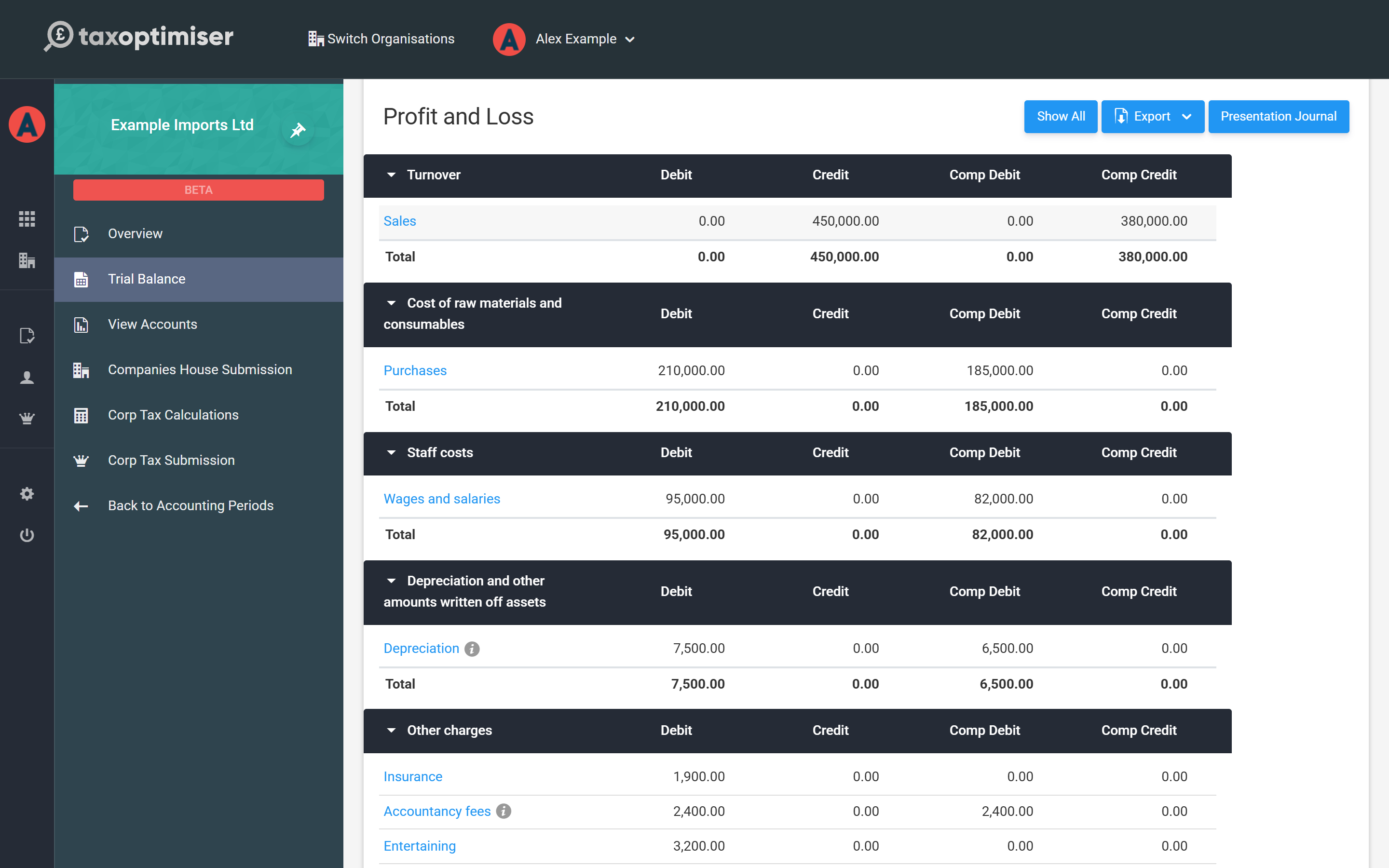
The two tabs of the Trial Balance screen tell the whole story. Imported Data is your file as uploaded — one line per account in your bookkeeping system, with its mapping. Trial Balance is the result: the same figures regrouped under the common account headings the accounts and tax computation are built from, plus any presentation journals.
Worth knowing as you work:
- Re-importing replaces everything. Uploading a corrected file (from Actions → Import) replaces the imported lines and deletes any journals on the period, including presentation journals. Your account mappings are remembered, so a re-import usually maps itself in full.
- Include Prior Year Comparatives pulls last year's figures from the previous accounting period into the comparative columns, if your file didn't carry them.
- Export Trial Balance downloads what you imported; Rebuild Data recalculates the report from the imported lines and mappings.
Where the numbers go next
Because every line now sits on a common account, the rest of the year-end builds itself from here. View Accounts presents the same trial balance as statutory accounts (FRS 105 or FRS 102 1A) ready to file at Companies House, and Corp Tax Calculations starts from the same profit to build the Corporation Tax computation and CT600 for HMRC — with accounts like entertaining and donations feeding the tax adjustments automatically. One import, both filings.
To carry on through the year-end journey, see Getting your numbers in: the trial balance in the Corporation Tax guide.