
If your practice runs on Sodium Practice Management, you can connect it to Tax Optimiser and pull your client list across in one click — no re-keying company names or Companies House numbers. You create an API key in Sodium, paste it into your firm settings, pick which Sodium practice (tenant) to read, and sync. Every limited-company client comes in as an organisation, matched on its Companies House number, ready for accounts and Corporation Tax. This guide walks the whole connection end to end.
Step 1 — Create an API key in Sodium
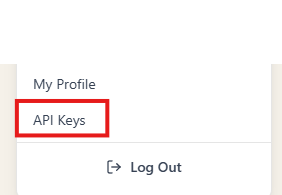
An API key is what lets Tax Optimiser read your client list from Sodium on your behalf — treat it like a password, because it gives the same level of access to your Sodium account. In Sodium, click your account avatar in the top-right corner and choose API Keys.
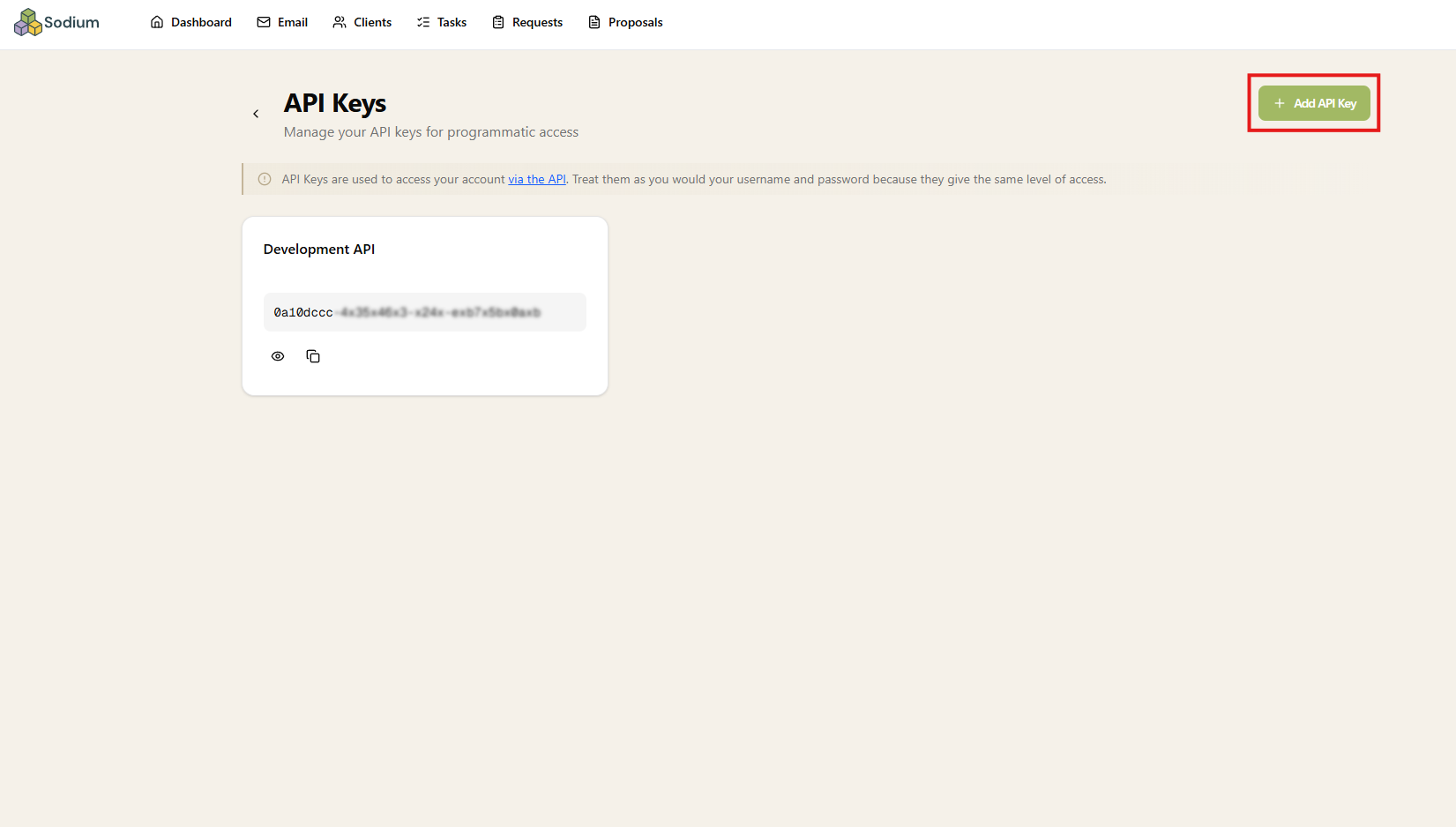
On the API Keys page, click Add API Key.
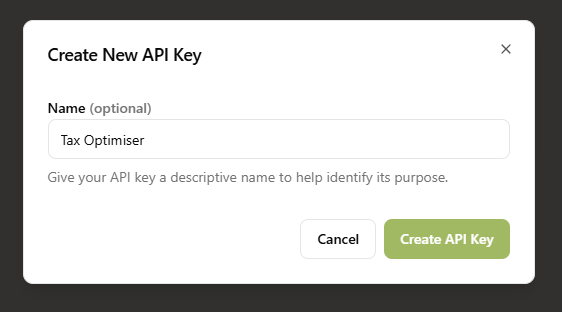
Give the key a name that tells you what it is for — for example Tax Optimiser — then click Create API Key. The name is just a label for your own reference.
Step 2 — Copy your API key
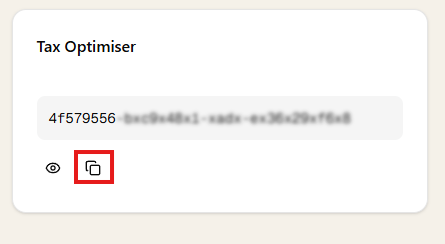
Your new key appears in the list. Use the reveal (eye) icon if you want to see it, then click the copy icon to copy it to your clipboard. Keep it safe and paste it straight into Tax Optimiser in the next step — anyone with this key can read your Sodium data, so don't email it around or write it down.
Step 3 — Enter the key in Tax Optimiser
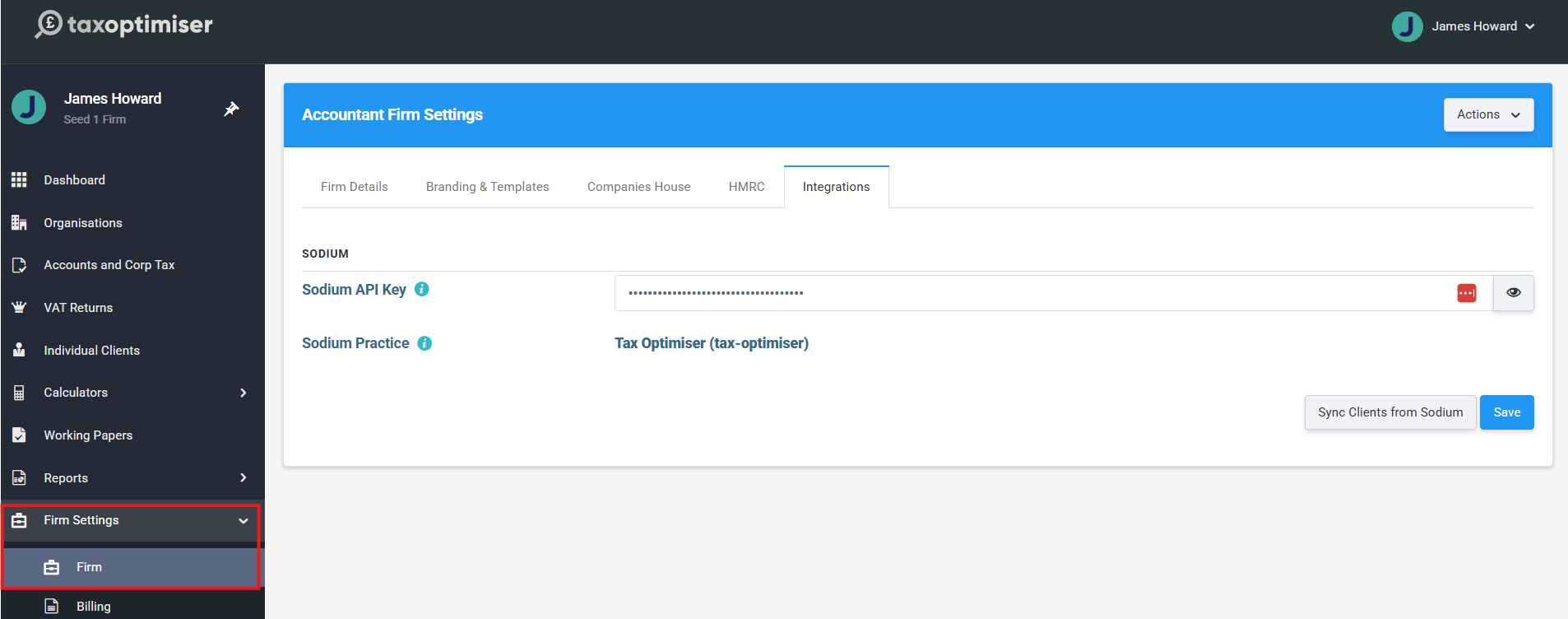
In Tax Optimiser, open Firm Settings → Firm and choose the Integrations tab. Paste your key into the Sodium API Key box and click Save. The key is stored encrypted and shown masked — use the eye icon beside it if you ever need to check what is saved.
Step 4 — Choose your Sodium practice
Your Sodium practice should now automatically be selected.
Step 5 — Sync your clients
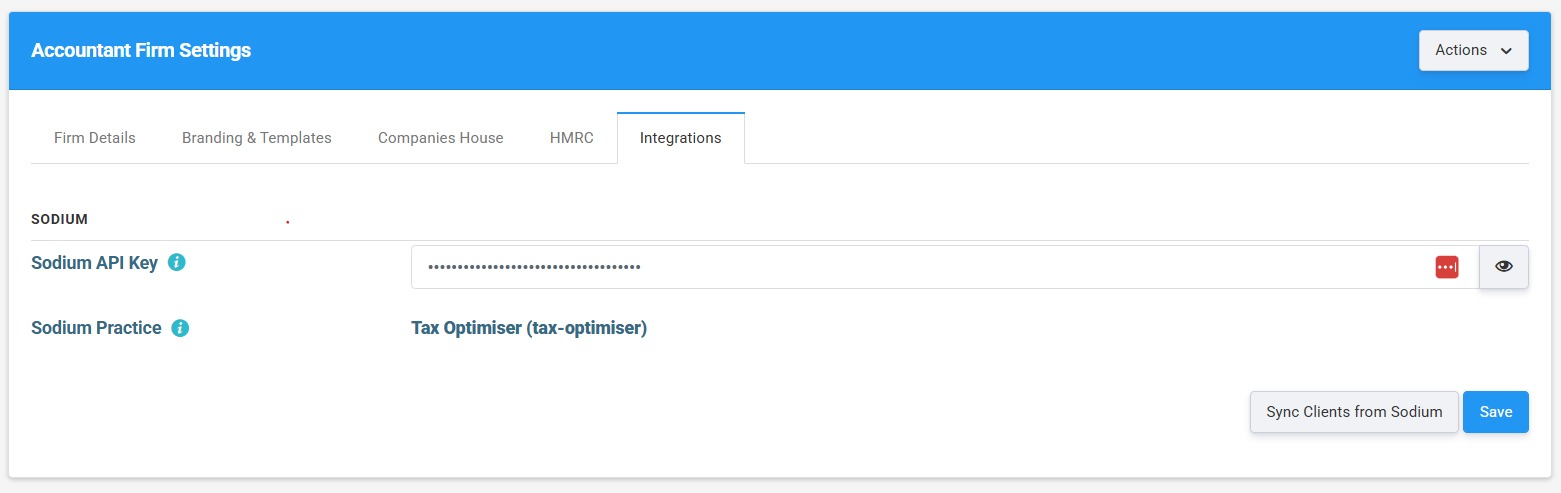
With a tenant selected, click Sync Clients from Sodium. Tax Optimiser reads your Sodium clients and brings them in as organisations. A few things worth knowing:
- Only private limited companies are imported — sole traders, partnerships and other client types are left in Sodium.
- Each client is created by its Companies House number, so its registered name, address and key dates are filled in from Companies House automatically.
- Each new organisation is tagged with its Sodium reference, so running the sync again won't create duplicates of clients you have already imported — it only brings across anything new.
When the sync finishes you'll land on your Organisations list, where the imported companies are ready to work on. That's it — your Sodium client base is now in Tax Optimiser.