
MTD requires your figures to come from digital records rather than being typed in by hand. In Tax Optimiser you provide each quarter’s totals as a spreadsheet, which you upload to the relevant quarter. Open any quarterly obligation and the upload panel sits on the right.
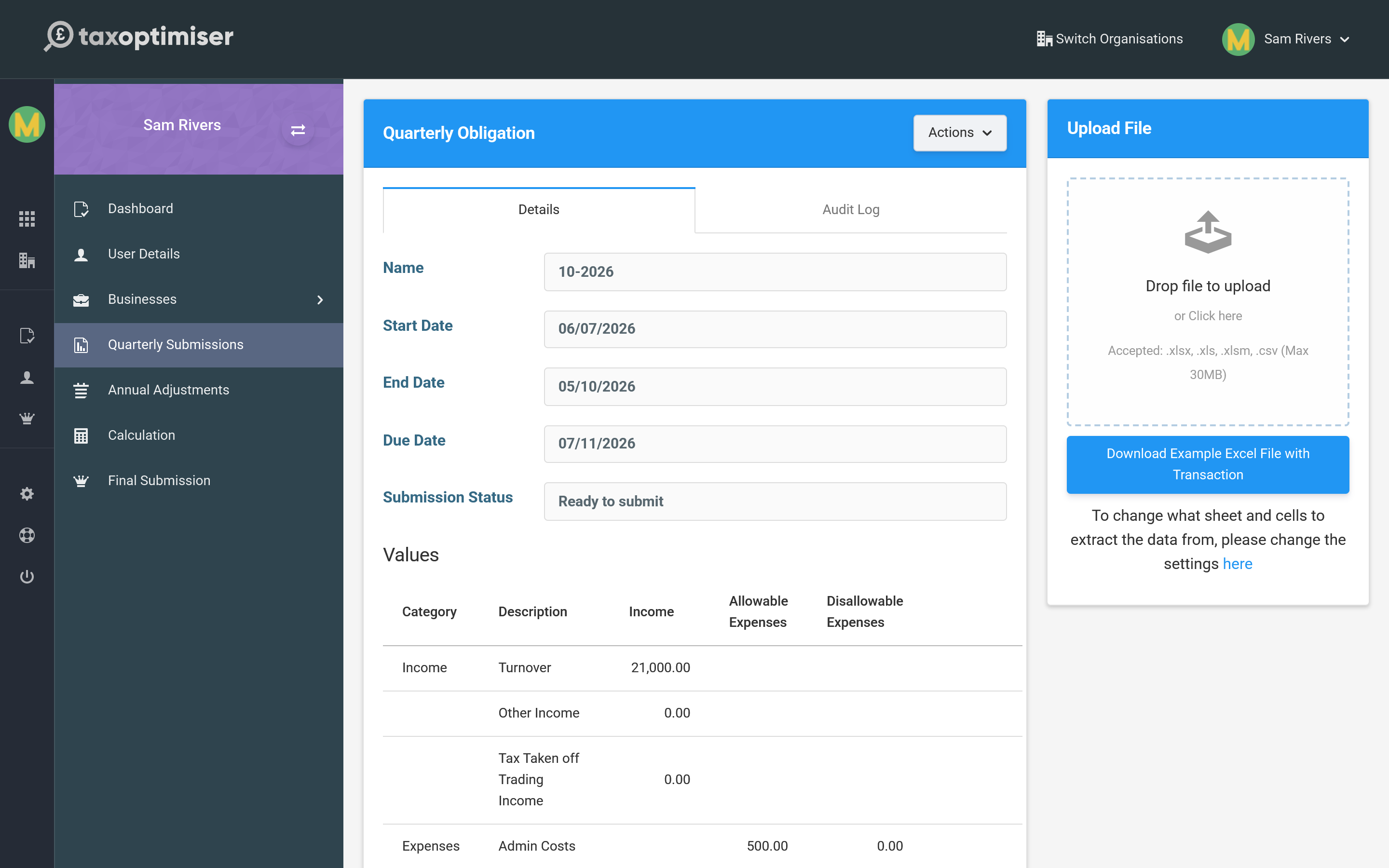
The spreadsheet
You can upload .xlsx, .xls, .xlsm or .csv files, up to 30MB. Use Download Example Excel File to get a template laid out the way Tax Optimiser expects, then fill it with your quarter’s totals. Your own bookkeeping spreadsheet works too, as long as you tell Tax Optimiser where to look (next section).
The example offered follows the business’s expense reporting choice (see Business settings):
- Full — the standard template, with a column per expense category split into allowable and disallowable amounts.
- Consolidated — a simpler template with your income figures and a single Consolidated Expenses column totalling all allowable expenses. The link is labelled (Consolidated) so you can tell which one you have.
Mapping your cells
The Settings dialog (from the obligation’s Actions menu) is where you say which sheet, and which cell, holds each figure. The defaults match the example template, but you can point any of them at the cells in your own layout.
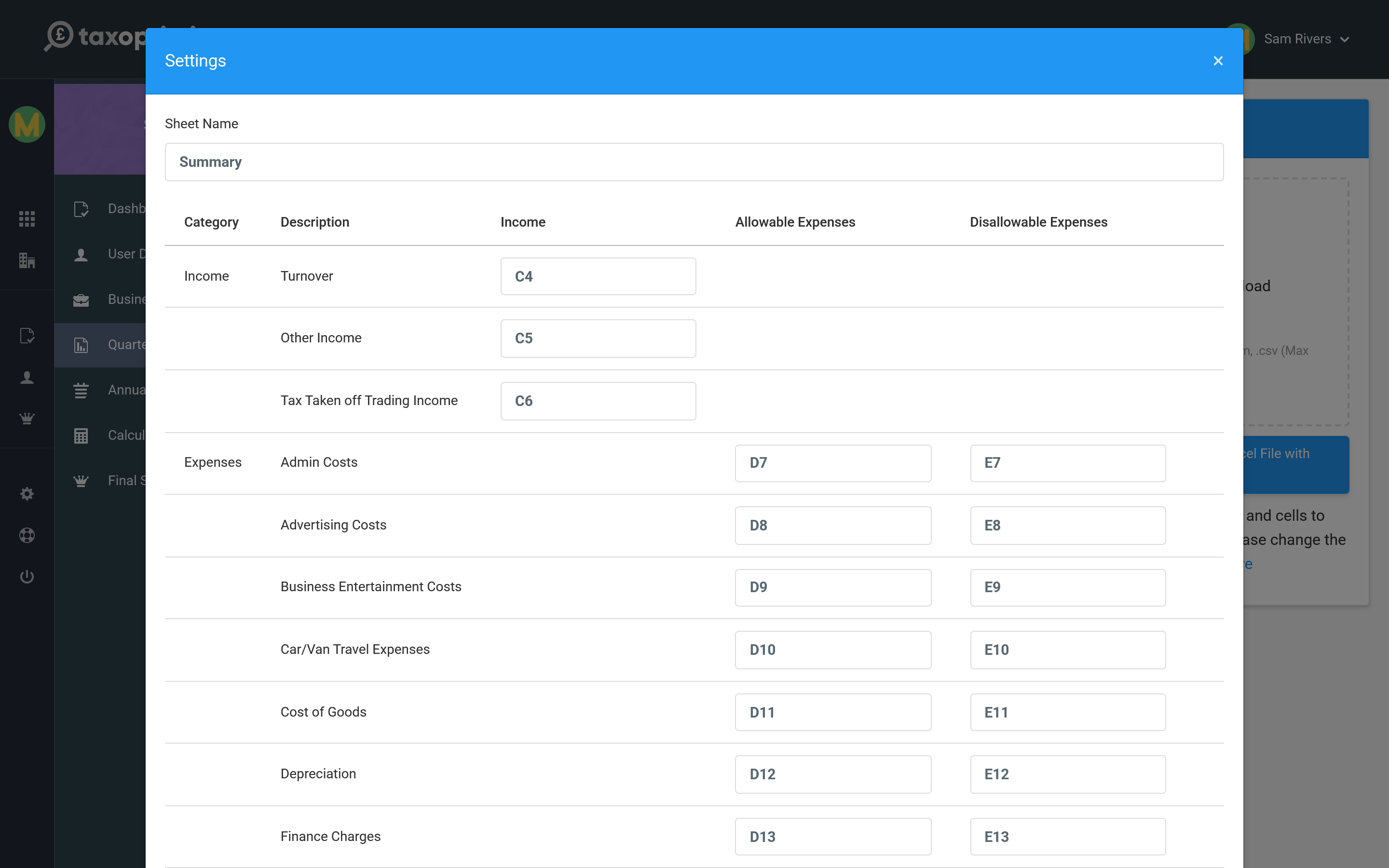
Set this once and Tax Optimiser reads the same cells from every spreadsheet you upload thereafter. You can also save the mapping as a reusable template.
The Expense Reporting choice at the top of the dialog switches the mapping to match: choose Consolidated and the itemised expense rows collapse to a single Consolidated Expenses cell (for a property business, residential financial costs and rent-a-room amounts keep their own cells, as HMRC still takes those separately).
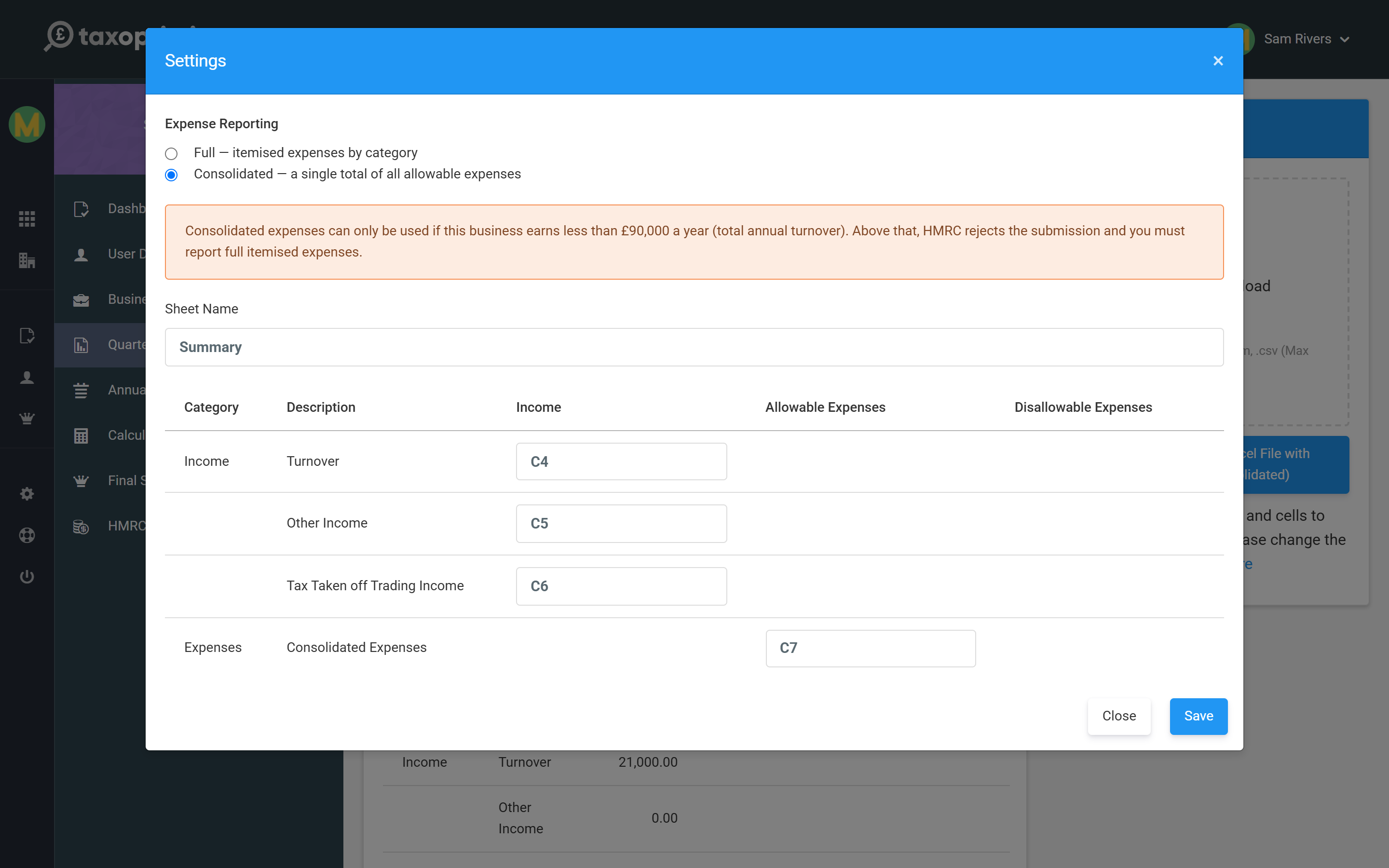
Consolidated expenses can only be used while the business earns less than £90,000 a year. The dialog reminds you when you pick it, and a quarter will not send once the year’s turnover reaches the threshold — switch back to Full and re-upload instead.
Uploads are processed in the background, so the figures may take a few moments to appear against the quarter. If they do not show straight away, give it a moment and refresh.
Next: Quarterly updates.