
From Organisations, the Create button opens one page with every way of adding a client:
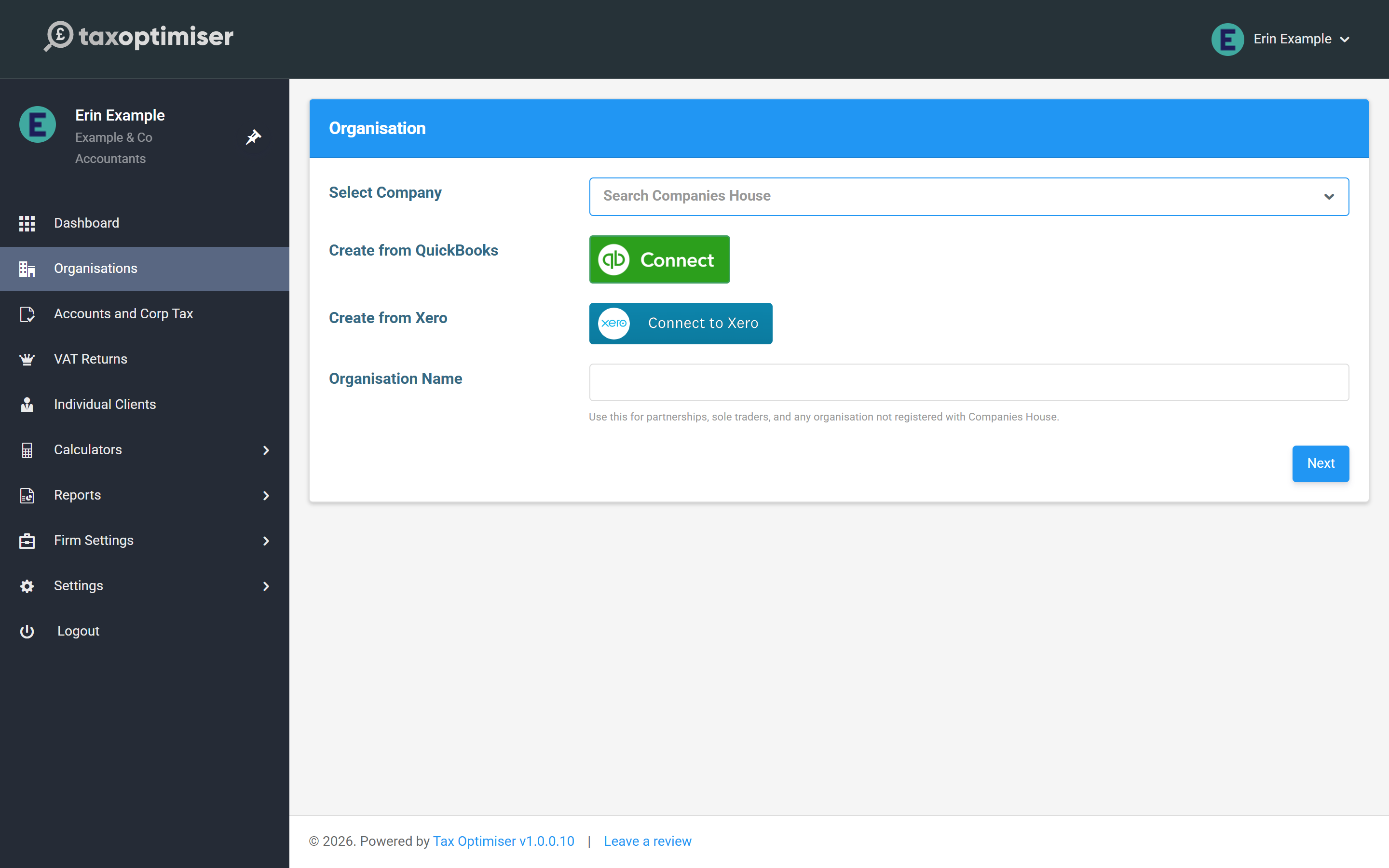
The quick way: the Companies House lookup
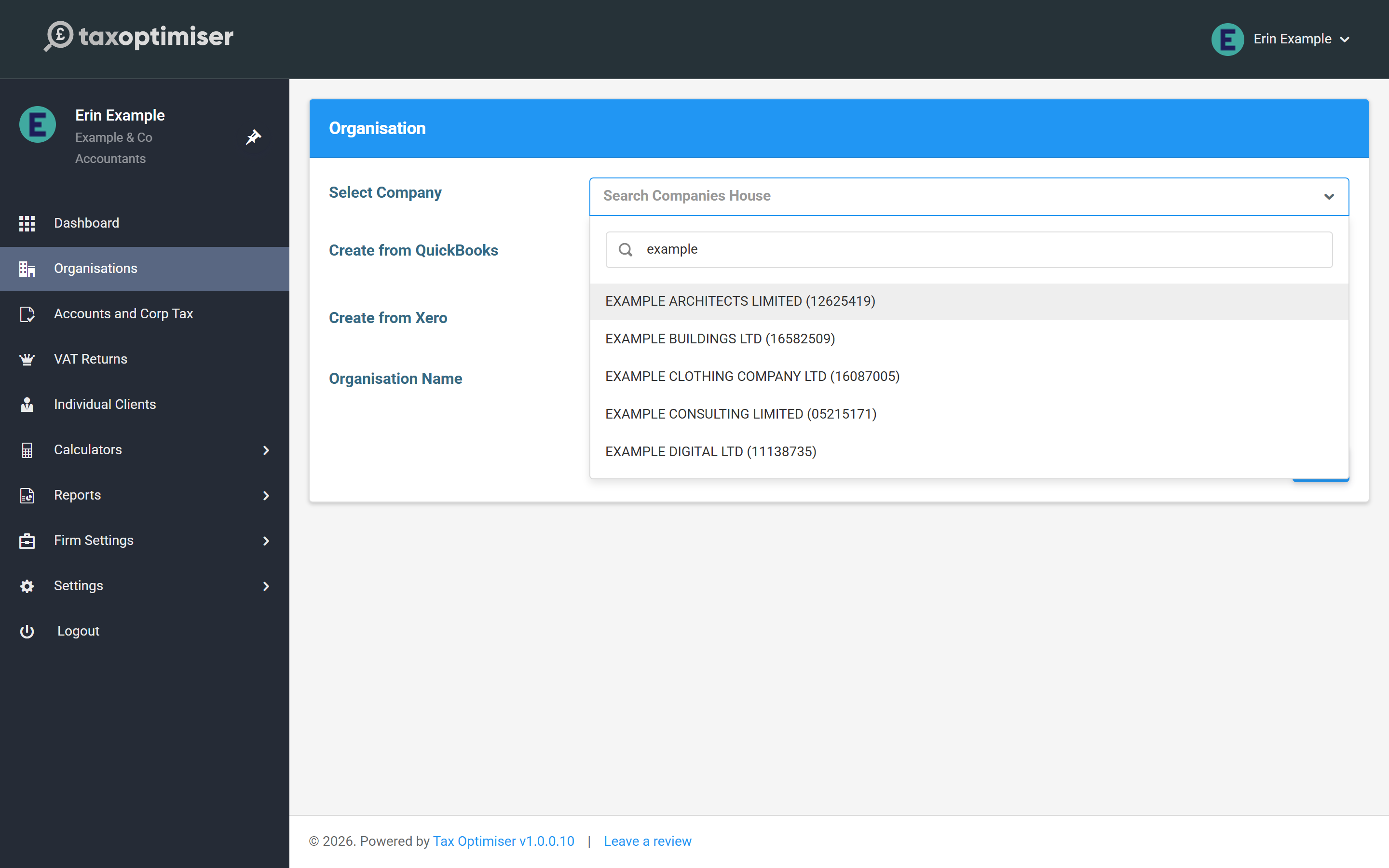
Type three or more characters of the company’s name into Select Company and the live register is searched as you type, each result showing the registered name and company number:
Pick the company and press Next, and Tax Optimiser does the setup for you: the registered name, registered office address and incorporation date are pulled from the register, the company number is stored, and the first accounting period is built from the company’s filing dates. What it can’t fetch is the authentication code — the 6-character code Companies House posts to the registered office — so add that to the client’s record before filing.
The manual way: by name
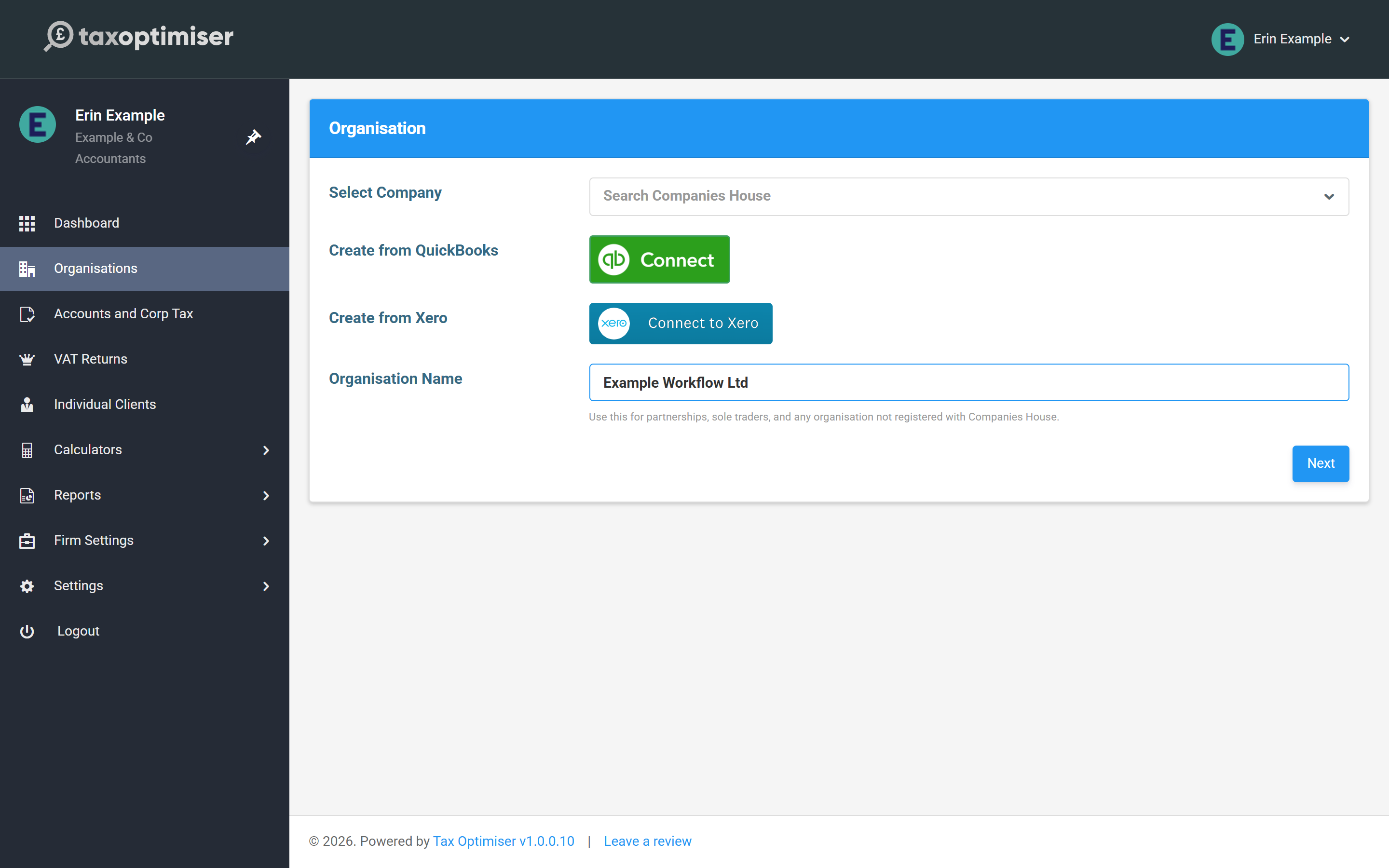
Type a name into Organisation Name instead and press Next to create an empty organisation. This is the right path for partnerships, sole traders and anything else not on the Companies House register — and a perfectly good one for limited companies you’d rather set up by hand.
The catch to remember: nothing is fetched for you. For a limited company created this way, you must enter the Companies House number yourself — on the organisation’s Companies House tab — before any accounts can be filed (it’s 6–8 characters; include the leading letters for non-England-and-Wales registrations). The CompaniesHouse Auth Code field sits on the same tab.
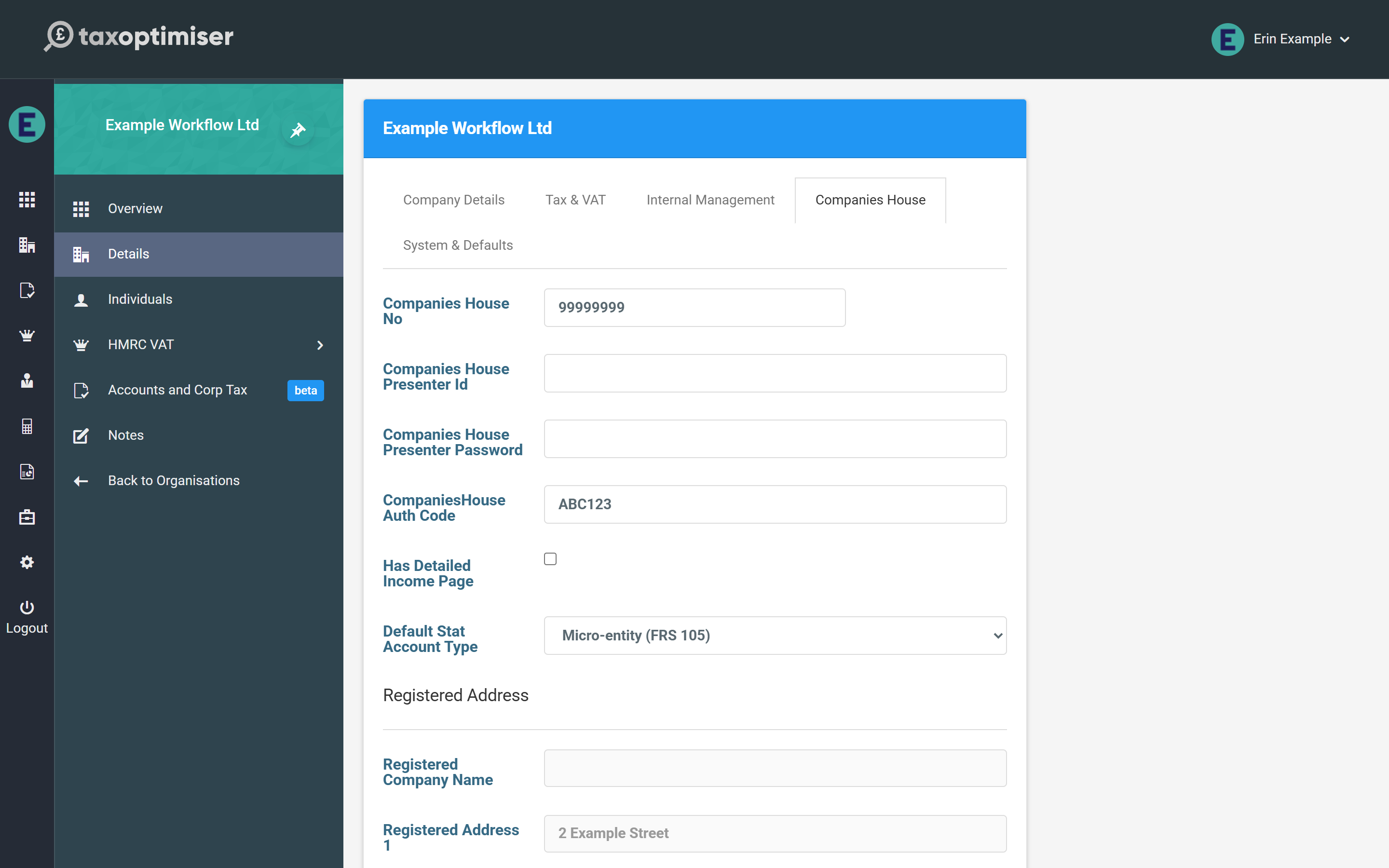
Once a company number is saved and the registered name has been synced from the register, the number locks and a Sync button appears beside it — use that whenever you want to refresh the registered details from Companies House.
From QuickBooks or Xero
The two buttons in the middle of the page create the organisation by connecting to the client’s accounting platform — the company details and, later, trial balance data come from the connection. The Companies House number and auth code still need entering, the same as the by-name path.