
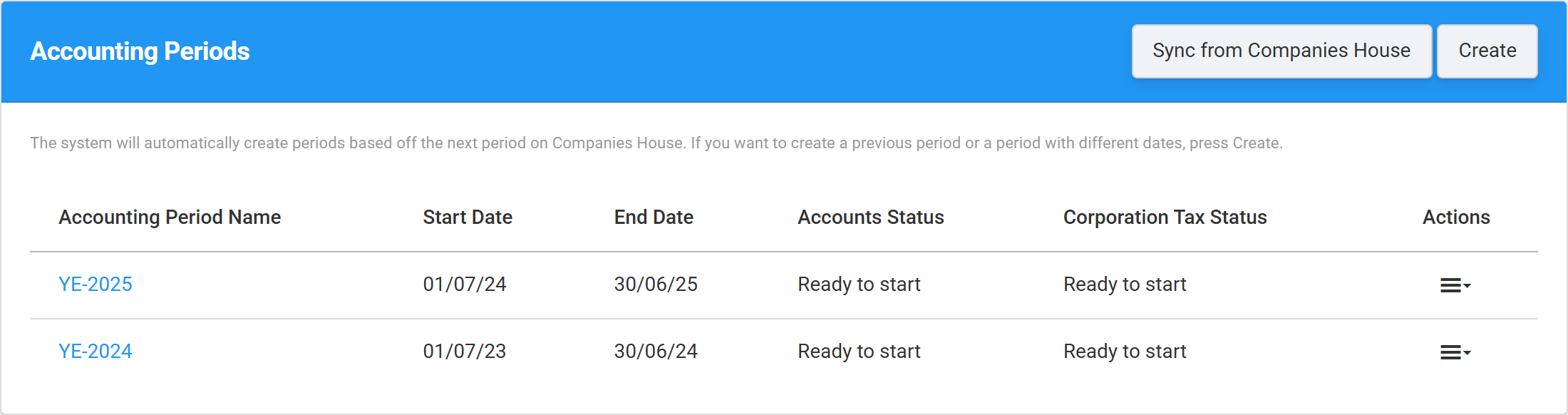
Before you can prepare a set of accounts or a Corporation Tax return in Tax Optimiser, the company needs an accounting period — the span of time the figures cover, usually a 12-month financial year. You will find the list under Accounts and Corp Tax in the sidebar, with a row per period showing its Accounts Status and Corporation Tax Status.
One period, two filings
A single accounting period drives both jobs for that year: the statutory accounts you file with Companies House and the CT600 you file with HMRC. You do not set them up separately — create the period once and both the accounts and the Corporation Tax return for that year are built from it. That is why the period’s dates matter: they become the period covered by your accounts and the accounting period on your tax return.
The easy way: sync from Companies House
Most of the time you should not need to create anything by hand. Tax Optimiser knows your company’s official filing schedule from Companies House, so it keeps your periods in step automatically. Press Sync from Companies House on the Accounting Periods screen and the system will:
- refresh the company details — registered name, registered-office address, incorporation date and company status;
- read your next accounts due at Companies House and create that period for you, named YE-<year>, with the correct start, end and filing due date;
- pull the current directors straight onto the period, ready for the accounts;
- set the comparative (prior-year) period from your last filed accounts, and mark the previous year’s period as Complete.
Companies House syncing needs your Companies House number saved on the organisation — if it is missing you will see a prompt to enter it, and the Create button stays hidden until it is set (the number is required to file as well).
When to create a period by hand
Sync only ever creates the next period on your Companies House record, so press Create when you need a period that is not on that schedule:
- a previous year you want to prepare or file through Tax Optimiser;
- a first set of accounts for a new company (often a short period that runs from the incorporation date);
- a long period of more than 12 months (which is filed as two Corporation Tax returns);
- any period where you simply need different dates from the ones Companies House holds.
Creating a period manually
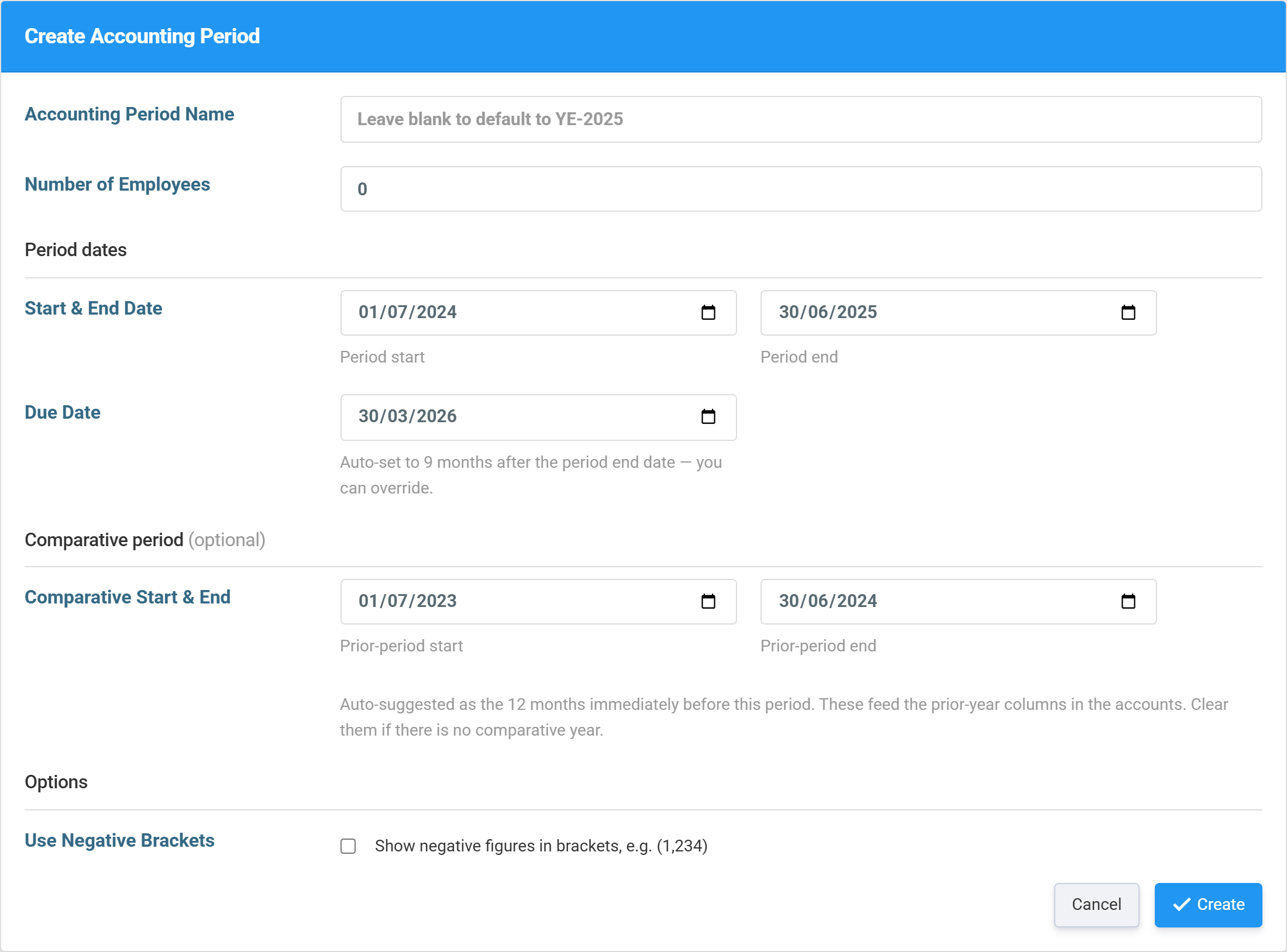
Go to Accounts and Corp Tax and press Create on the top blue bar. The form opens with sensible defaults already filled in, so in most cases you only need to set the dates and press Create.
Every field on the create screen
Accounting Period Name — a label for the period, shown in the list and on your documents. Leave it blank and it defaults to YE-<end year> (for example YE-2026), which matches how the synced periods are named.
Number of Employees — the average number of employees in the year, which feeds the employee note in the statutory accounts. Defaults to 0; set it to the right figure (a company with at least one director usually has at least one employee).
Start & End Date — the period the figures cover. These are the only fields you normally have to think about. They default to the 12 months ending at the end of the current month; the start must be before the end.
Due Date — the filing deadline. It fills in automatically as 9 months after the period end — the Companies House deadline for private company accounts — but you can override it if your deadline differs.
Comparative Start & End (optional) — the prior period, suggested as the 12 months immediately before this one. These feed the prior-year columns that sit alongside the current year in the accounts. Clear both boxes if there is no comparative year — for example a brand-new company’s first set of accounts.
Use Negative Brackets — tick this to show negative figures in brackets, e.g. (1,234), instead of with a minus sign. It only affects how the accounts are presented.
After you click Create
Tax Optimiser saves the period and takes you straight into it, where you can enter the trial balance, review the directors and addresses, and move on to the accounts and the CT600. The new period also appears in the list under Accounts and Corp Tax with both statuses set to Ready to start.
With the period created you are ready to prepare the year’s figures — carry on with the Statutory Accounts guide, starting with a tour of your accounts.