
Once your trial balance is in, Tax Optimiser builds your statutory accounts for you — the iXBRL document that goes to Companies House and accompanies your Corporation Tax return. View Accounts is where you review that document, fill in the supporting details and get it ready to file. Open it from the accounting period menu.
The live preview
The centre of the screen is a live preview of your accounts, rebuilt from your data every time the page loads. Above it you’ll see the period dates, the Statutory Accounts Type the period is prepared under (micro-entity FRS 105 or small company FRS 102 Section 1A), an Account Set Type selector, and buttons to Download iXBRL or Download PDF.
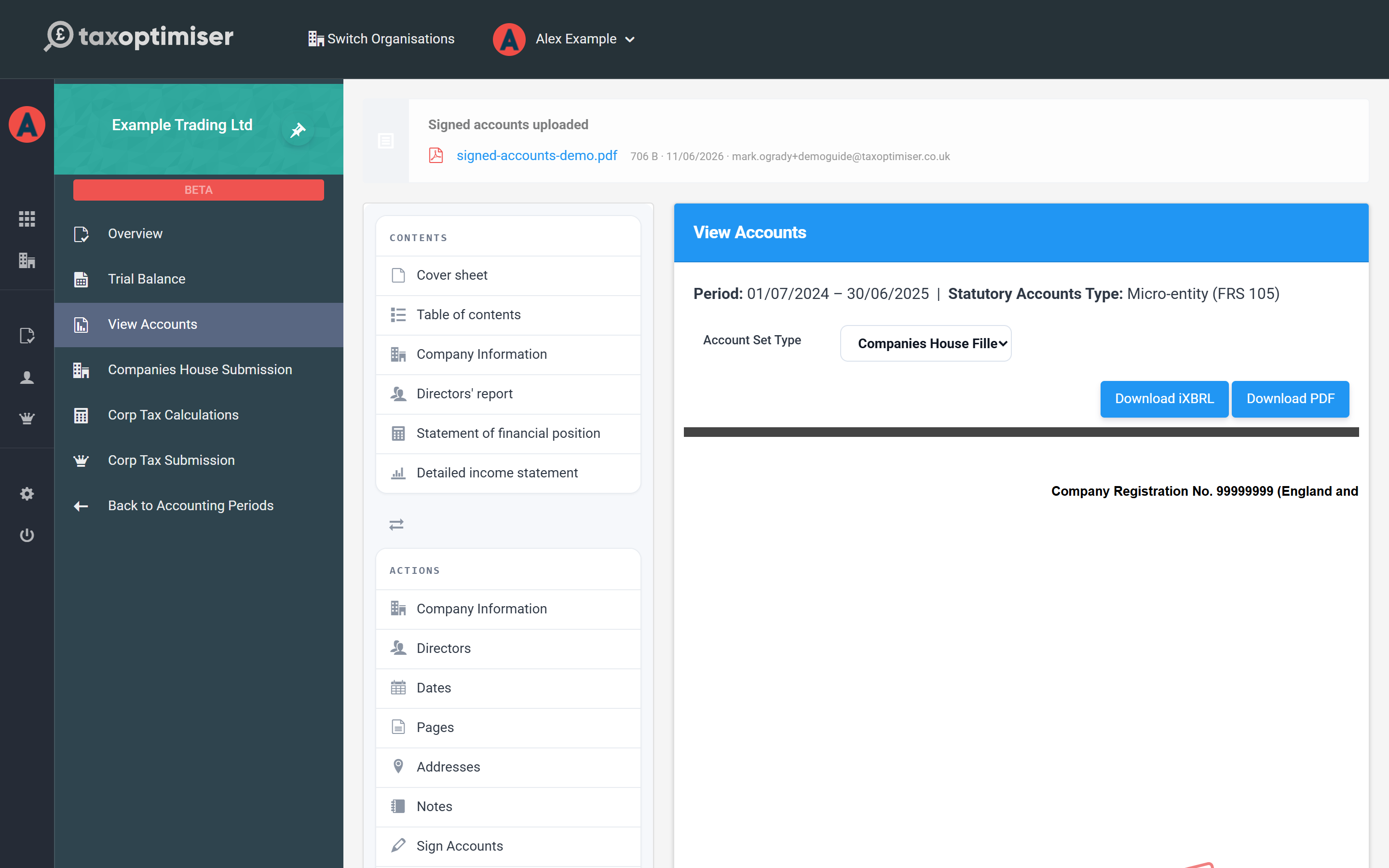
A red DRAFT watermark across the pages means the period is still flagged as draft accounts — you’ll clear that flag before filing (see Company information, dates, pages and addresses).
Jump straight to a page
The Contents list in the left sidebar jumps the preview to each section of the document — the cover sheet, table of contents, company information, directors’ report, statement of financial position and (when enabled) the detailed income statement. The links walk the full version of the accounts, so every page is reachable.
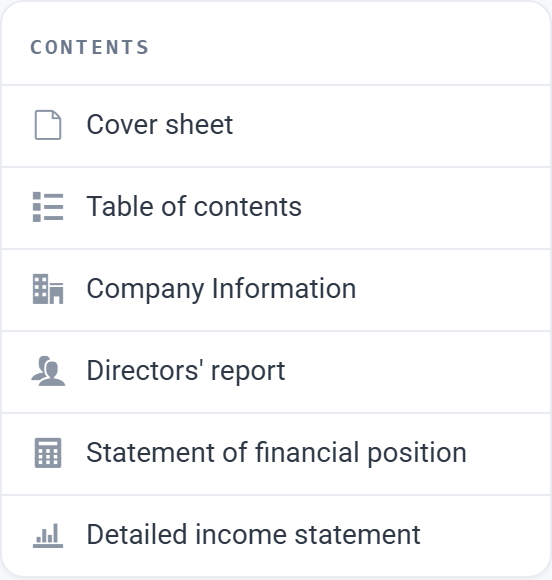
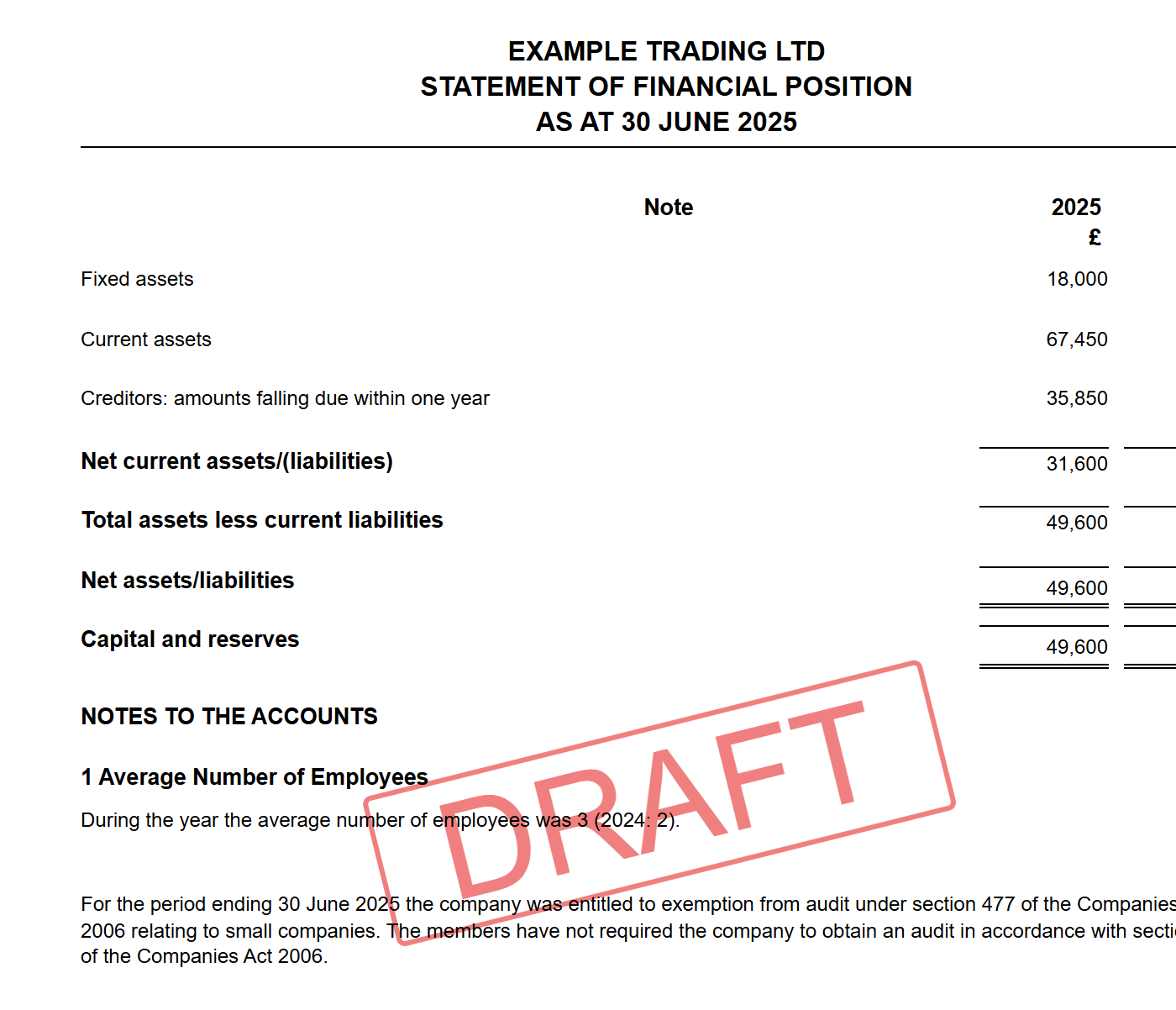
Clicking Statement of financial position, for example, scrolls the preview straight to the balance sheet:
Everything you can edit
The Actions list opens a focused window for each part of the accounts:
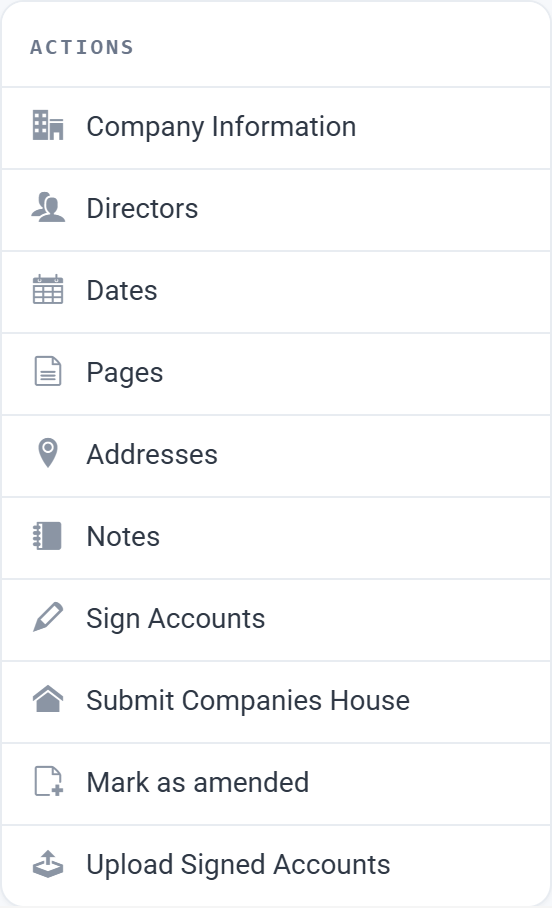
- Company Information — principal activity and the draft / dormant flags.
- Directors — who appears in the report and who signs the balance sheet.
- Dates — period, comparative and signature dates.
- Pages — which pages the document includes.
- Addresses — registered office and professional advisers.
- Notes (and, for FRS 102 1A, Policies) — the notes to the accounts.
- Validation — anything that needs checking before you file, with a count badge.
- Sign Accounts, Upload Signed Accounts, Submit Companies House and Mark as amended — the filing steps.
Each save regenerates the preview, so you always see exactly what will be filed.
Next: the two versions of your accounts and where each one goes — see Full or filleted: what gets filed where.