
Tax Optimiser files VAT returns to HMRC under Making Tax Digital as bridging software: your client keeps their figures in their own spreadsheet, and you upload it and submit the nine VAT-return boxes digitally on their behalf. As an accountant you do this for every client from one firm login — this guide walks the whole journey, from creating a client organisation to sending its return and giving the client access.
Sign up as an accountant
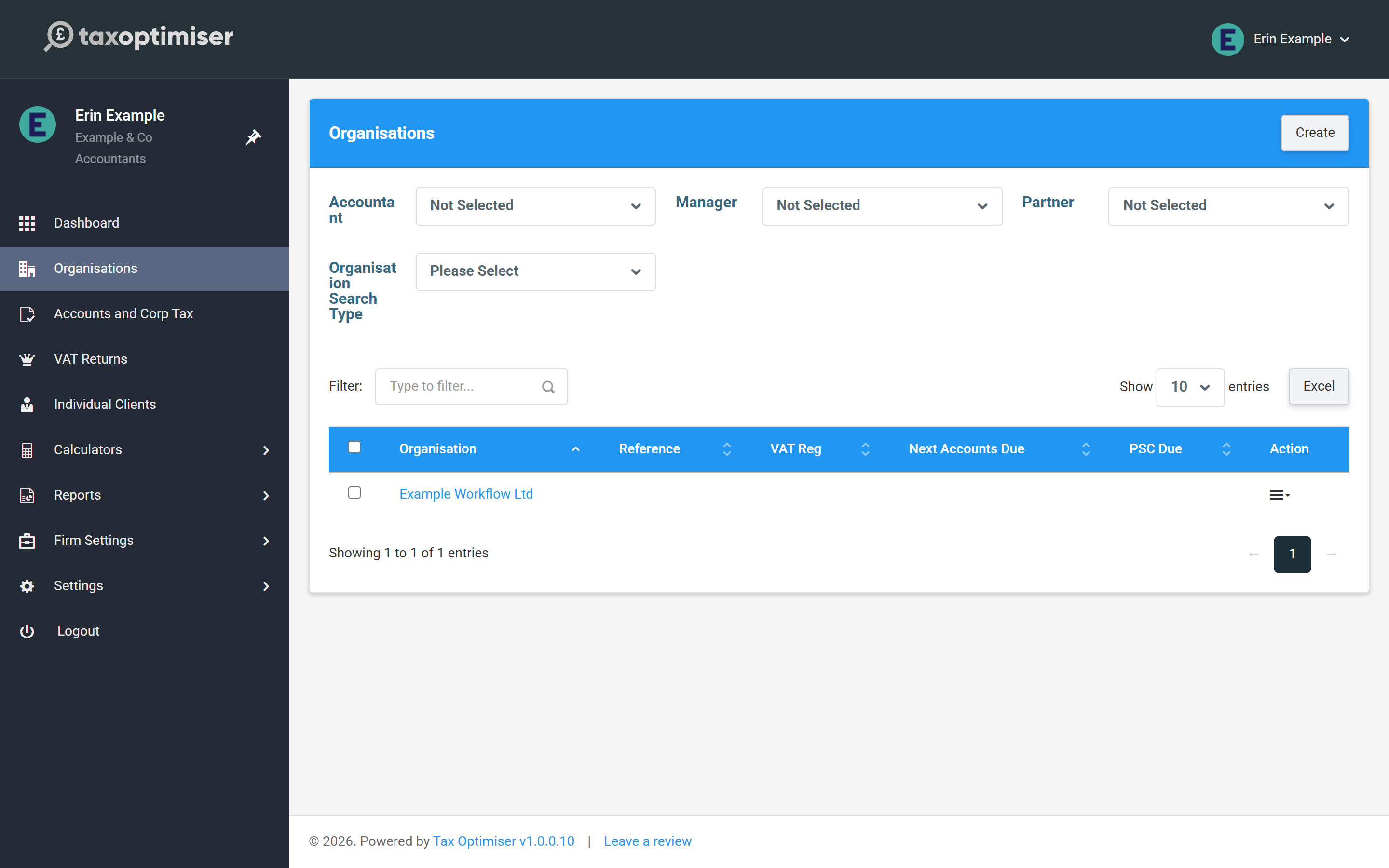
If you haven’t already, click Sign up in the top-right corner, choose Accountant / Bookkeeper, and register with your details. You land on your accountant dashboard; Organisations is your list of clients.
What you set up once for the firm
Connecting to HMRC for VAT uses your firm’s HMRC agent account — connect it once and you can view and submit VAT for every client you act for. You can also add colleagues to the firm so they can work alongside you (covered in the last article).
What you do for each client
- Create the organisation and record its VAT registration number.
- Map its VAT spreadsheet in VAT Settings — once per client.
- Connect to HMRC (practise in demo mode, then go live with your agent account) so the client’s VAT periods flow in.
- Each quarter, upload, check and send the return.
- Optionally give the client access to their own organisation.