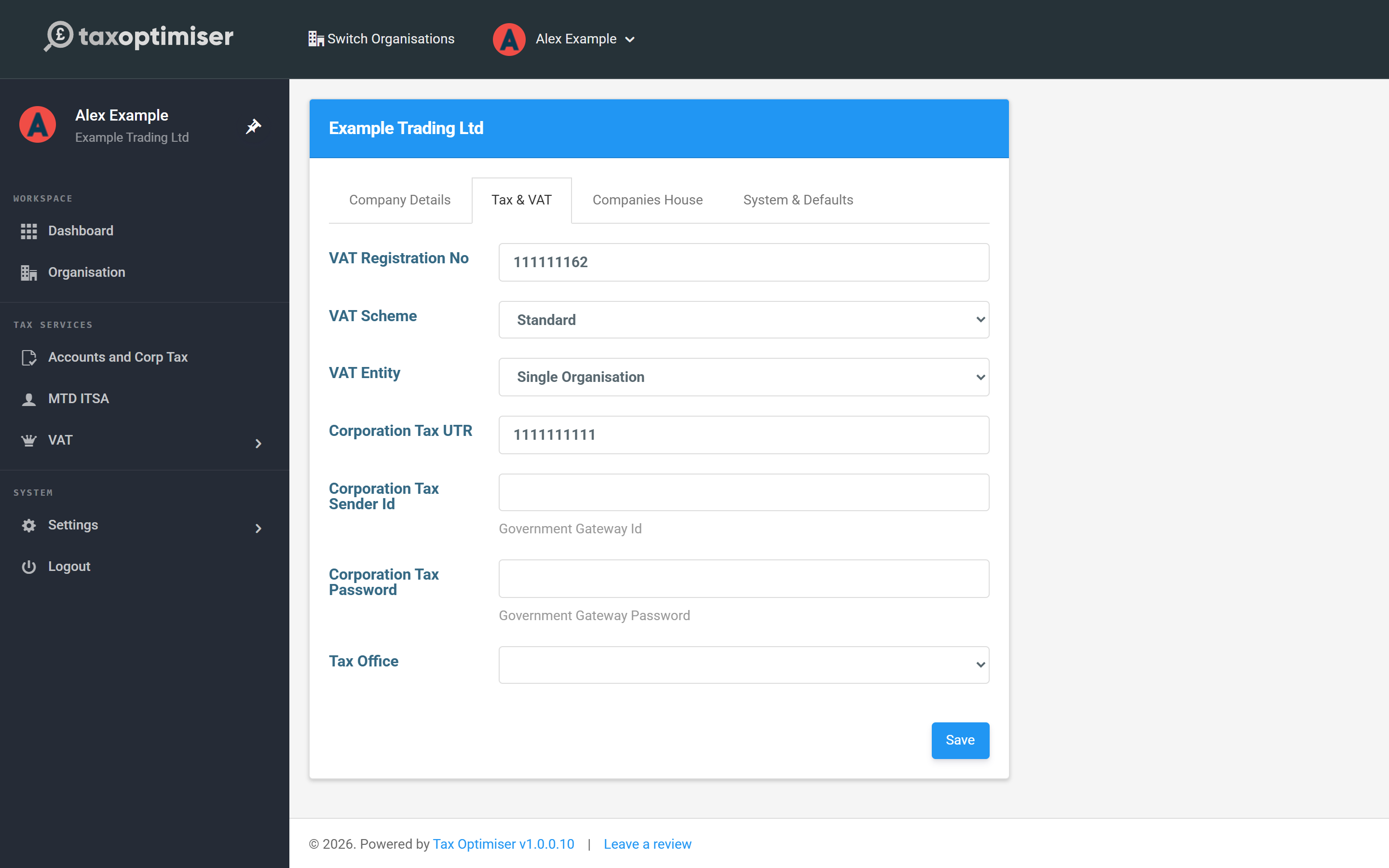
Every client you act for is an organisation in Tax Optimiser. You create one per client, and for VAT the only field you must complete is the client’s VAT registration number — everything else can follow later.
Add the organisation
From your dashboard click Organisations to see your client list, then Actions → Add New.
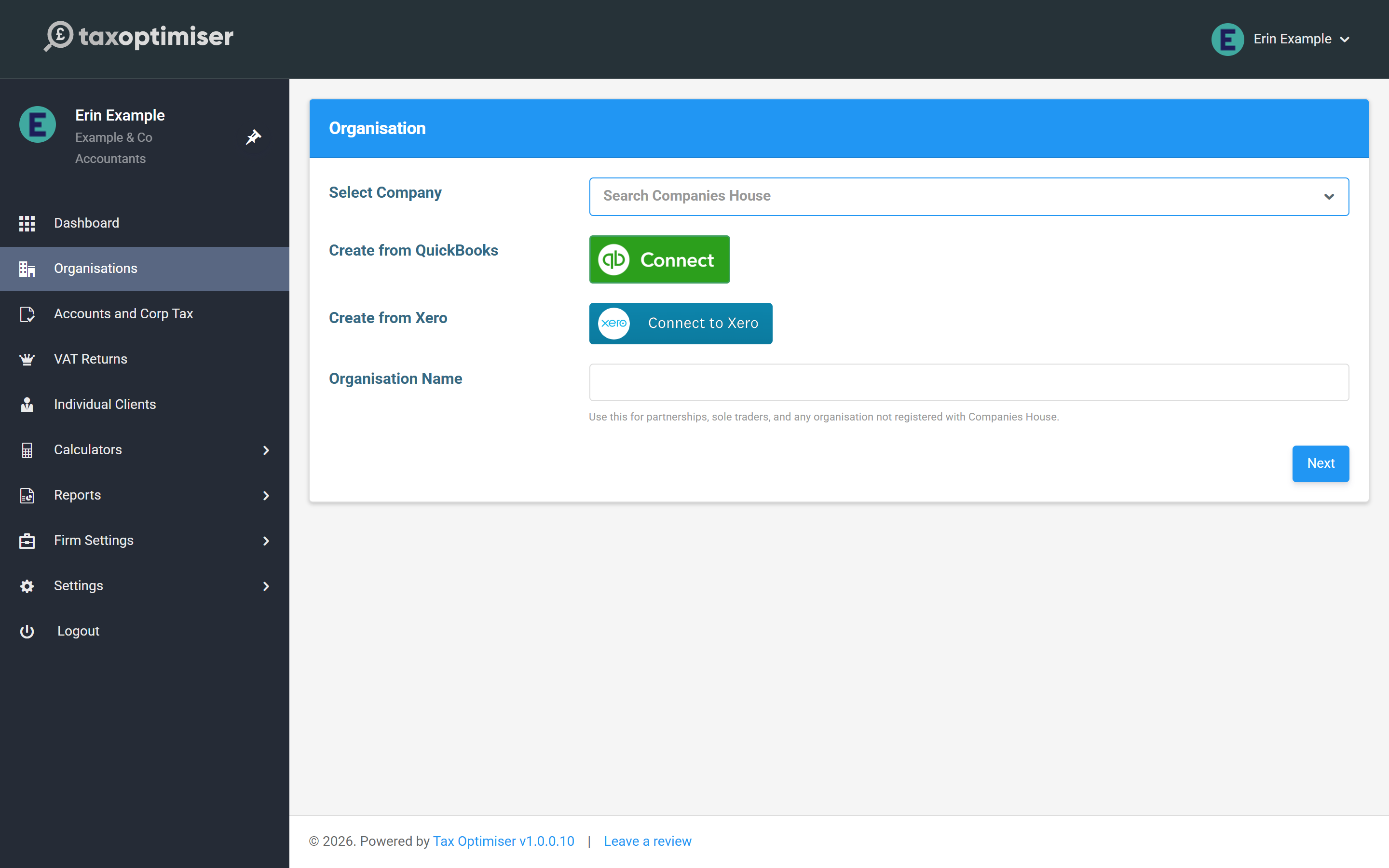
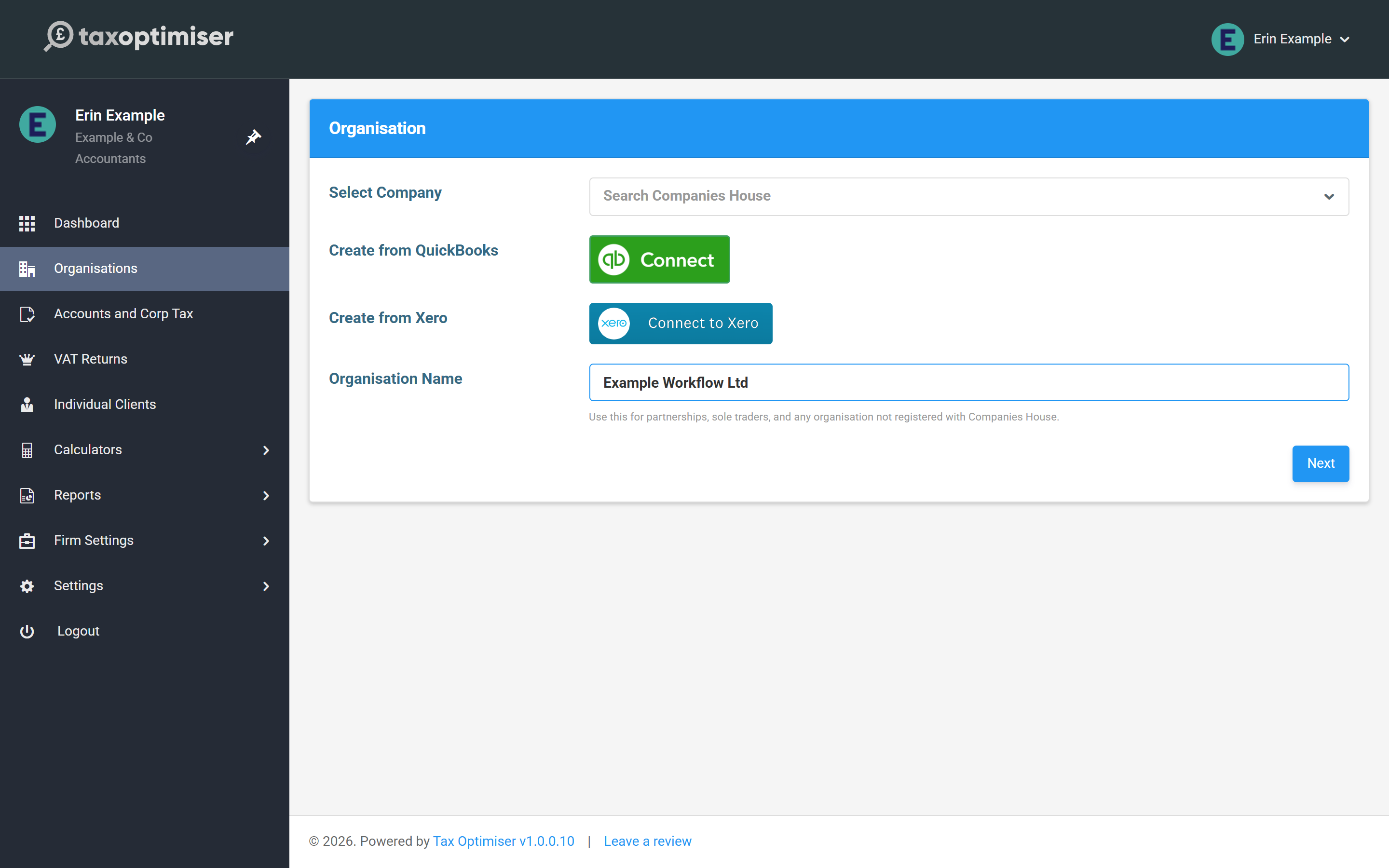
Enter the client’s details. For VAT, only the VAT Registration No is required — it’s the client’s 9-digit number from their VAT registration certificate. Press Save at the bottom.
Find your way around a client
Once saved you’re inside the client’s organisation, with its own sub-menu for VAT and everything else. To get back to your firm’s view — the client list, firm settings — use the accountant menu. To add another client, return to the Organisations list and click Add New again.
Where the VAT number lives later
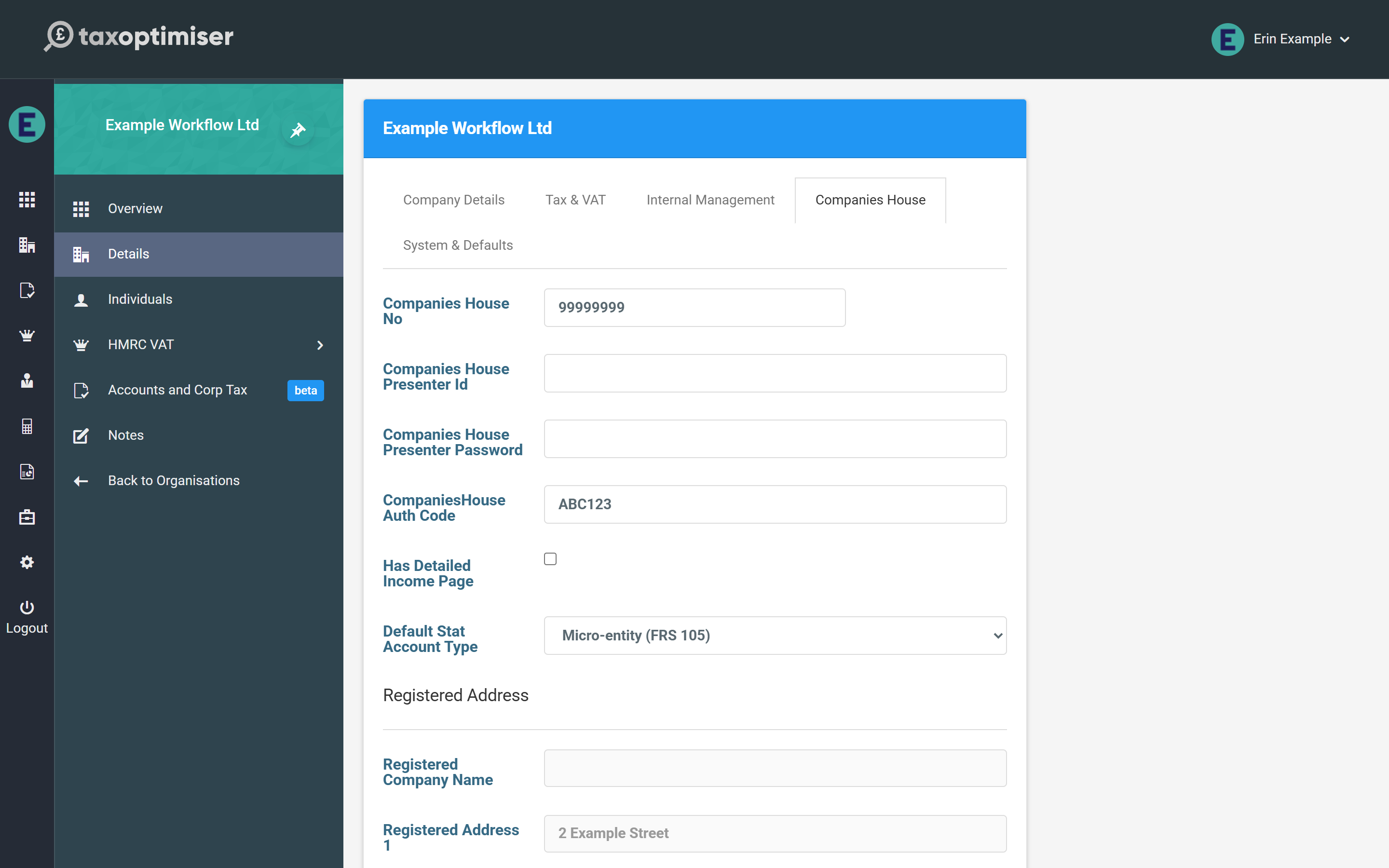
If you need to check or change a client’s VAT registration number afterwards, it’s on the client’s Tax & VAT settings, alongside the VAT Scheme (most businesses are on Standard).