
Each client’s VAT figures stay in their own spreadsheet, and you upload it each quarter so Tax Optimiser can read the nine HMRC boxes straight out of it. VAT Settings is where you tell it which sheet and cells to read. VAT settings are stored per organisation, so you set this up once for each client; after that the quarterly routine is just upload, check, send.
Open VAT Settings
Inside the client, open HMRC VAT → VAT Settings from the sidebar. The VAT Submission Software name at the top is what appears on HMRC submissions as the originating software — leave it as Tax Optimiser unless told otherwise.
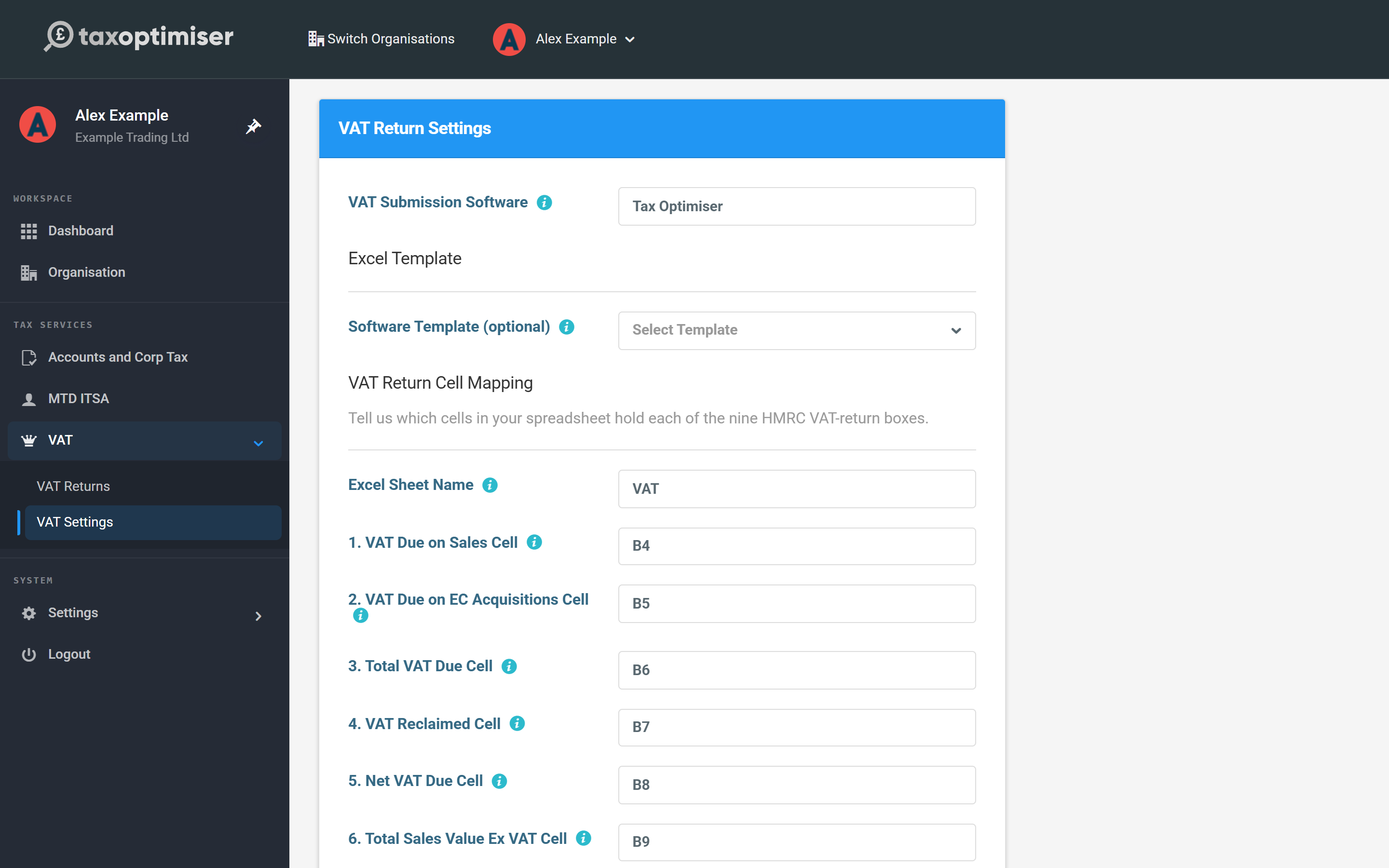
Start from a software template…
If the client exports their figures from a known system, pick it from Software Template — Sage 50, Sage 200, Access Dimensions, QuickBooks desktop, Dynamics NAV, MYOB, Manager.io and others are listed. Choosing one pre-fills the sheet name and all nine cell references; you can still adjust any of them. Press Save.
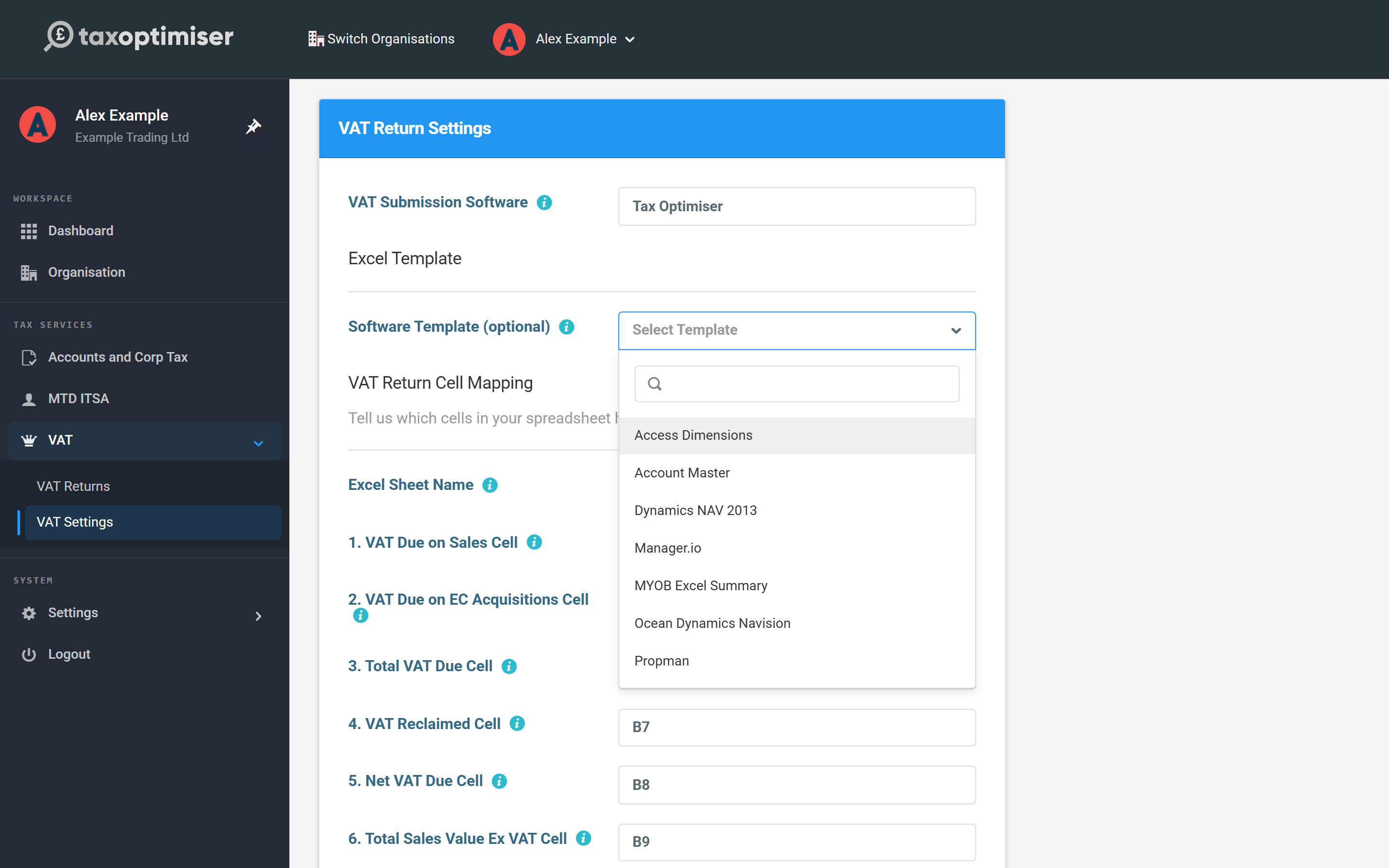
…or map the cells yourself
For a client’s own spreadsheet, fill the mapping in directly:
- Excel Sheet Name — the name of the worksheet tab along the bottom of Excel (for example VAT). It must match exactly, including spaces — it is not the filename.
- The nine cell references — one per HMRC box, such as B4. Each must point at the cell holding that box’s final figure.
Press Save. If the client would rather adopt a ready-made layout, the upload screen offers a Download Example Front Sheet Excel File that matches the default mapping out of the box.
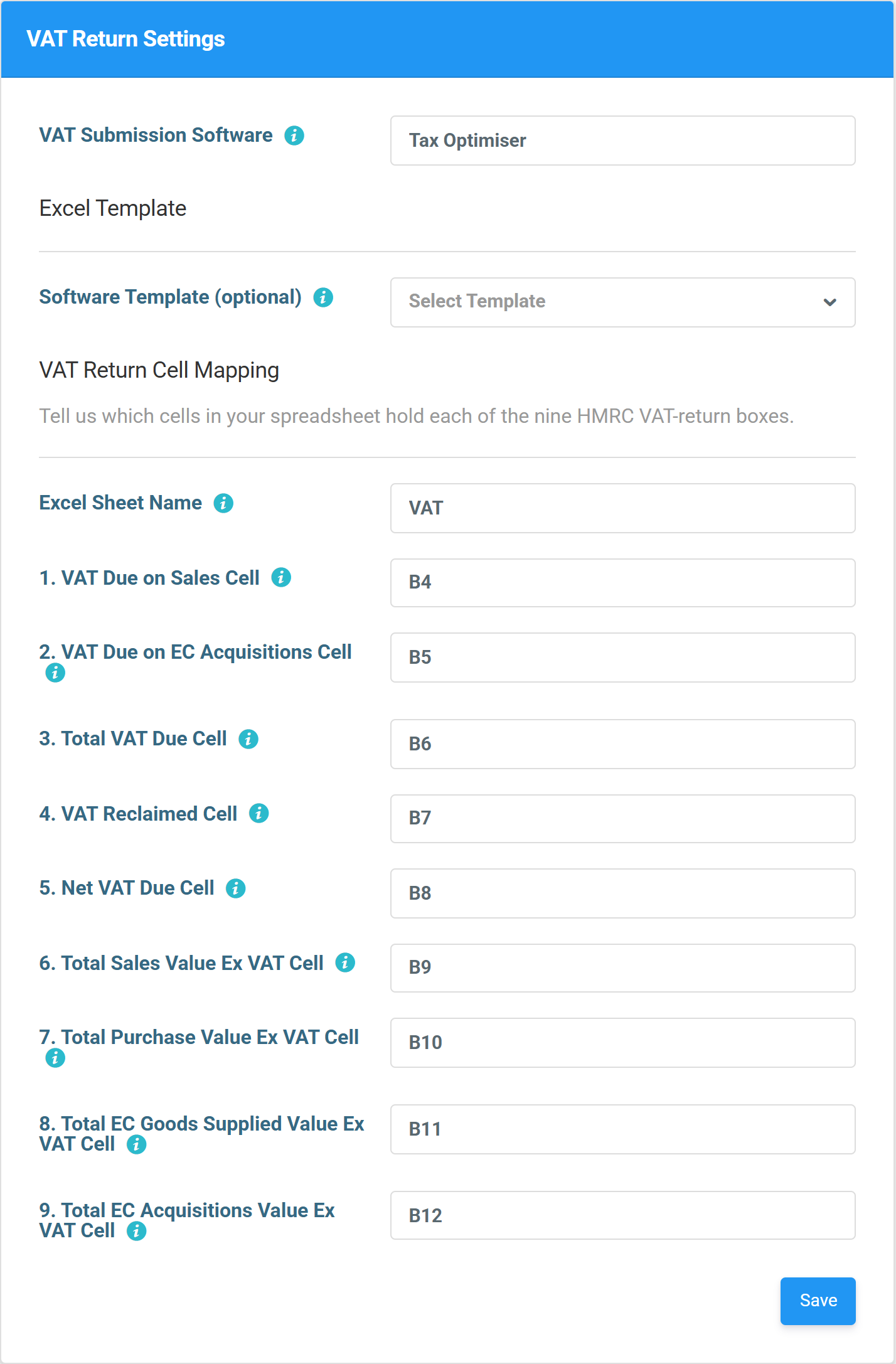
The nine boxes at a glance
- Box 1 — VAT due on sales and other outputs.
- Box 2 — VAT due on acquisitions of goods from EU member states (Northern Ireland traders only; 0 for most businesses).
- Box 3 — total VAT due: Box 1 + Box 2.
- Box 4 — VAT reclaimed on purchases and other inputs.
- Box 5 — net VAT due to (or reclaimable from) HMRC: Box 3 − Box 4.
- Box 6 — total value of sales excluding VAT, in whole pounds.
- Box 7 — total value of purchases excluding VAT, in whole pounds.
- Box 8 — total value of goods supplied to EU member states (NI traders only).
- Box 9 — total value of goods acquired from EU member states (NI traders only).