
Under Making Tax Digital a client’s VAT periods come from HMRC: once connected, Tax Optimiser pulls down their open and completed periods (HMRC calls them obligations) and you submit against them — you never type period dates in yourself. Every new client starts in demo mode, a safe sandbox where you can practise the whole journey without anything being sent to HMRC.
Practise in demo mode
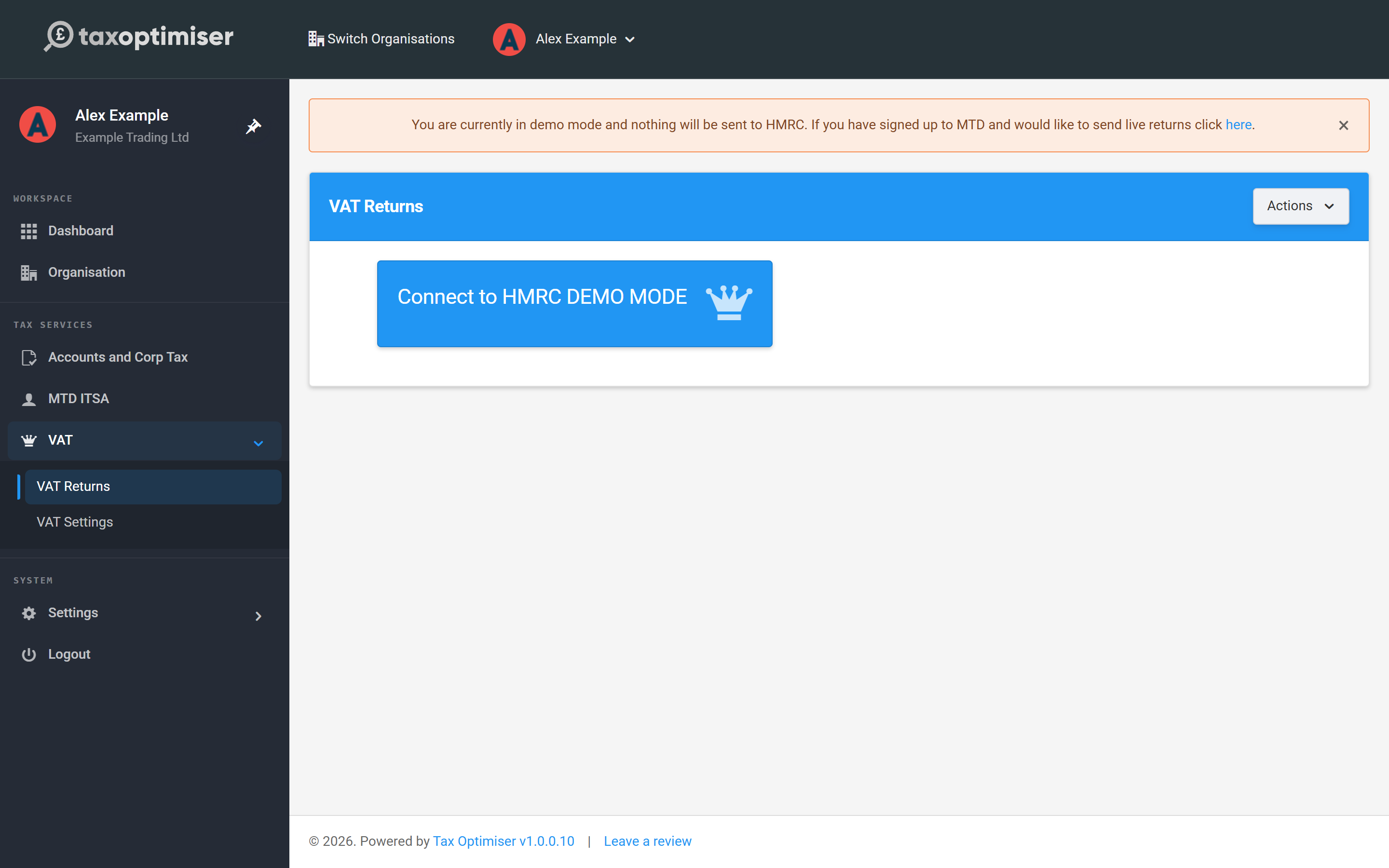
Inside the client, open HMRC VAT → VAT Returns. A banner reminds you that nothing will be sent to HMRC. Click Connect to HMRC DEMO MODE.
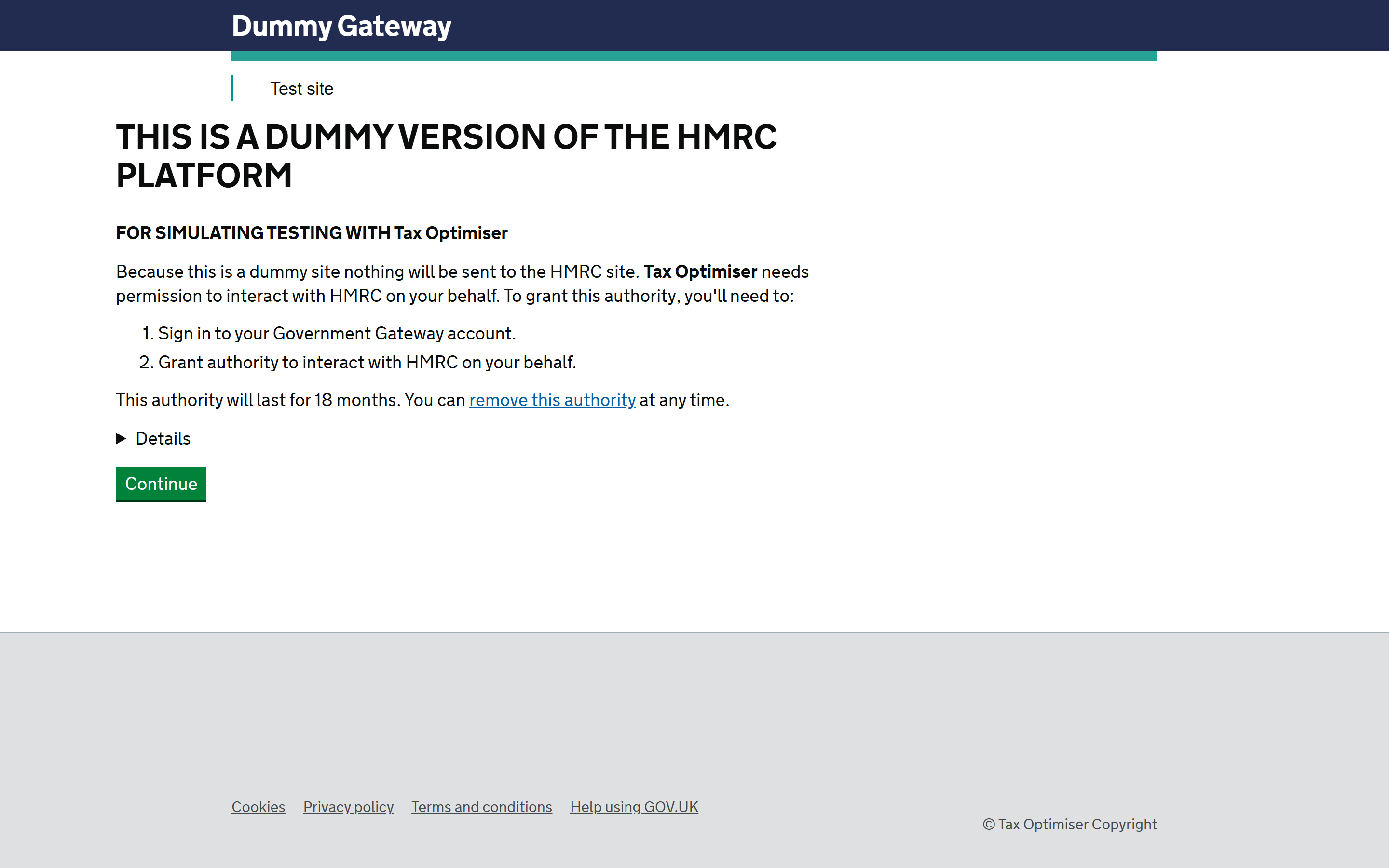
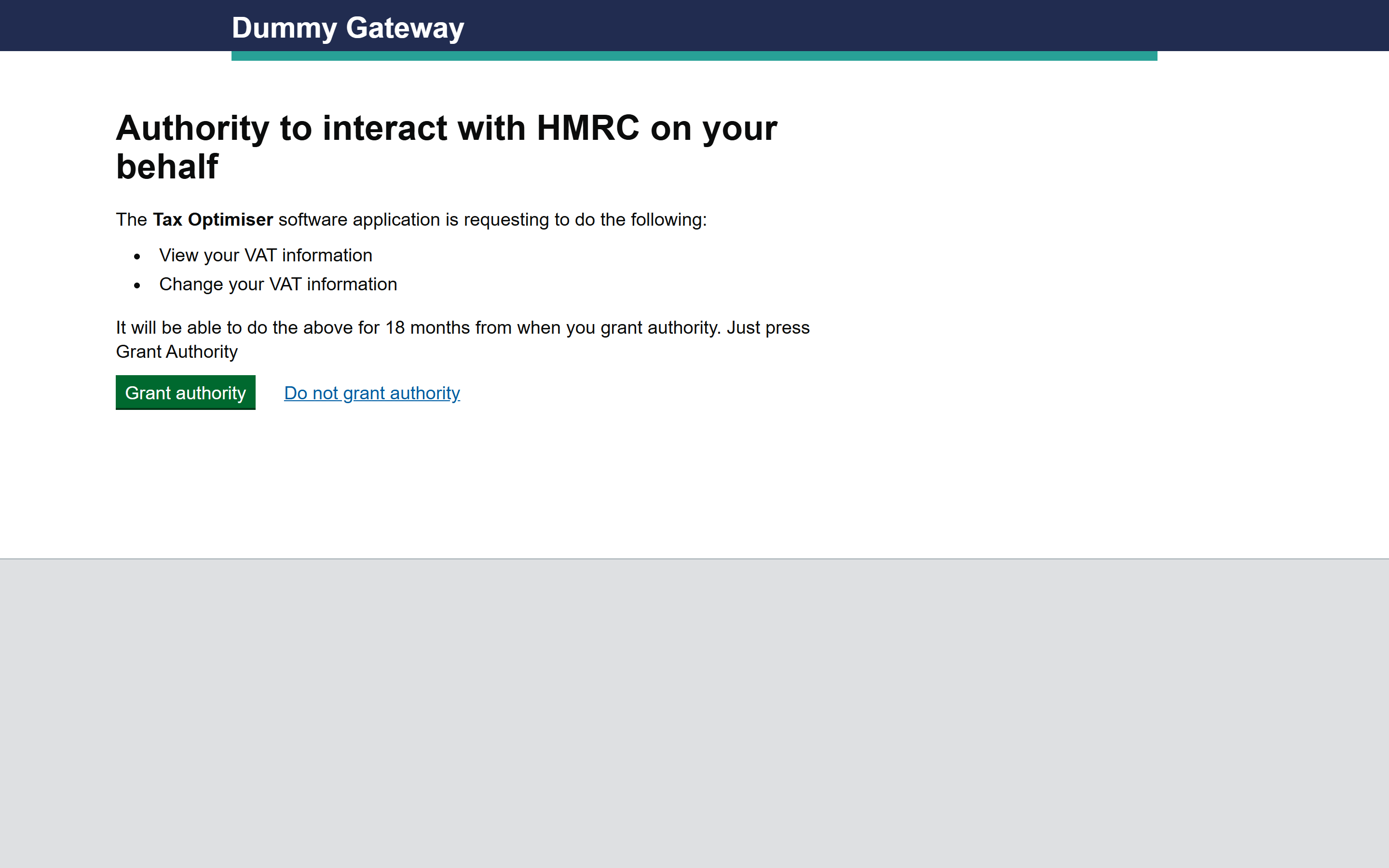
You’ll step through a simulation of HMRC’s real connection flow, so there are no surprises when you do it for real: press Continue, then Sign in on the dummy login (no credentials needed in demo mode), and finally Grant authority.
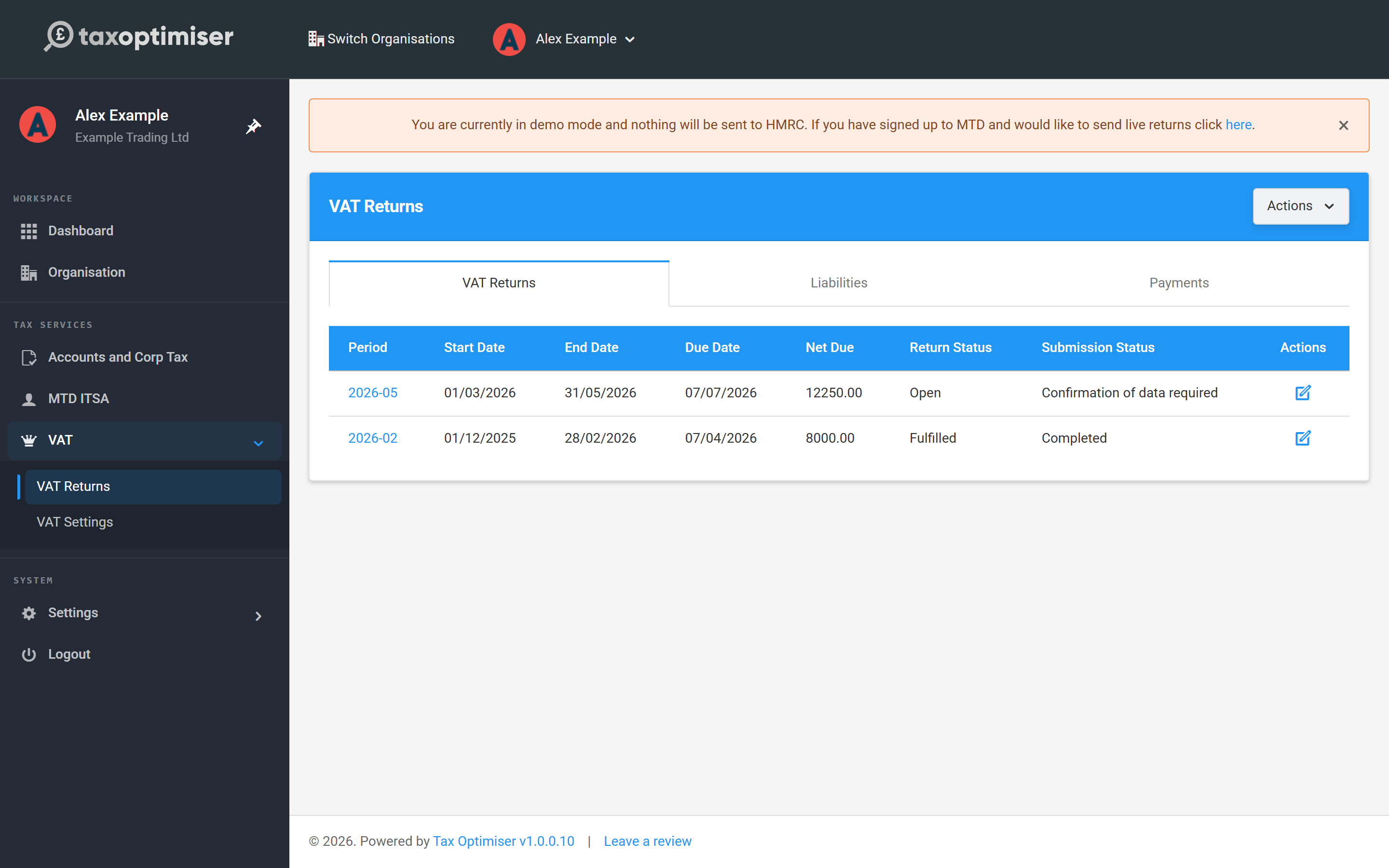
Back on VAT Returns you’ll see demo periods — one already Fulfilled (a completed return can’t be submitted against) and one Open awaiting data. In demo mode you can reset this sample data at any time with Actions → Reset Test Data.
Switch to live mode
Before you can file for real, the client’s business must be signed up to Making Tax Digital for VAT with HMRC (they’ll have had a confirmation email). When you’re ready, click the link in the demo banner and confirm Set to live mode.
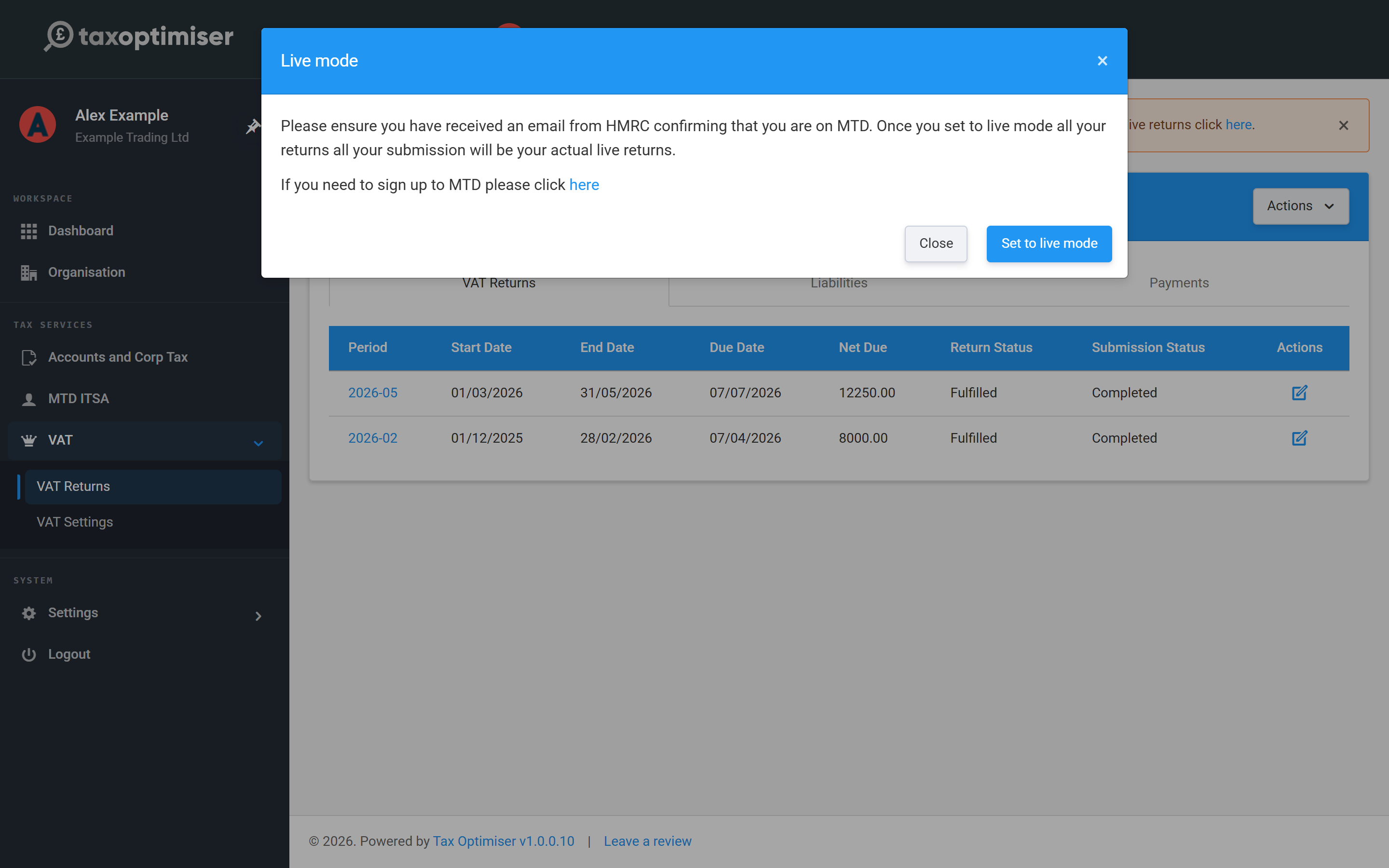
Connect with your agent account
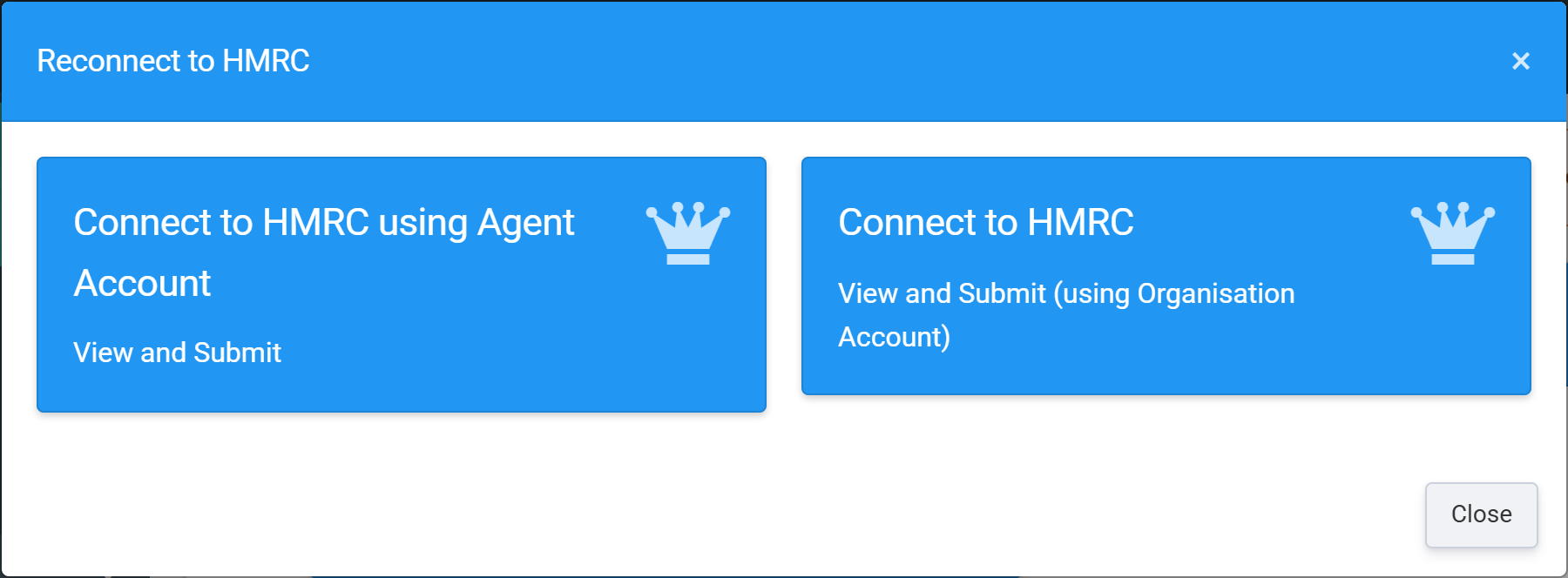
You then choose how to connect. The same choice is available any time from Actions → Reconnect to HMRC. As an accountant, pick Connect to HMRC using Agent Account — this uses your firm’s HMRC agent services account, so the one authority lets you view and submit VAT for this and every other client you act for. (The other option, Connect to HMRC (using Organisation Account), is for a business connecting its own Government Gateway login instead.)
You’re taken to HMRC’s gateway: press Continue, sign in with your agent Government Gateway credentials (HMRC may ask you to complete two-factor authentication), and finally Grant authority — this lets Tax Optimiser retrieve periods and submit returns on your behalf. The authority lasts 18 months; when it expires, reconnect from Actions → Reconnect to HMRC.
Your client’s VAT periods arrive
HMRC returns the client’s real VAT periods to the returns table. To work a period, click its link and follow the next article. We refresh periods intermittently, but if one you’re expecting hasn’t appeared — or you’ve just fixed an error — click Refresh data to re-pull everything from HMRC.