
From time to time Tax Optimiser needs to be reconnected to HMRC — the permission you grant lasts 18 months, and occasionally a connection is made with the wrong sign-in details. The good news: reconnecting takes about two minutes, and if you've seen a “connected to an incorrect Government Gateway account” message, this article shows you exactly how to sort it out.
Step 1: Reconnect to HMRC
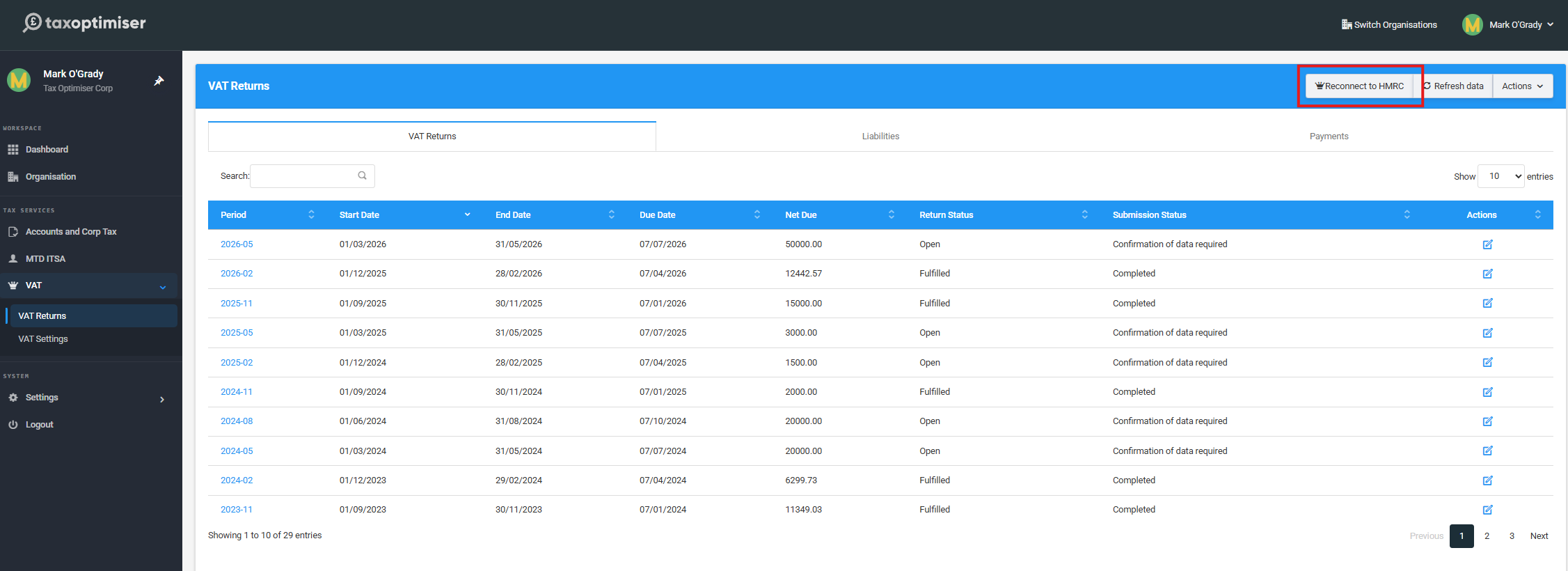
From the sidebar, go to VAT → VAT Returns. On the blue bar at the top of the screen, click Reconnect to HMRC.
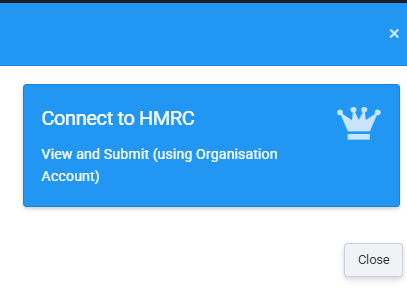
Choose Connect to HMRC — this connects using your organisation's own account, letting Tax Optimiser view and submit your VAT returns.
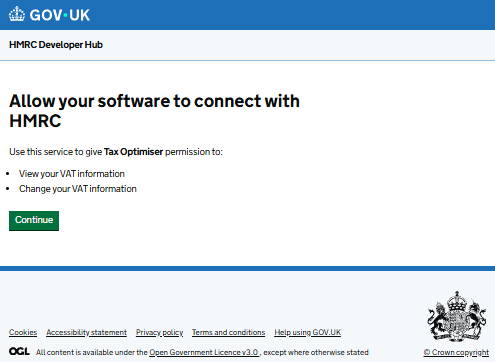
You'll be taken to HMRC's website. The first page simply explains what you're agreeing to — press Continue.
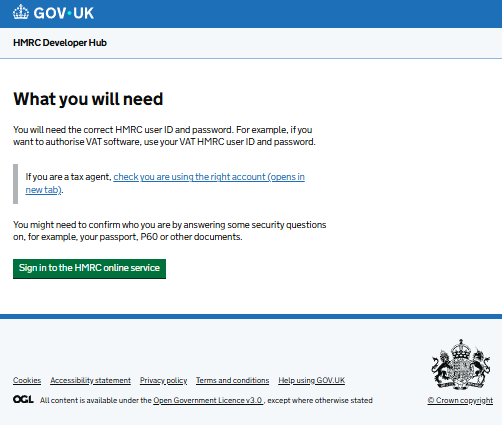
The next page tells you what to have ready: the Government Gateway user ID and password you use for your business's VAT. Click Sign in to the HMRC online service.
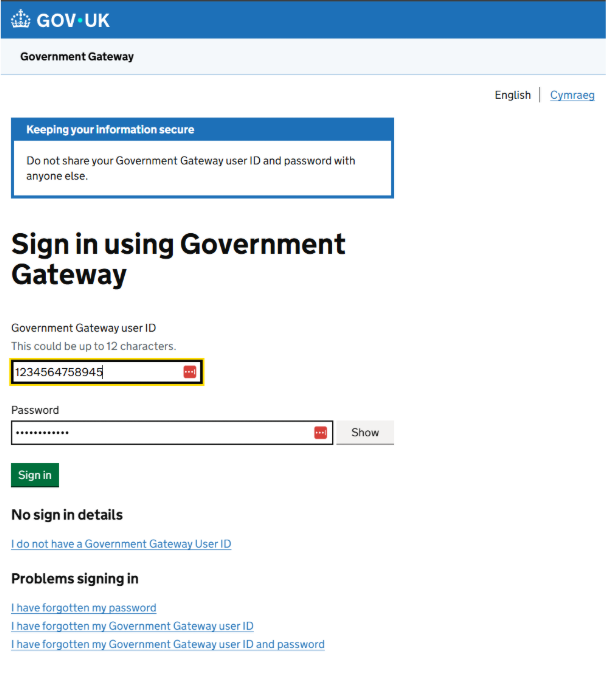
Enter your Government Gateway user ID (up to 12 characters) and password, then press Sign in. HMRC may also ask you a security question or send a code to your phone.
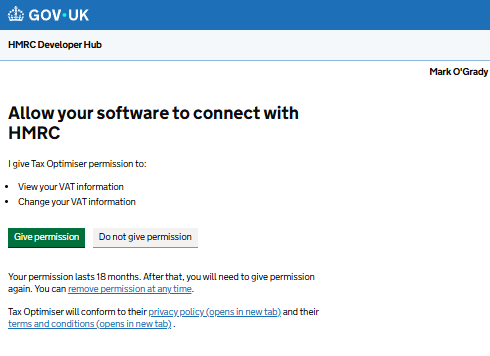
Finally, press Give permission. That's it — you're reconnected for another 18 months, and your VAT periods will refresh on the VAT Returns screen.
Seen this message? You're connected to the wrong account
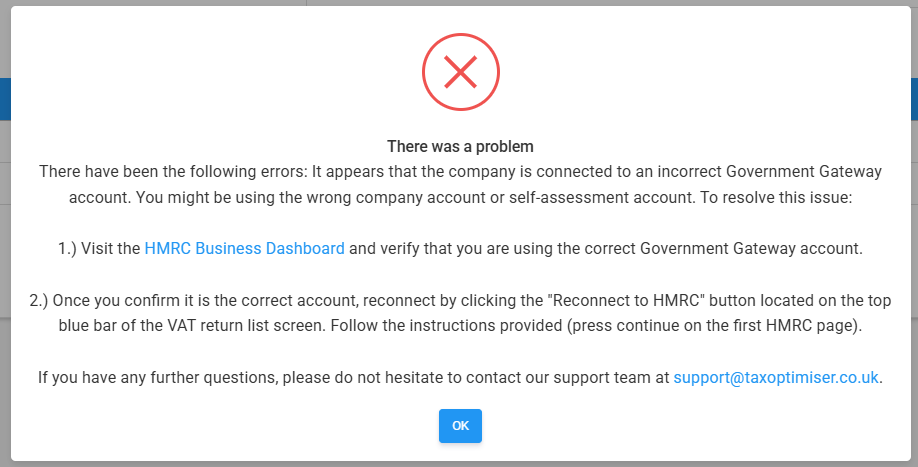
Don't worry — nothing is broken. This message means the Government Gateway sign-in you used doesn't hold this company's VAT registration. It usually happens because you have more than one set of HMRC sign-in details — for example a personal one for your own self-assessment and a business one for the company's VAT — and the wrong one was used when connecting. The fix is simply to check which account is the right one, then reconnect with those details.
Check your account on the Government's website
Go to www.gov.uk/log-in-register-hmrc-online-services and press the green Sign in button.
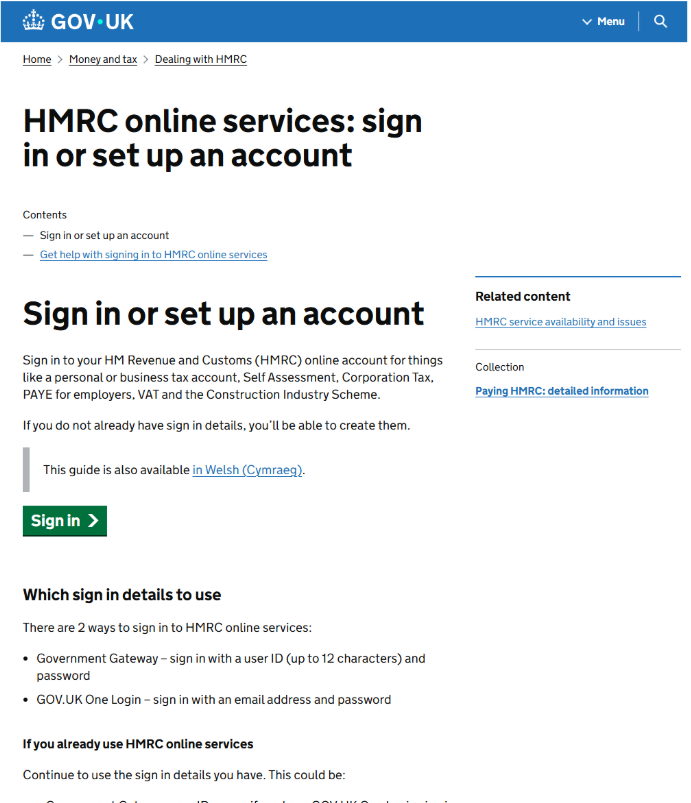
Choose Government Gateway and press Continue.
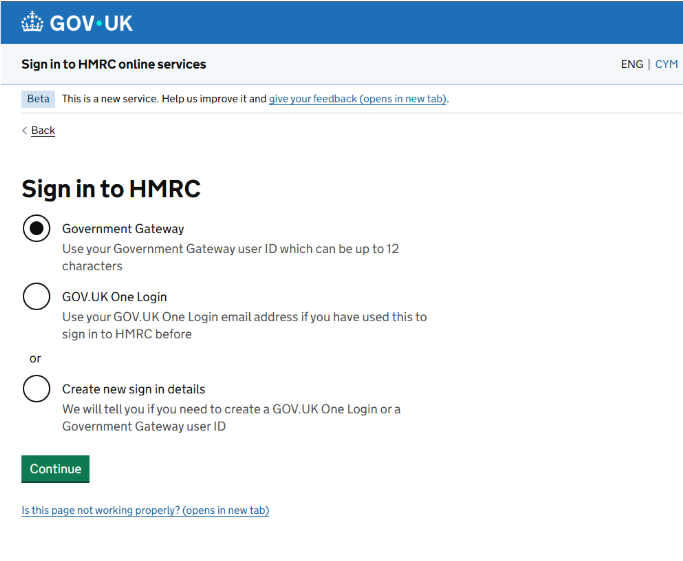
Sign in with the same user ID and password you used when connecting in Tax Optimiser.
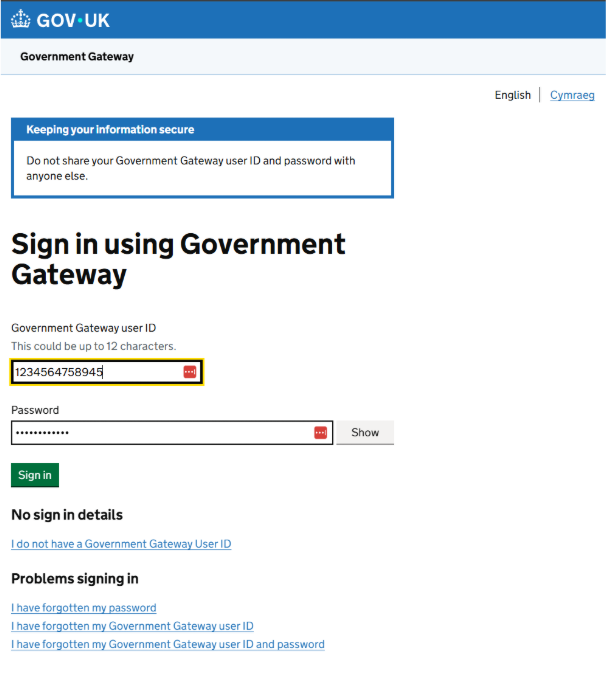
Forgotten your details? Use the links under Problems signing in on this page — HMRC can recover your user ID, your password, or both. A handy shortcut: your Government Gateway user ID was emailed to you when the account was first created, so try searching your email inbox for “Government Gateway”.
Once signed in, you'll land on your Business tax account. Scroll down and look for a VAT section showing your VAT registration number — if it's there, these are the right details to use.
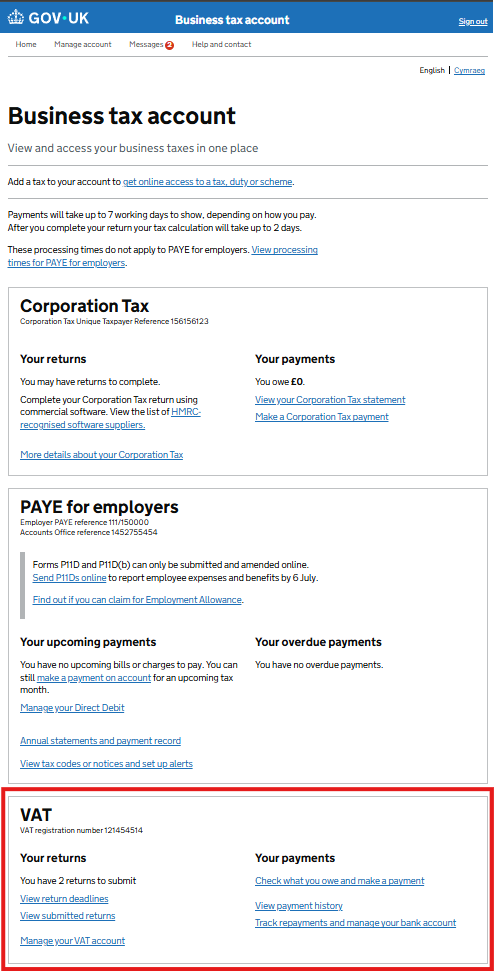
Can't see VAT on the dashboard? Then this sign-in doesn't have access to your business's VAT. You may have signed in to a personal account (the one you use for self-assessment) or to a different business's account — try your other sign-in details. (Accountants' agent accounts look different again; if your accountant manages your VAT, ask them to connect using their agent login.)
Reconnect with the right details
Once you've confirmed which account shows your VAT, head back to Tax Optimiser: VAT → VAT Returns, click Reconnect to HMRC on the top blue bar, and follow the steps from the top of this article using the confirmed sign-in details.
Still stuck? Email us at support@taxoptimiser.co.uk — we're happy to help.