
SA800 returns hang off a partnership period — the partnership’s equivalent of an accounting period, created and managed from the Partnership return (SA800) menu.
Before you start: the organisation must be a partnership
The Partnership return (SA800) menu section only appears when the selected organisation’s company structure is Limited Liability Partnership or Partnership. If you can’t see it, check the structure type on the organisation’s details first. Nothing needs switching on: the menu is there for every partnership organisation.
Before you file: save the Government Gateway login
HMRC only accepts a partnership return from a Government Gateway account that is allowed to file for that partnership, so Tax Optimiser needs a Self Assessment login before it can submit. Save it once in either place:
- Your firm’s agent login — under your firm’s settings, HMRC tab: Self Assessment Sender Id and Self Assessment Password. This is the Government Gateway account you use as the partnership’s authorised Self Assessment agent, and it is used for every client partnership (the same login files your clients’ SA100 returns).
- The partnership’s own login — on the organisation’s Details page, Tax & VAT tab. When a partnership has both a Sender Id and a Password saved here, its return is filed under that login instead of your firm’s. A partnership filing its own return without an accountant saves its login here.
These are separate from the Corporation Tax Sender Id and Password. They are stored encrypted, and the password is never shown again once saved — leave it blank to keep the saved one, or type a new one to replace it. If no login is saved, the Review & Submit step says so and Submit to HMRC stays disabled.
The returns list
Selecting Partnership return (SA800) opens the partnership’s returns list: one row per period showing the partnership name, period start and end, how many partners are on the statement, and the period’s status.
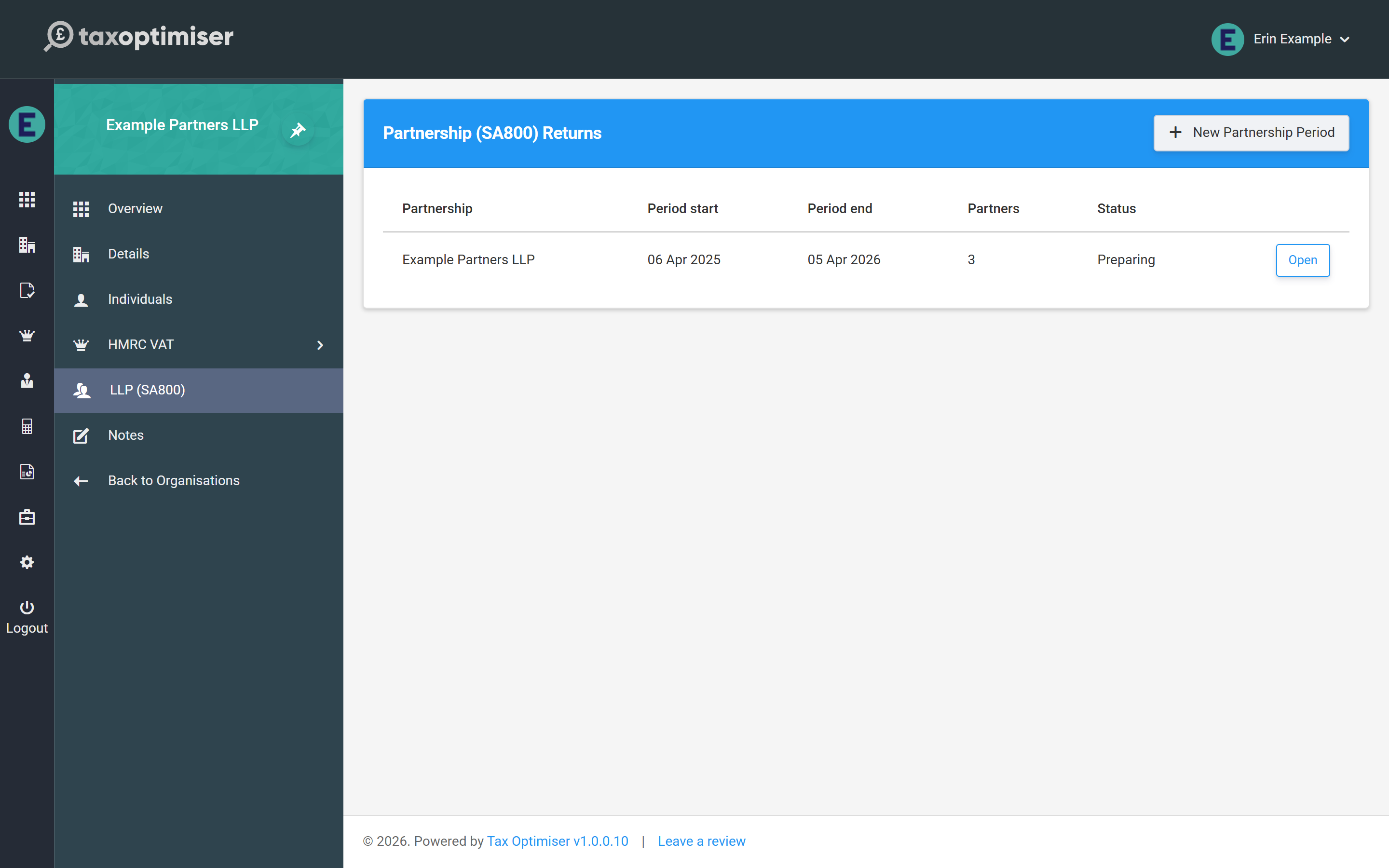
A period moves through the statuses Ready to start → Preparing → Submitted (the return is with HMRC) → Complete (HMRC has accepted it). A return that is Submitted or Complete is locked — see reviewing, printing and submitting for how to reopen one.
Creating a period
Click New Partnership Period. Tax Optimiser creates the 2025-26 return and opens the wizard straight away, prefilled with sensible defaults:
- Period dates of 6 April 2025 to 5 April 2026 — change them if the partnership’s accounts are drawn to a different date ending in that tax year
- The partnership name is taken from the organisation
- The UTR is prefilled from the tax reference held on the organisation’s details, if there is one
- Traditional accounting (box 3.9) starts ticked, because accounts prepared by an accountant are normally on the accruals basis and an LLP cannot use the cash basis — untick it on the Details step for a cash-basis partnership
There is one return per partnership for the year: if the 2025-26 return already exists, New Partnership Period simply opens it rather than creating a second.
The filing due date is set to 31 January 2027, the deadline for a 2025-26 return filed online.
Working in the wizard
The return is a six-step wizard: Details, Trading Income, Balance Sheet, Partners, Supplementary and Review & Submit. Move between steps with Previous and Next, or click a step’s bubble to jump straight to it. A bubble gains a green tick when its step has what the return needs, and a red count when something on it would stop the return being filed.
Nothing is stored until you click Save in the header. The footer shows whether there are unsaved changes, and if you try to leave the page with changes unsaved the browser asks you to confirm first. View form in the header draws the return on the official SA800 form from the figures on screen, saved or not, and clicking any box on it takes you to that box in the wizard; Print SA800 (PDF) sits beside it and is available whenever the return is saved.
What it costs
Preparing a return is free; you pay when you submit, once per return, and that covers any amended return for the same year too.
- Accountant firms use one credit per partnership return — the same credits you already buy for accounts and CT600 filing. If the firm has none left, the Submit step says so and links to Buy credits; nothing is sent until a credit is available.
- Partnerships filing their own return (no accountant firm) pay the standard submission fee of £10 plus VAT by card when they first submit, and are then brought straight back to the return to send it.
- LLPs pay once for the year: if the LLP’s statutory accounts filing for the same period has already been paid for (fee or credit), the SA800 costs nothing more — and the other way round.
Next: the Details step — identity, declarations and the page 2 questions.
