
The final step pulls the whole return together: the checks, the declaration, a summary to review, the official form to print, and the submission itself.
The final checks
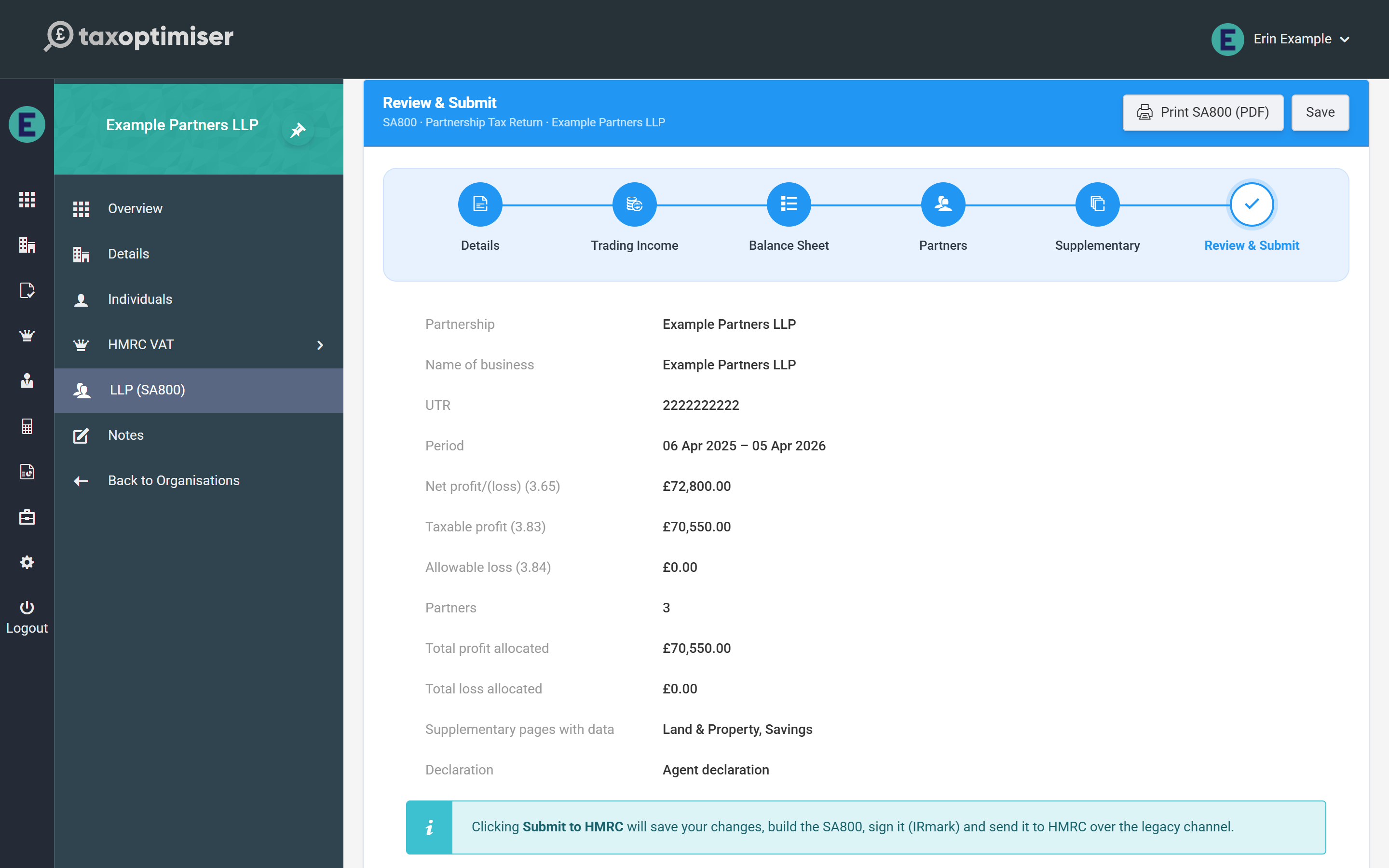
The summary shows the partnership, business name, UTR, period, the headline figures (net profit 3.65, taxable profit 3.83, allowable loss 3.84), the partner count against the totals actually allocated, which supplementary pages carry data, and the declaration type.
Above it, Tax Optimiser lists everything that would make HMRC reject the return, checked against HMRC’s own rules as you type. While anything is listed, Submit to HMRC stays disabled. The usual ones are:
- A UTR missing or failing the check digit — the partnership’s, or any partner’s (every partner needs one)
- An allocation mismatch — the partners’ shares don’t add up to boxes 3.83/3.84, or the profit share percentages don’t total 100% when the return has property, savings or other shared items
- Depreciation not added back — box 3.66 is less than the depreciation in box 3.62
- Tax deducted that isn’t 20% of the gross interest, or a negative figure in a box that can’t be negative
- A period that doesn’t end in 2025-26, or a name or description longer than HMRC allows
Each problem carries a Go to… link to the step that owns it, and that step’s bubble shows a red count of its outstanding problems, so there is no hunting for the box to fix.

The declaration (page 8)

- Nominated partner (box 11.3) and, if someone is signing for them, the capacity (box 11.4). The nominated partner is required whenever two or more partners are listed — without it HMRC’s page 8, including the ticks for the statement and supplementary pages, can’t be sent. With a single partner HMRC’s online return has no page 8, so leave the rest of this group blank.
- This return includes provisional or estimated figures (box 10.1), and separately the taxable profit or loss is provisional (box 3.93). Say which figures are provisional, and why, in the additional information box on the Details step.
- Contact telephone (boxes 9.1 / 9.2) — digits and spaces only. It is sent as the agent’s number, with the agent’s name (box 9.3), when the agent makes the declaration (ticked on the Details step); the agent’s address goes with it.
- The partnership’s details on the return are wrong (box 8.0) — tick it and enter the new address (boxes A11 to A15) if the partnership has moved: at least two address lines, and a third line before the town.
- Tax avoidance scheme — the 8-digit scheme reference (box 10.2) and the year the tax year ends (box 10.3), for a disclosed scheme.

Seeing the return on the official form
View form in the wizard header opens the SA800 drawn on HMRC’s official form — page by page, including the SA801 to SA804 supplementary pages — from the figures as they are on screen, saved or not. Hover over any box and it highlights; click it and the wizard jumps to the step that holds it and flashes the field, so a figure that looks wrong on the form is one click from its box. Boxes the wizard calculates for you highlight too and take you to the step they are derived on. Press Esc or the close button to return to the wizard where you left it.

Printing the official form
Print SA800 (PDF) renders the partnership’s figures onto the official HMRC SA800 form — ideal for a review file or for the client’s records. The button appears in the wizard header throughout. The PDF is built from saved figures, so while you have unsaved changes it is greyed out until you click Save.
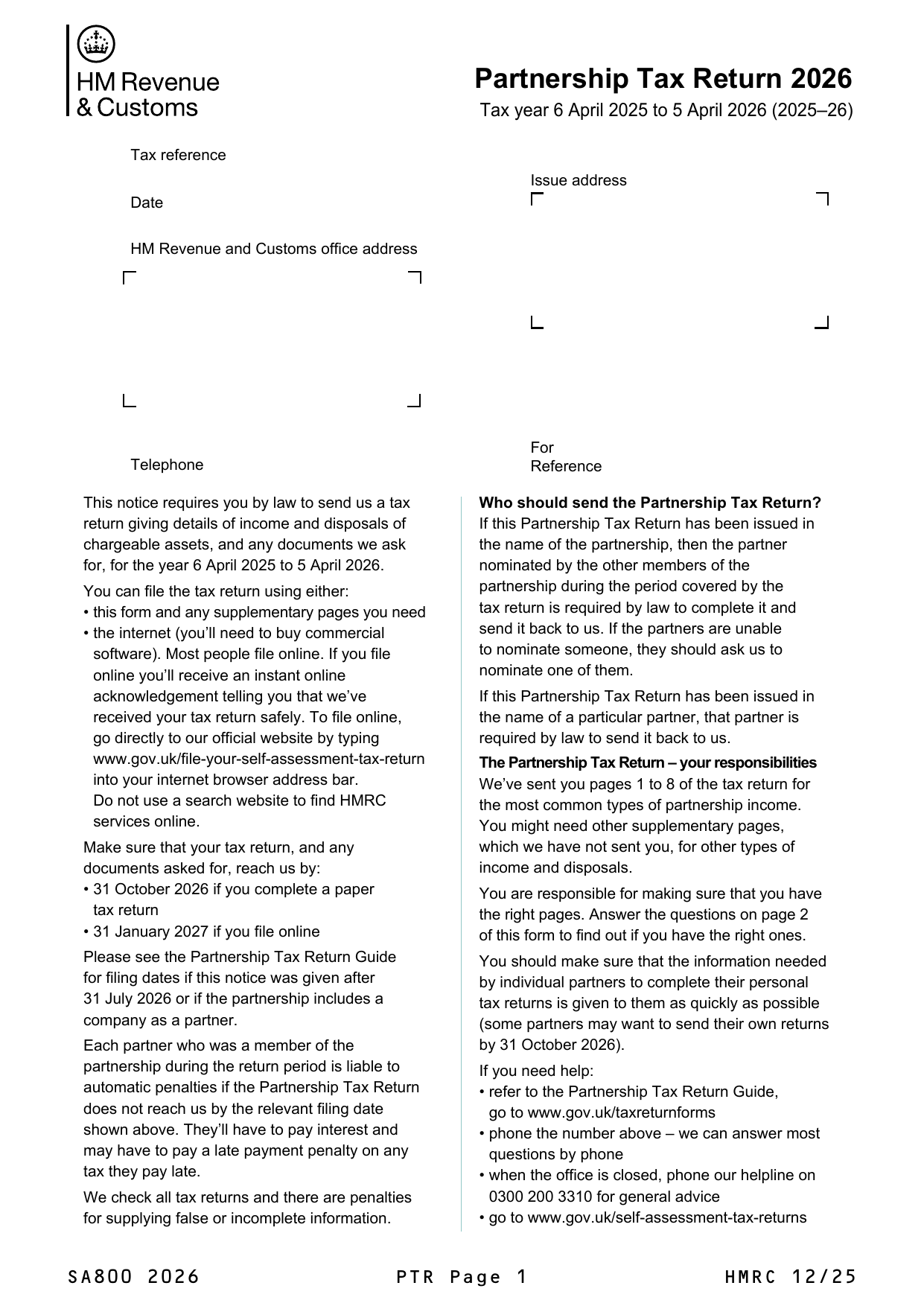
The printed form carries the short Partnership Statement and three partners. Anything it has no box for — a fourth partner onwards, the full statement’s lines, and the figures from the supplementary pages — is listed, exactly as filed, on a schedule after page 8.

What Submit to HMRC actually does
Clicking Submit to HMRC saves your changes and takes payment for the return if it hasn’t been paid for — one credit for an accountant firm, or the standard submission fee by card for an organisation without one (see getting started). It then builds the SA800 from the saved return, signs it with an IRmark (the tamper-evident signature HMRC requires), sends it over HMRC’s online channel, and polls until HMRC confirms the outcome. On success the screen confirms “SA800 submitted to HMRC” and the return becomes Complete.
After you submit
The Review step keeps a list of Submissions to HMRC: when each was sent, its status, the IRmark, HMRC’s correlation ID and, for one that was not accepted, HMRC’s reason.
- HMRC is slow to answer — the submission shows “With HMRC — awaiting their response” and the return is locked so it cannot be sent twice. Tax Optimiser checks again automatically every 15 minutes; Check status asks straight away.
- HMRC rejects the return — the reason is shown, the return unlocks, and you fix it and submit again at no further charge.
- HMRC accepts the return — it is locked. To change it, click Reopen as amended return: the return unlocks with the amended-return flag set, and the next submission replaces the original.
Every submission’s full exchange with HMRC is logged, so if anything looks wrong, email support@taxoptimiser.co.uk and the team can trace the filing end to end.
Back to the start: Partnership (SA800) returns in Tax Optimiser (beta).
