
Every individual has a Self Assessment (Beta) entry in their menu. Accountants open the client from the Individuals list and choose it; individuals filing their own return choose it from their own menu — Tax Optimiser creates the 2025-26 return automatically the first time, so you land straight in the capture screen.
Start by choosing the pages
A Self Assessment return is the core SA100 plus whichever supplementary pages apply, so a brand-new return opens on the Add Sections window and asks you to pick them. Tick the pages this client needs — each one appears in the left-hand menu. The pages are grouped under Income, Other supplementary pages and Reliefs and repayments, and each tile carries a line saying what belongs on it, so it is easy to tell the short self-employment page from the full one. If you close the window without choosing, a Choose pages prompt stays at the top of Personal Details until you do.
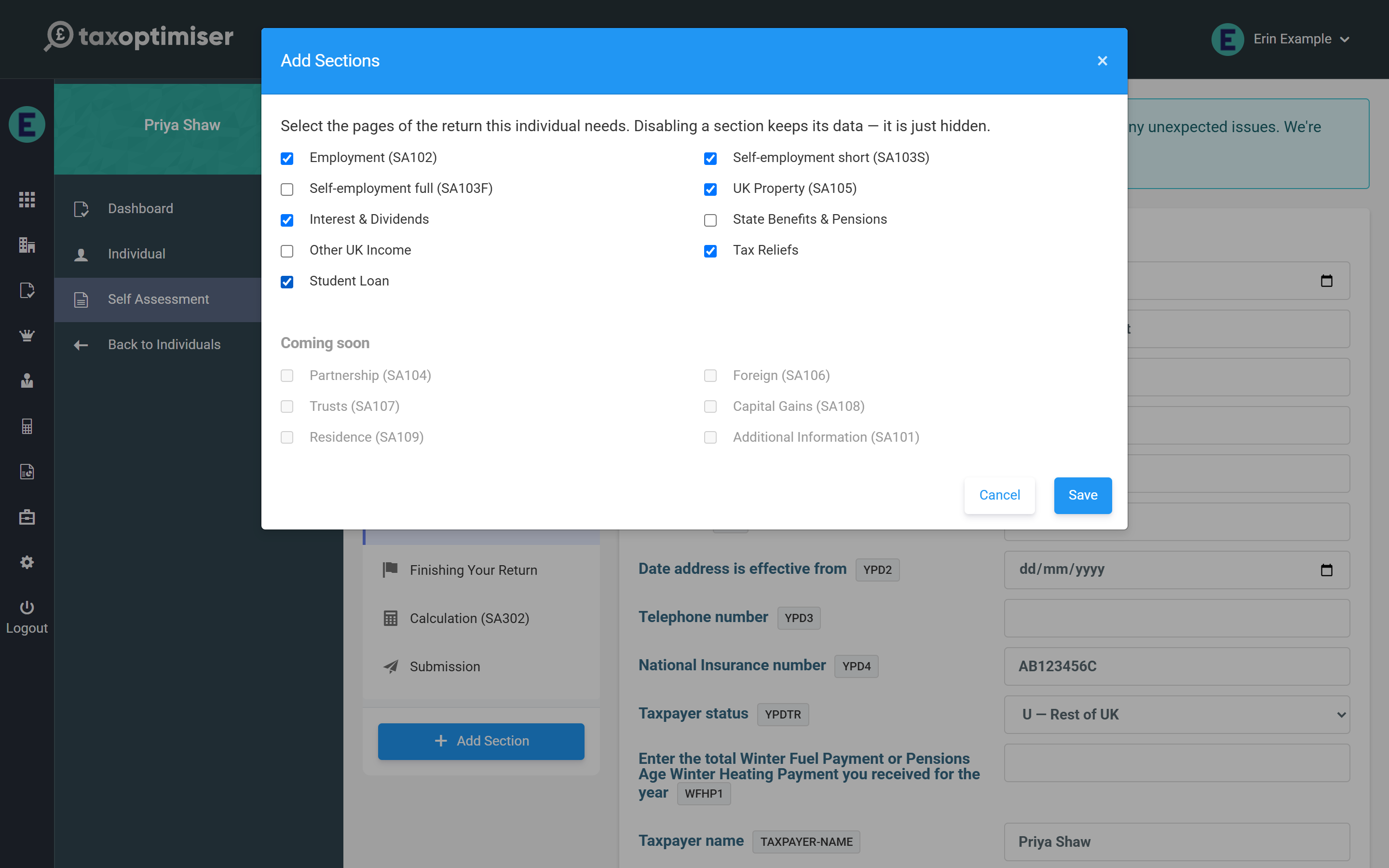
You can come back to Add Section at any time to add a page or take one away. Taking a page away only hides it: the figures are kept, so nothing is lost if you change your mind.
Personal details come pre-filled
The Personal Details section is snapshotted from the client’s record when the year is created: name, National Insurance number and address are already in place. Set the Taxpayer status here — Rest of UK, Scotland or Wales — because it drives which Income Tax bands the calculation uses.
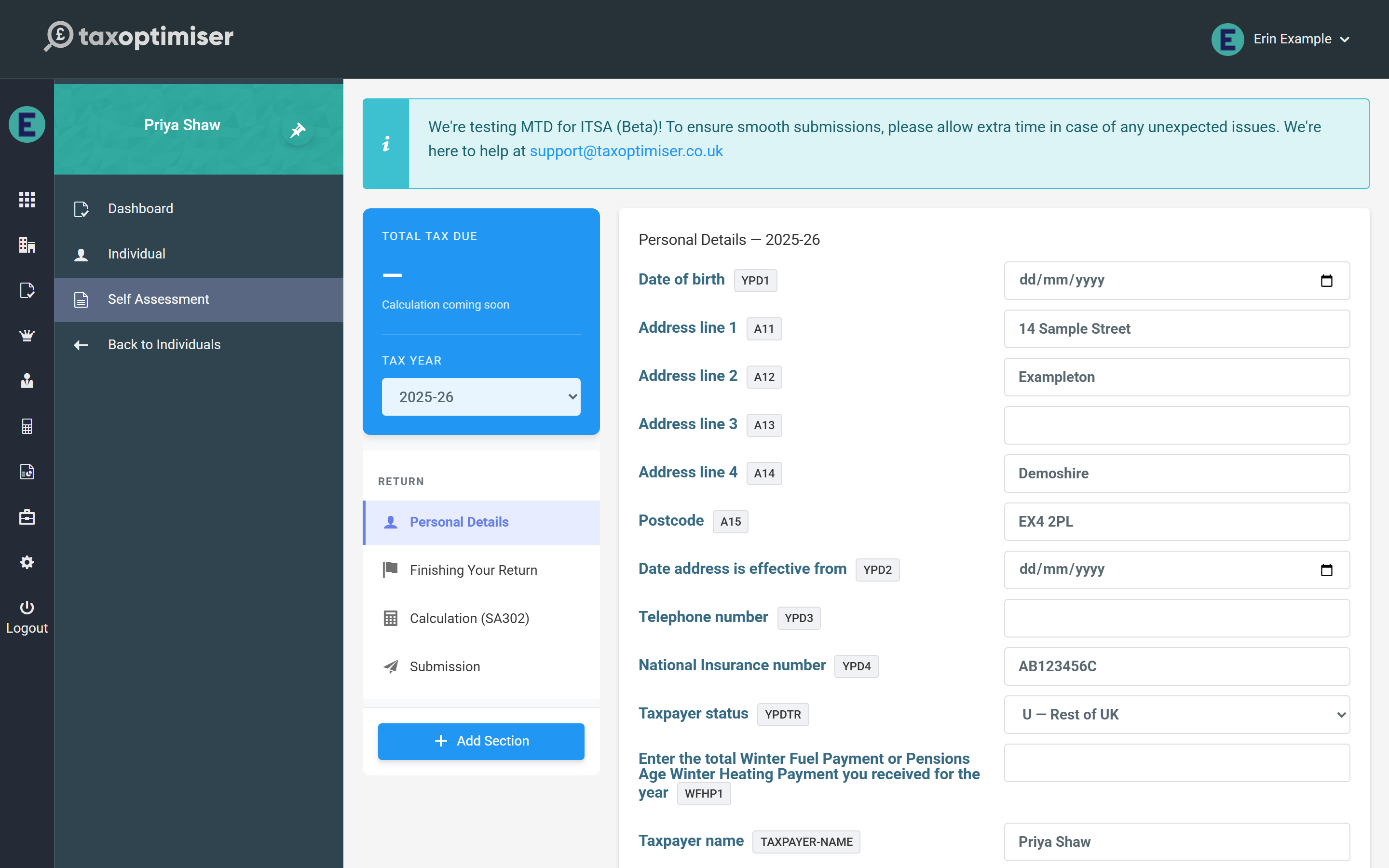
If the client record changes later — a new address, a corrected NINO — the return does not change with it, because HMRC should see what was true when the return was prepared. Instead a notice at the top of Personal Details lists each box that now differs and offers Update from client record to copy the new details over in one click.

Two things worth checking before you go further:
- The client’s Unique Taxpayer Reference must be on their Tax Optimiser record (open Individual from the menu to add it). It has to be the real ten-digit UTR: the pre-flight checks test it against HMRC’s check-digit rule and will not let a return without a valid one reach HMRC.
- The National Insurance number in Personal Details is required for filing too.
Finding your way around
The blue header shows the tax year, the client’s name and their UTR, and a deadline chip: the online filing date (31 January 2027 for 2025-26), which counts down the days once the deadline is a month away, turns red when it has passed, and shows the filed date once HMRC has accepted the return.
The left-hand menu lists the sections in the order of the return. A green dot beside a section means figures have been entered on it; a red number beside Calculation counts the problems that would stop the return being filed online, and an amber number counts points the calculation wants you to check. Click any section to open it, or use Back and Next at the foot of the screen to work through the return in order — the footer also shows which section you are on and whether your changes are saved.

Every section opens with its name, a line saying what belongs on it, and two links: HMRC notes opens HMRC’s own form and notes for that page on GOV.UK, and Help guide opens the article in this series that covers it.

Hidden pages that still hold figures
Because a hidden page keeps its figures, those figures would still be filed. The screen will not let that happen quietly. When you untick a page that holds entries, the Add Sections window warns you and offers Clear its figures (ticked by default) so the page goes with nothing on it; leave it unticked to keep the figures for later.

A page hidden with figures kept is listed in the menu under Hidden pages with figures, and the pre-flight checks on the Submission section will not pass until it is shown again or cleared.

Everything saves as you go
Each box saves when you leave the field, and the tax calculation re-runs automatically. The card at the top of the section menu updates within a moment of each entry: it shows the Total Tax Due by 31 January, including any first payment on account, or Repayment Due when the client has overpaid, and when payments on account are due it sets out the 31 January and 31 July amounts underneath. There is no separate save button to remember — the footer reads All changes saved once an entry is stored. If you type something into a money box that is not a number, the box turns red, says it has not been saved, and keeps what you typed so you can correct it.
