
A Charitable Incorporated Organisation is a charity that is also a body corporate — so it is a “company” for Corporation Tax purposes, but it is registered with the Charity Commission and not with Companies House. That combination makes its filing journey different from every other structure in Tax Optimiser, and this article walks the whole of it: signing up, telling us you are a CIO, preparing the figures, claiming charitable exemption on the CT600E, attaching your trustees’ accounts, and sending the return to HMRC.
What a CIO files, and what it doesn't
Three things are true of a CIO at the same time, and each one shapes what you will see in the app:
- It files a CT600. A CIO is within the charge to Corporation Tax. The charitable exemptions reduce what is payable — they do not remove the obligation to make a return when HMRC asks for one.
- It files nothing at Companies House. A CIO has no company registration number and never files accounts there. Tax Optimiser hides the statutory-accounts and Companies House screens entirely for a CIO, so you will not see “View Accounts” or “Companies House Submission” in the period menu.
- Its accounts follow the Charities SORP, not the Companies Act. There is no HMRC-accepted iXBRL taxonomy for SORP accounts, so instead of being tagged and generated in the app they are attached to the return as a PDF. You prepare those accounts yourself (or your accountant does) and upload the signed copy.
So the shape of the job is: get the figures in, build the Corporation Tax computation, complete the CT600E exemption claim, attach the SORP accounts PDF, and send.
Before you start
Two of these come from HMRC and the Charity Commission rather than from Tax Optimiser, so it is worth checking you have them before you begin:
- A Corporation Tax UTR. A CIO does not get one automatically — there is no Companies House incorporation to trigger it. You must register the charity with HMRC for Corporation Tax, and HMRC then issues the ten-digit Unique Taxpayer Reference.
- HMRC Government Gateway credentials enrolled for Corporation Tax Online, which is what the return is filed with.
- Your Charity Commission registration number, which goes on the CT600E.
- The signed trustees' annual accounts as a PDF for the year you are filing.
You may not need to file every year. HMRC issues a notice to deliver a Company Tax Return to charities periodically rather than annually. If you have not received one for a period, you generally do not have to file for it — but if you have, the return is due whether or not any tax is payable.
Sign up and tell us you're a CIO
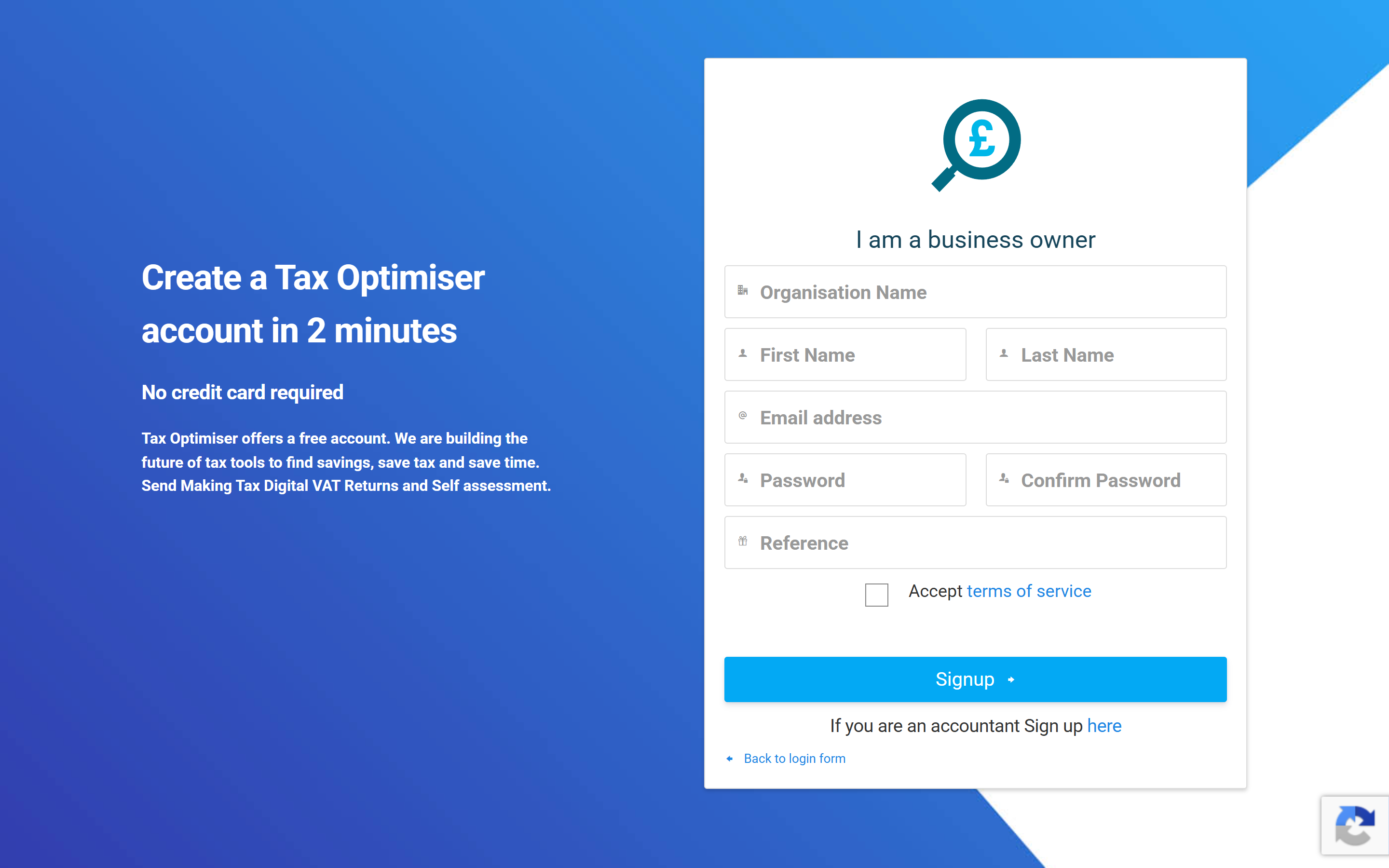
Start at the normal organisation sign-up page and create your account with the charity's name and your email address.
Every new organisation starts out assumed to be a limited company, because most are. On your dashboard, find the Accounts & Corporation Tax card and choose Enable Accounts. The card turns into a short setup checklist whose first step is Enter your Companies House number — the one step a CIO can never complete. So the checklist offers the way out underneath it:
“…or, if you’re a charity, club or association, you won’t have one. Tell us which and we’ll set you up to file a Corporation Tax return only — no statutory accounts, no Companies House.”
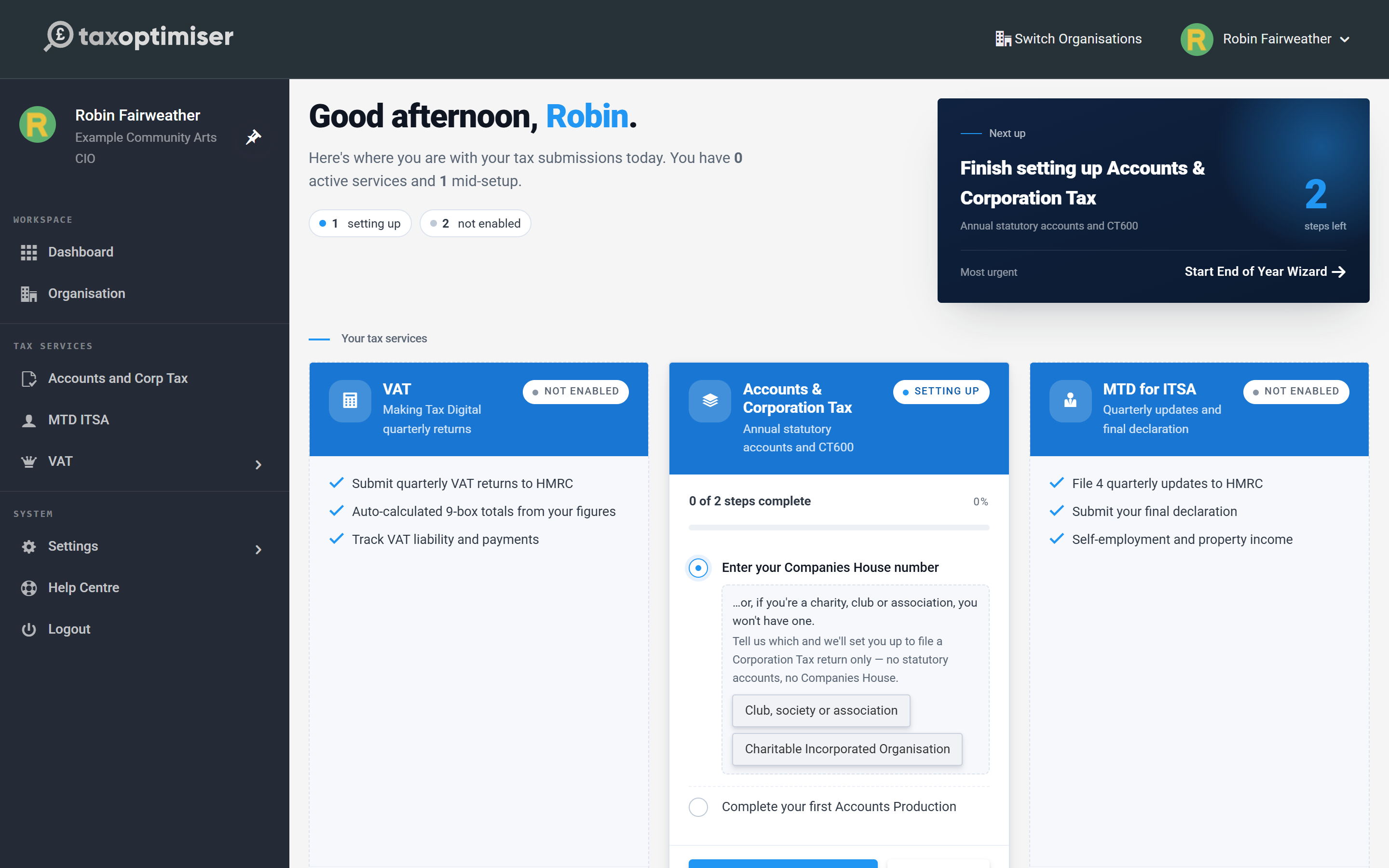
There are two answers, and they are not interchangeable — choose Charitable Incorporated Organisation. (The other, Club, society or association, is for an unincorporated members’ club or association, which is a different kind of entity and files a different declaration to HMRC.) Choosing CIO does three things at once:
- switches the organisation off the statutory-accounts and Companies House route;
- sets your Corporation Tax company type to Charity, which is what makes the CT600E supplementary page appear later; and
- takes you straight to creating your first accounting period.
Leave the Companies House number blank. A CIO does not have one. If a company number is saved against the organisation, Tax Optimiser will sync the organisation with the Companies House register and reset it to a limited company — which silently undoes the CIO setting.
If you are an accountant setting up a client rather than a charity signing itself up, you do not use the dashboard question: choose Charitable Incorporated Organisation from the Company structure dropdown when you create the client organisation, and leave the company number empty. Everything after that is identical.
Create the accounting period
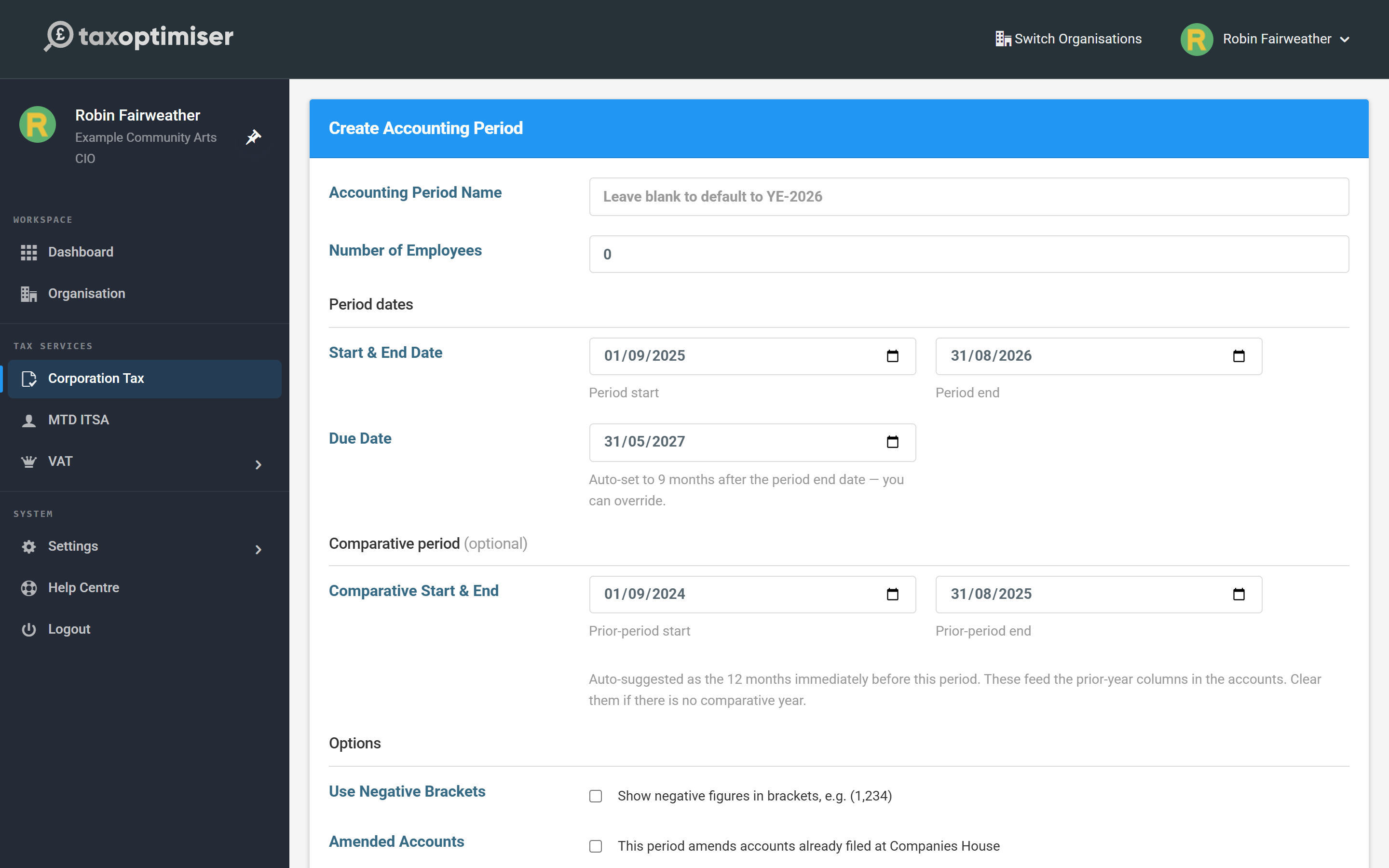
Enter the period the accounts cover, its start and end dates, and (optionally) the comparative year. There is no Companies House company search on the way in — that route exists only for companies, whose dates come from the register. Your CIO's dates come from its constitution and its accounts.
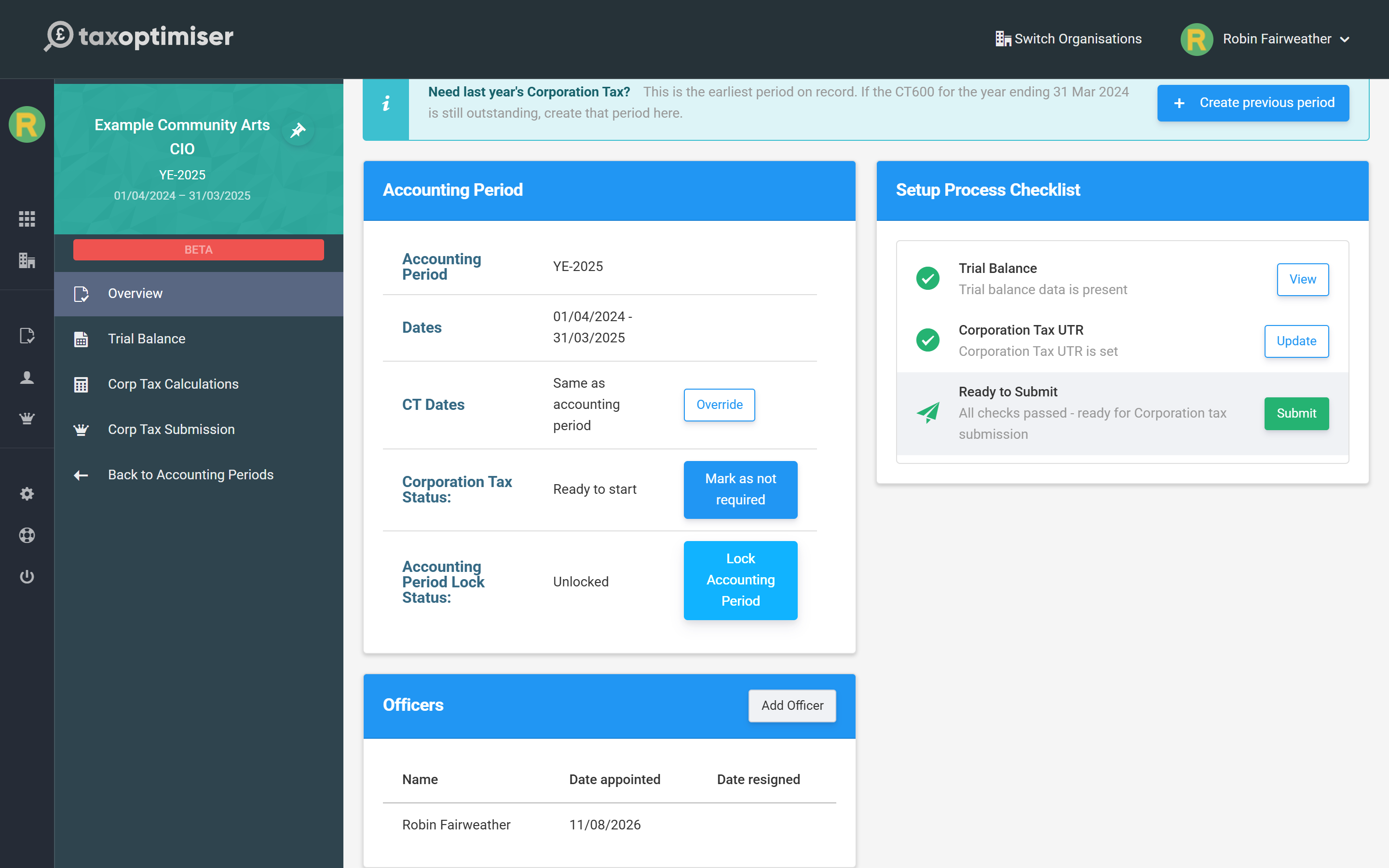
Once the period exists, its left-hand menu shows only what applies to a CIO: Overview, Trial Balance, Corp Tax Calculations and Corp Tax Submission. On the Overview, the people card is titled Officers rather than Directors — a CIO has charity trustees, and one of them will accept the declaration when you file.
Enter the trial balance
The computation is built from a trial balance, and you can get one in three ways: type it into the manual-entry grid, import it from a spreadsheet, or sync it from Xero, QuickBooks or Sage. Whichever you use, the trial balance must balance before you can go on.
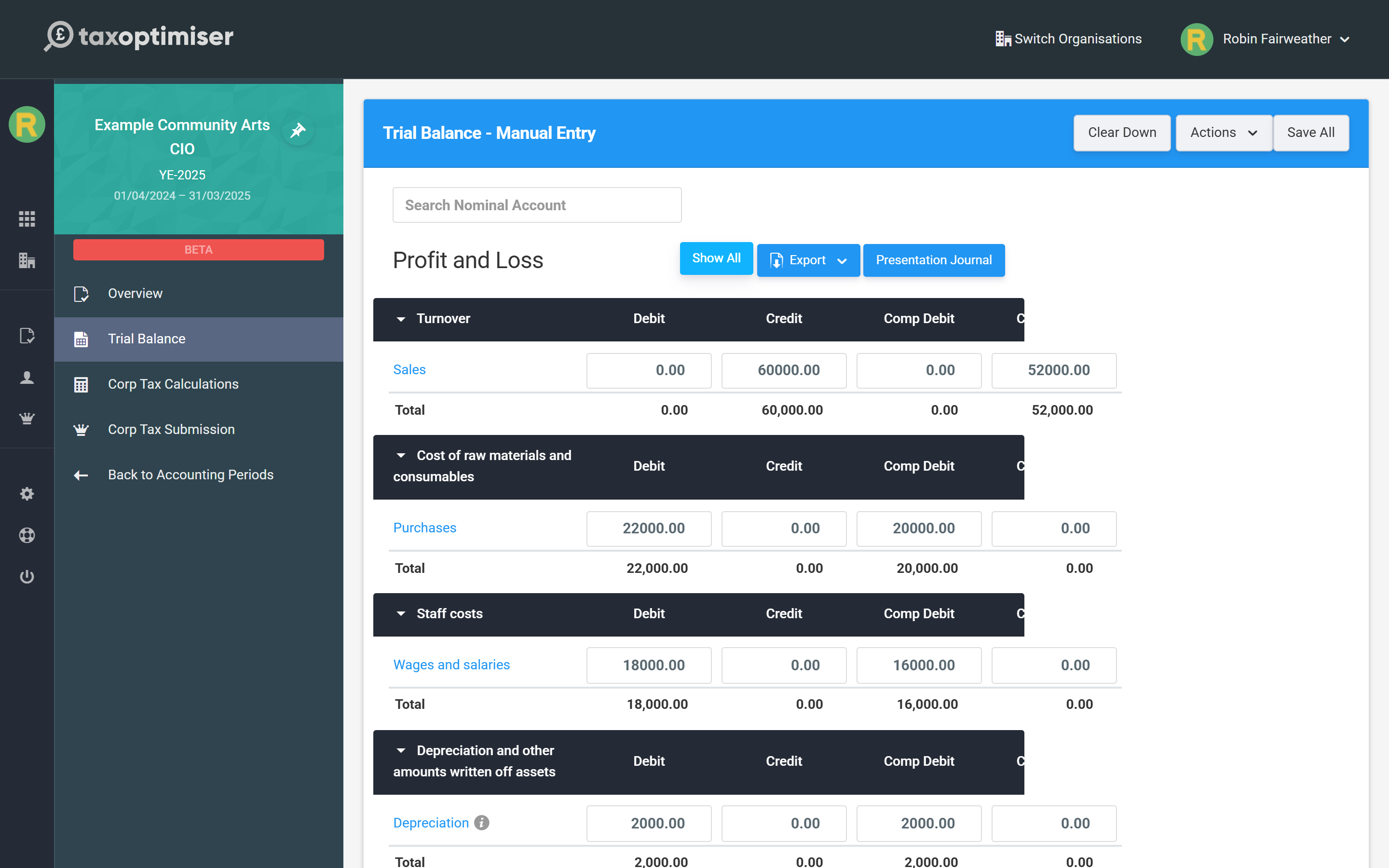
This step works the same way for every structure — see Getting the figures in: the trial balance for the detail, including the spreadsheet import.
Build the Corporation Tax computation
Open Corp Tax Calculations. This is where the accounting figures become taxable figures: disallowable expenditure is added back, capital allowances are claimed on assets, and any losses are applied. For most CIOs the amount that actually ends up taxable is small or nil, because the charitable income is exempt — but the computation is still what supports that position. You do not adjust the accounts to get there: when the CT600E (next step) claims exemption on all income and gains, the computation removes the whole surplus from charge itself and shows it as a Less: profits exempt from Corporation Tax line; if only part is exempt, strip the exempt income out with an Income adjustment on the Adjustments tab.
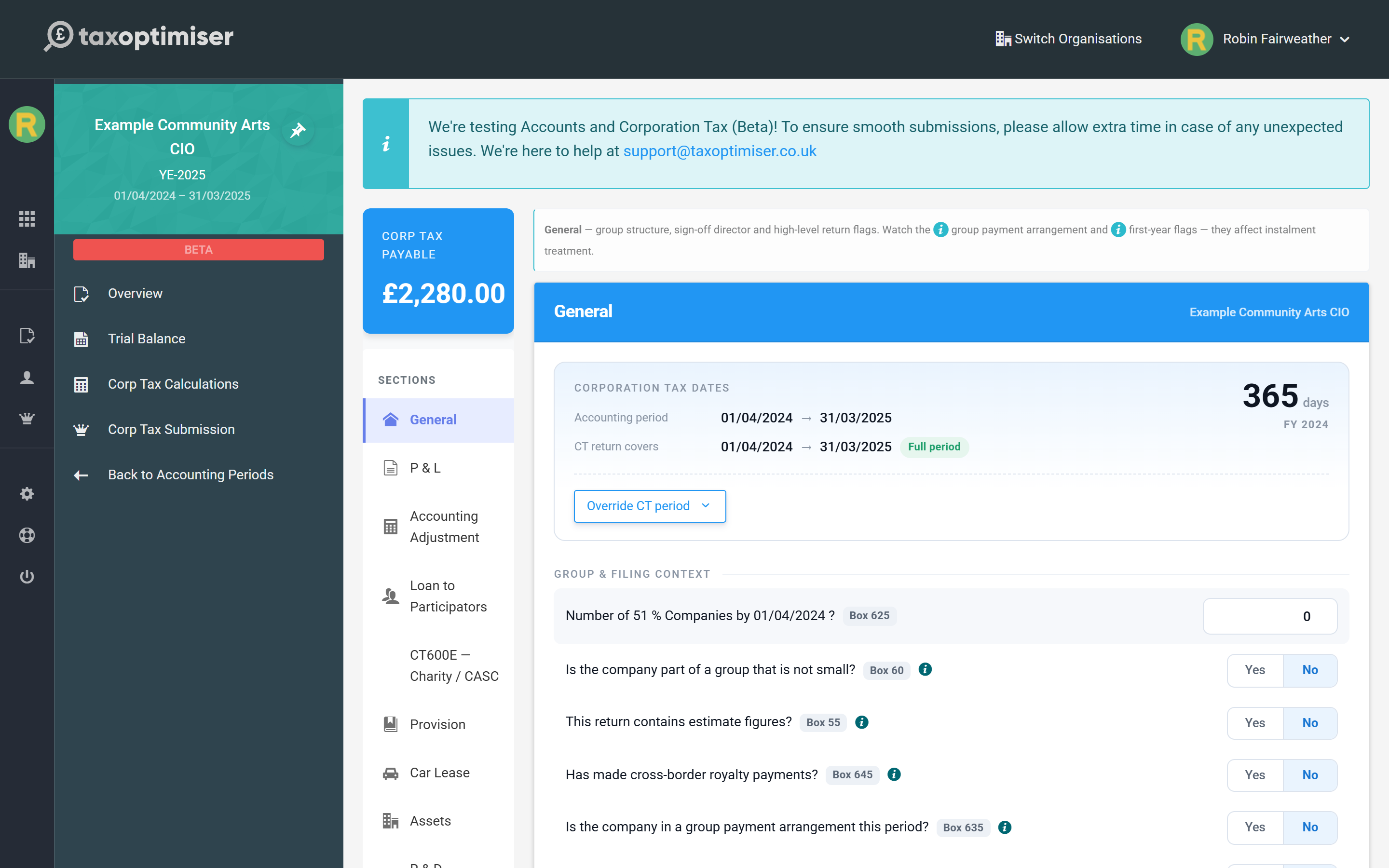
Again, the mechanics are common to every Corporation Tax return — Building the Corporation Tax computation covers the adjustments in full, and Capital allowances covers assets and the Annual Investment Allowance.
Complete the CT600E
Because a CIO is a charity, the CT600E — Charity / CASC page appears in the Corp Tax Calculations menu automatically. You do not have to switch it on: it follows from the company type that was set when you told us you were a CIO.
The CT600E is where the charity claims exemption from Corporation Tax on its charitable income and gains, and reports the figures that support the claim. It has four tabs:
- Claim Exemption — the HMRC repayment reference and your Charity Commission registration number, whether you are claiming exemption for all or part of the period, and whether all income and gains were applied for charitable purposes.
- Income — income analysed by type.
- Expenditure — expenditure applied for charitable purposes.
- Assets & Legacy Payments.
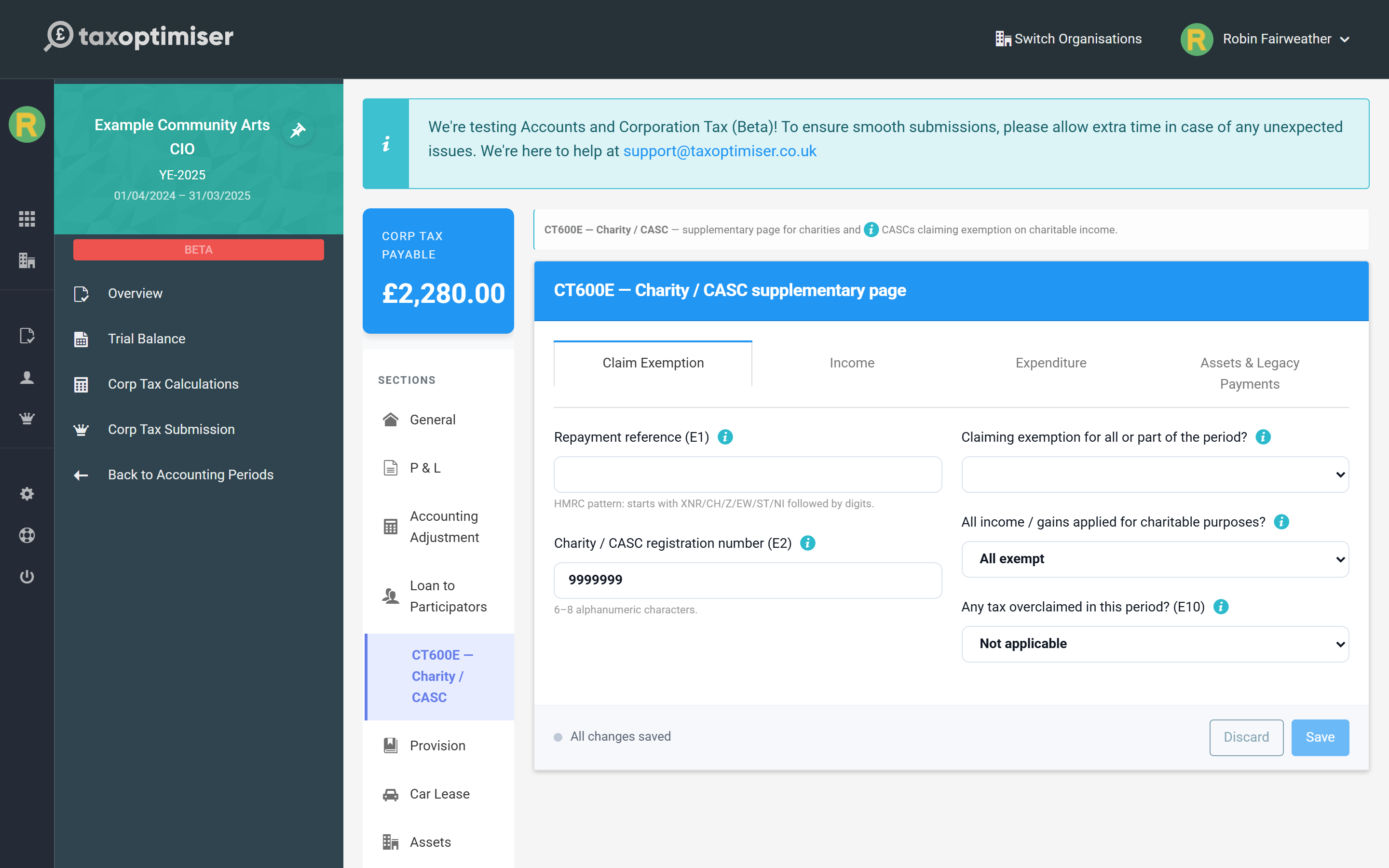
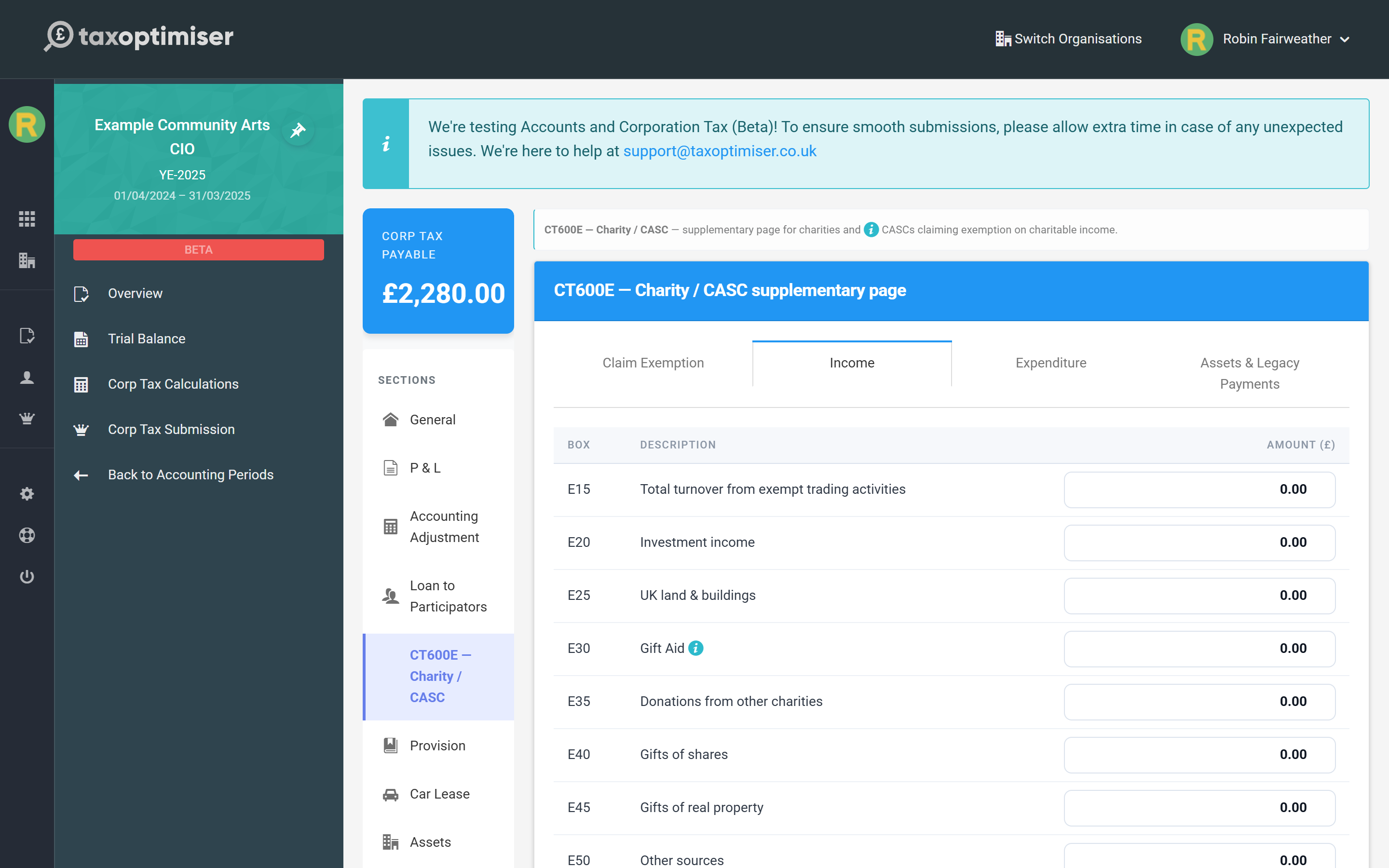
The CT600E is filed automatically as part of the same submission — there is nothing separate to send. Corporation Tax for charities and CASCs (CT600E) goes through the form in detail, including how partial exemption is expressed.
Attach the trustees' accounts
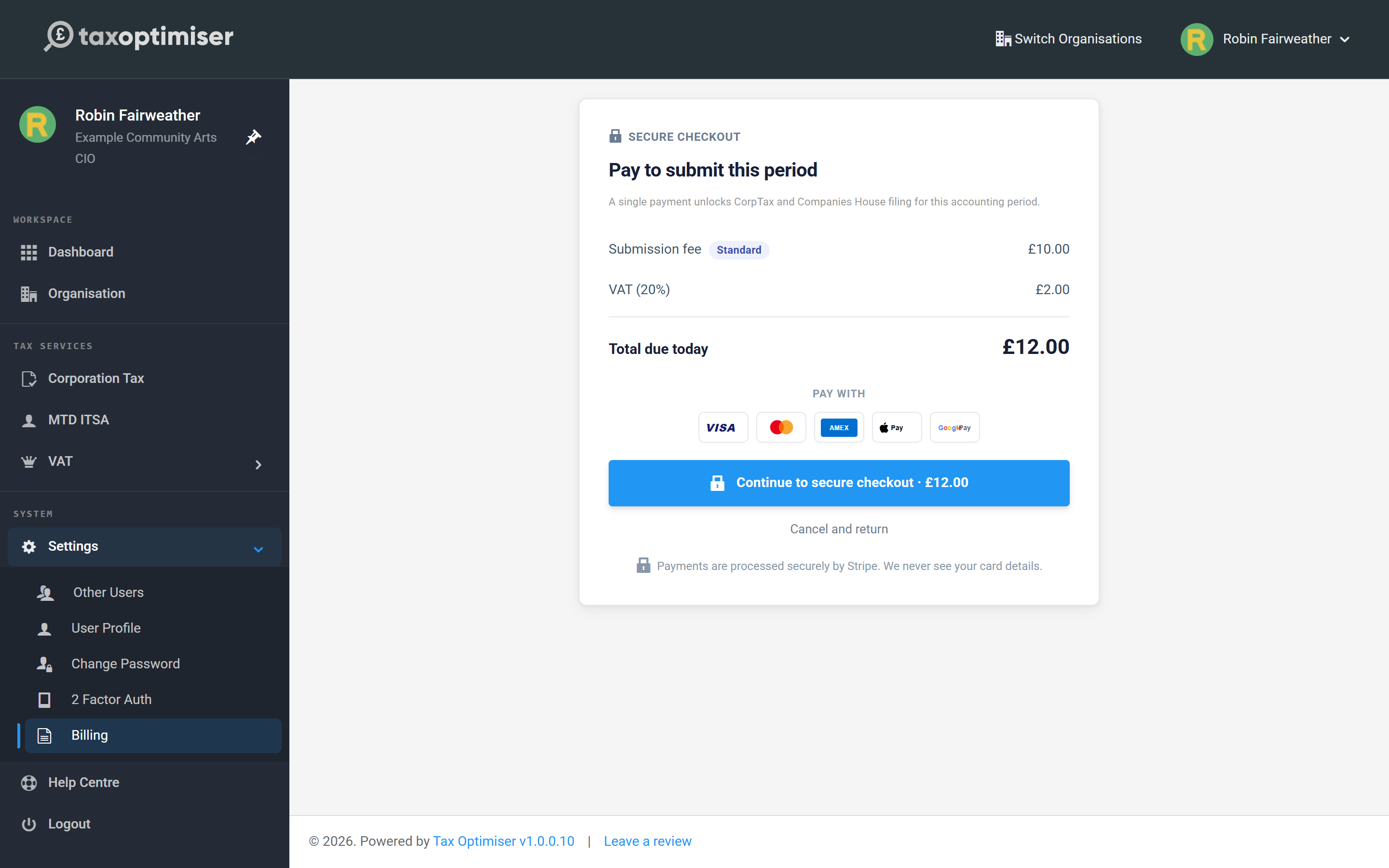
Open Corp Tax Submission to start the filing wizard. Filing a return carries a one-off fee for the accounting period, shown with VAT before you pay; if your accountant files on your behalf through their firm, it is covered by their filing credits instead.
The wizard for a CIO has a step no other structure has: Attach Accounts. Choose the signed trustees' accounts PDF for the period and it uploads against the return.
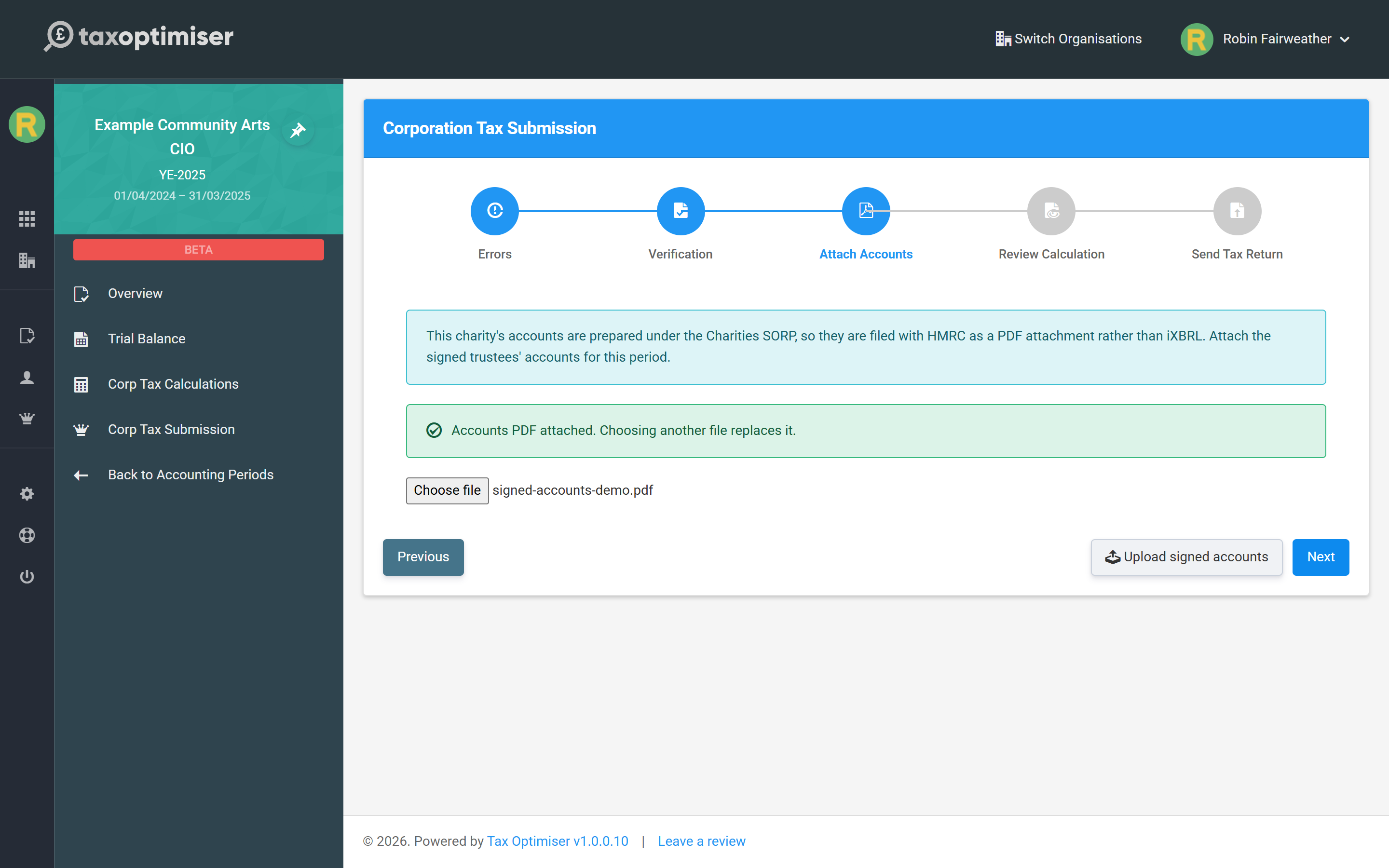
This is not optional and it is not a convenience feature. Because there is no iXBRL taxonomy for SORP accounts, the return tells HMRC that PDF accounts are attached with an explanation — and HMRC's own validation rejects a return that makes that declaration without the file behind it. In other words, a CIO return cannot be filed until the accounts PDF is attached. Choosing another file replaces the one already there.
Send the return to HMRC
The first step of the wizard lists everything still outstanding, each with a button to fix it on the spot:
- HMRC Government Gateway credentials
- Corporation Tax UTR
- Signage date — the date the accounts were approved
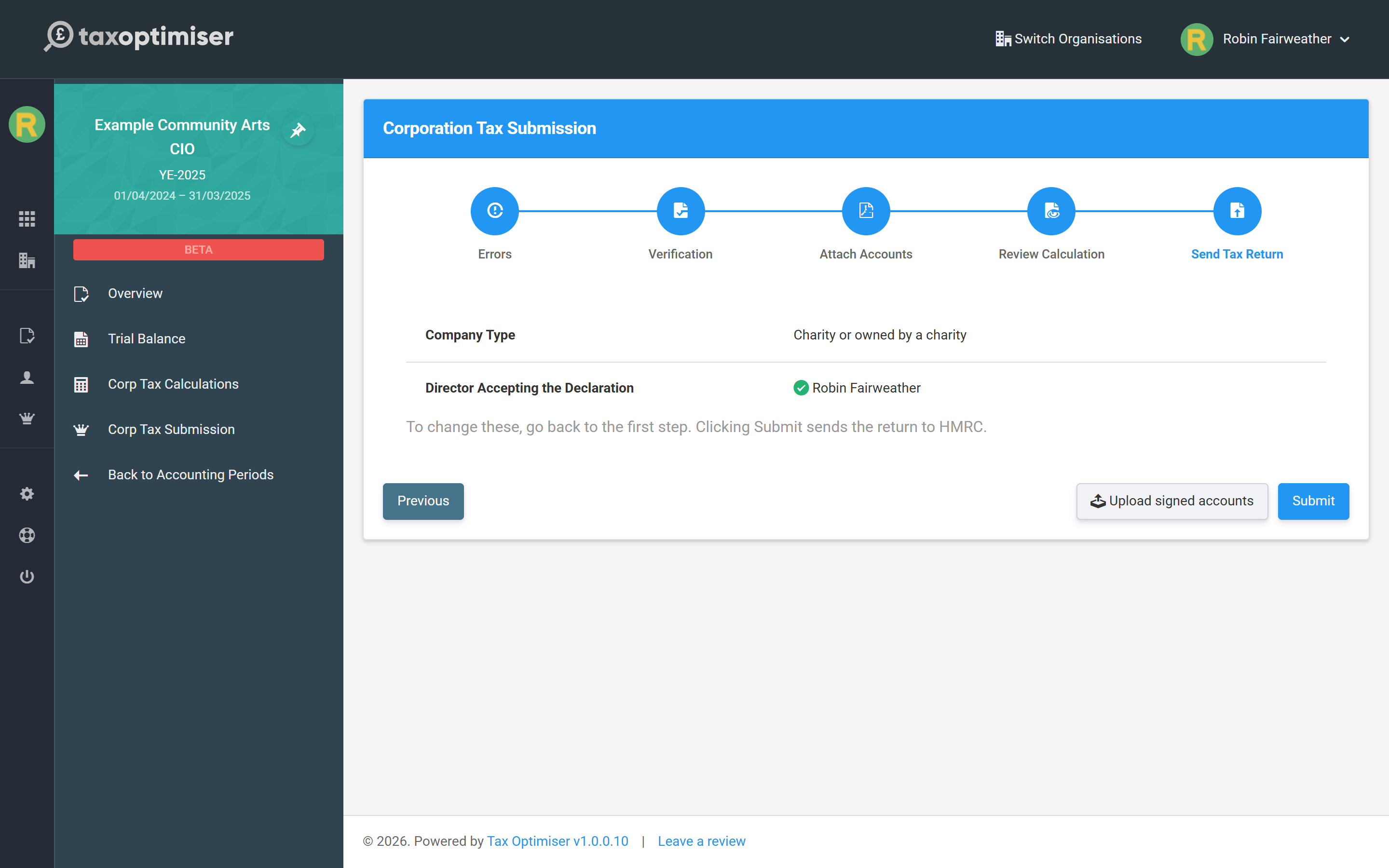
- Company Type — which should already read Charity or owned by a charity for a CIO
- The officer accepting the declaration — the trustee taking responsibility for the return. Add officers on the period Overview if the list is empty.
- Account Status — a period starts in Draft. Choose Take out of draft; you cannot move on while it is there.
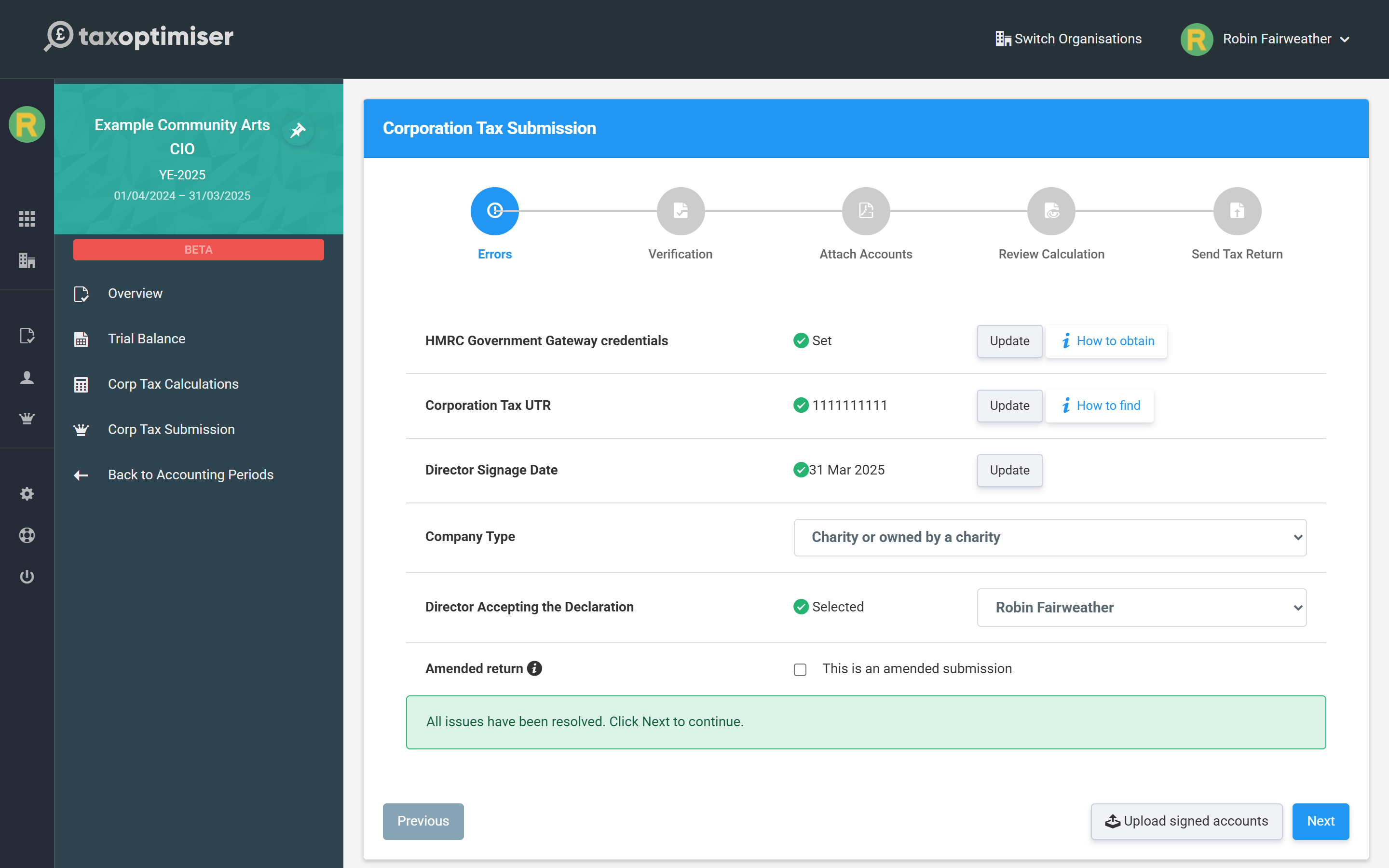
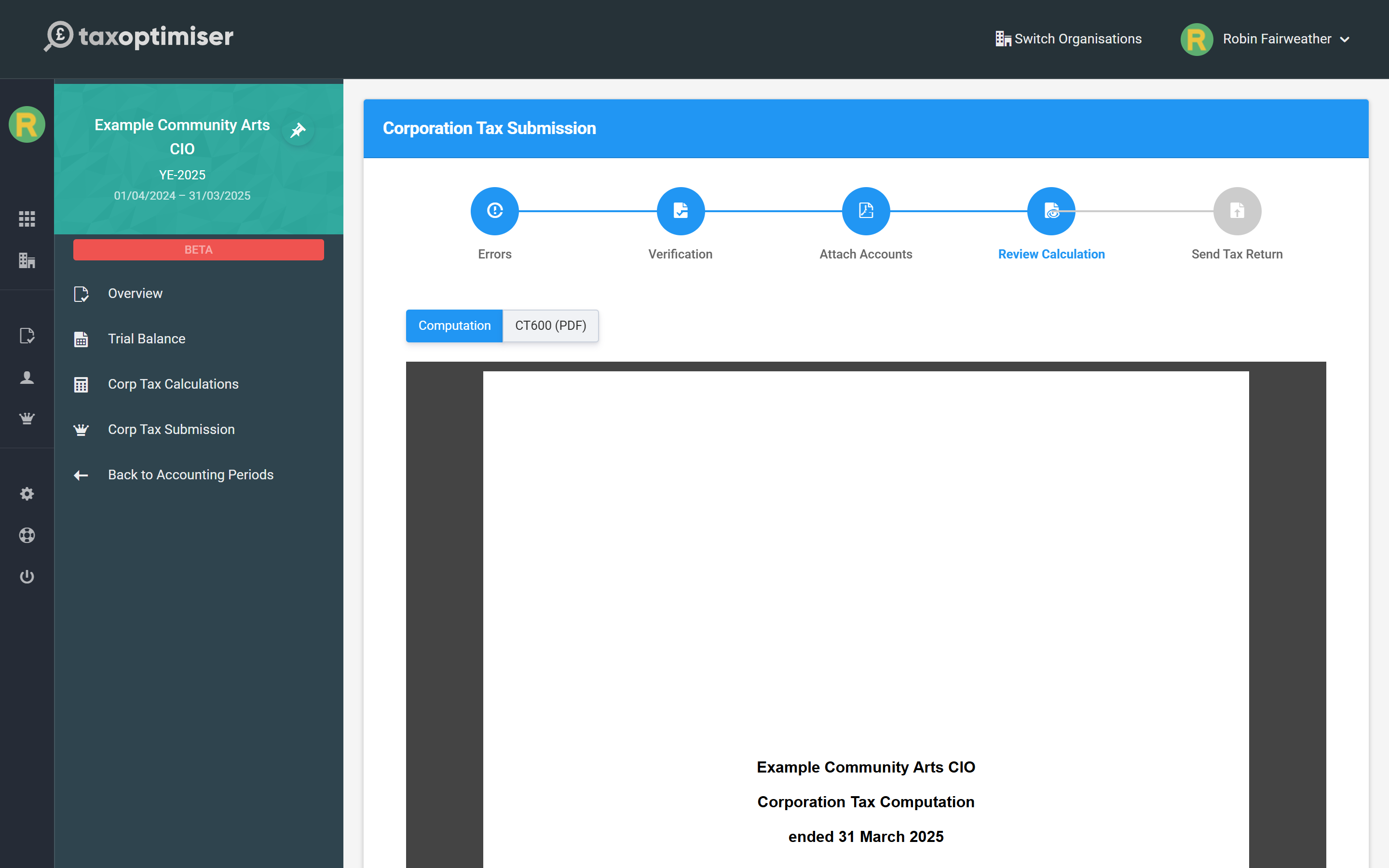
Work down until the step reports All issues have been resolved. Then Verification asks you to confirm the trustees have approved the accounts, and Review Calculation shows the computation and the populated CT600 itself — you can read and download either as a PDF before anything is sent.
The last step, Send Tax Return, confirms the company type and the declaring officer. Submit files the CT600, the CT600E and the attached accounts to HMRC as a single submission.
After you've filed
HMRC responds with an acceptance or with errors, and the result is recorded against the accounting period, so you always have evidence of what was sent and when. The frozen copies of the computation, the CT600 and the accounts PDF are kept with the submission — they are the return as filed, and they do not change if you later edit the period.
If you need to correct a return you have already filed, tick This is an amended submission on the first step of the wizard and file again; HMRC accepts amendments for a period for twelve months after the filing deadline. When the next year comes round, create the new accounting period and repeat — the CIO settings, the company type and your credentials all carry forward.
Related: Corporation Tax for charities and CASCs (CT600E) · Submitting to HMRC and Companies House · Corporation Tax: getting started.