
Once the beta is enabled for your firm, every individual client gains a Self Assessment entry in their menu. Open the client from your Individuals list and choose it — Tax Optimiser creates the 2025-26 return automatically the first time, so you land straight in the capture screen.
Personal details come pre-filled
The Personal Details section is snapshotted from the client’s record when the year is created: name, National Insurance number and address are already in place, and stay with the return even if the client record changes later. Set the Taxpayer status here — Rest of UK, Scotland or Wales — because it drives which Income Tax bands the calculation uses.
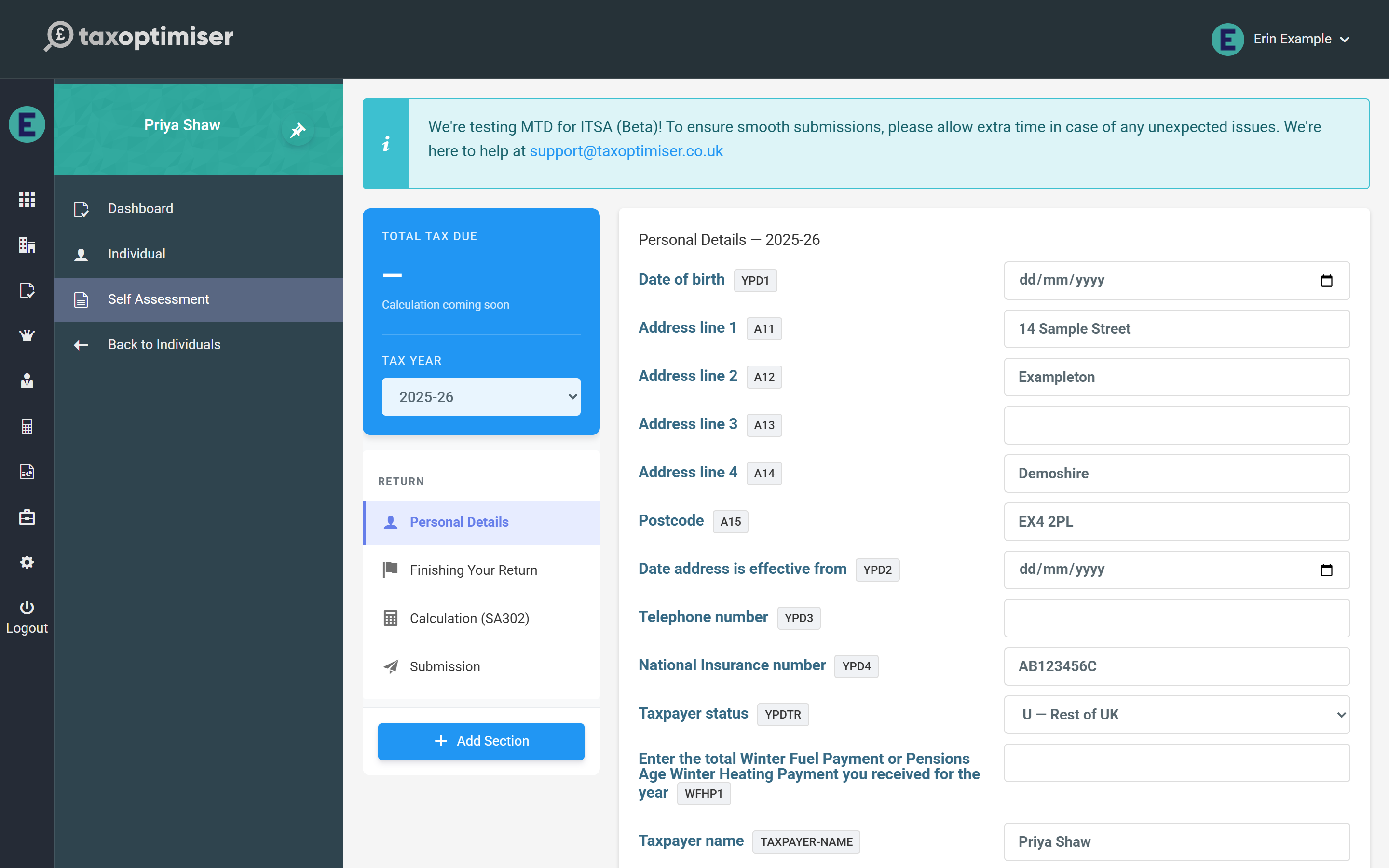
Two things worth checking before you go further:
- The client’s Unique Taxpayer Reference must be on their Tax Optimiser record (open Individual from the menu to add it). The pre-flight checks will not let a return without a valid UTR reach HMRC.
- The National Insurance number in Personal Details is required for filing too.
Pick the pages the return needs
A Self Assessment return is the core SA100 plus whichever supplementary pages apply. Press Add Section and tick the pages this client needs — each one appears in the left-hand menu. Unticking a section later just hides it: the data is kept, so nothing is lost if you change your mind.
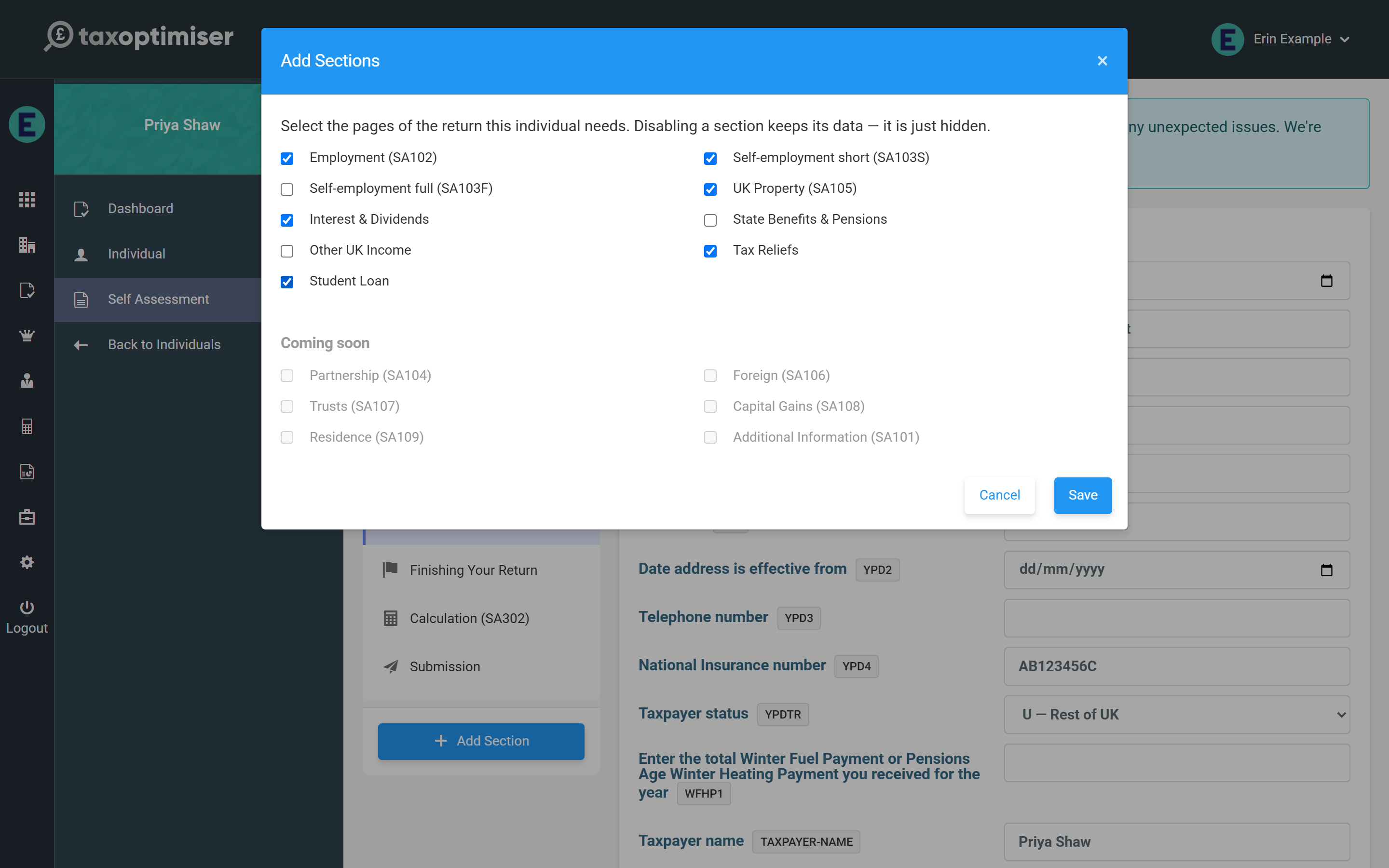
Every SA100 page is available — the core income sections plus the supplementary schedules (Partnership, Foreign, Trusts, Capital Gains, Residence, Additional Information). Tick exactly what this client’s return needs; anything left unticked simply stays out of the menu and the filing.
Everything saves as you go
Each box saves when you leave the field, and the tax calculation re-runs automatically — the Total Tax Due card at the top of the section menu updates within a moment of each entry. There is no separate save button to remember.
Next: Entering income.