
The Submission section takes the return from prepared to filed: pre-flight checks, the declaration, the submission itself, and a history of every attempt.
Pre-flight checks
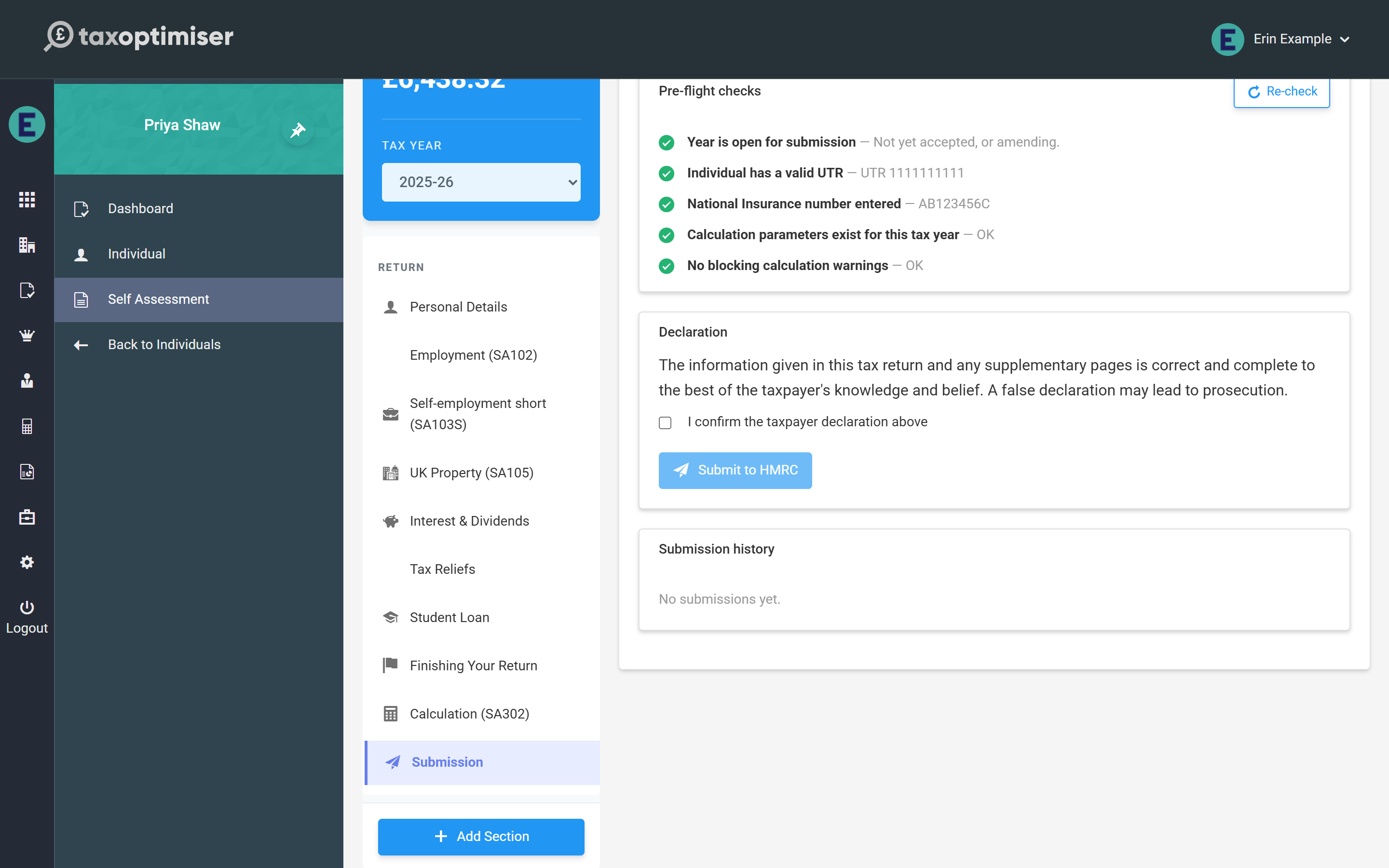
Five checks must pass before the Submit button unlocks, and every one is re-verified on the server at the moment of filing:
- the year is open for submission (not already accepted, unless amending)
- the client has a valid UTR on their record (it is checked against HMRC’s check-digit algorithm, not just for presence)
- a National Insurance number is entered in Personal Details
- calculation support exists for the tax year
- there are no blocking calculation warnings
Anything failing shows in red with what to fix; Re-check runs the list again after you have.
Declaration and submit
Tick the declaration — the standard Self Assessment wording that the return is correct and complete to the best of the taxpayer’s knowledge — and press Submit to HMRC. Tax Optimiser builds the return in HMRC’s required format, signs it with the tamper-evident IRmark, sends it, and polls HMRC for the response, all in one step. On success the year moves to Accepted and locks against accidental edits; if HMRC rejects the return, their errors are shown in full and the year reopens for correction as soon as you edit it.
The submission history
Every attempt is recorded with its status, timestamps and HMRC correlation ID — the reference to quote if you ever need to speak to HMRC (or to support@taxoptimiser.co.uk) about a filing. If a submission is still showing Submitting — for example after a connection drop mid-poll — the Re-poll button asks HMRC for the outcome again without resubmitting anything. Tax Optimiser also chases stuck submissions automatically in the background every fifteen minutes, so a return interrupted mid-poll usually resolves itself without any action from you.
Next: Amending an accepted return.